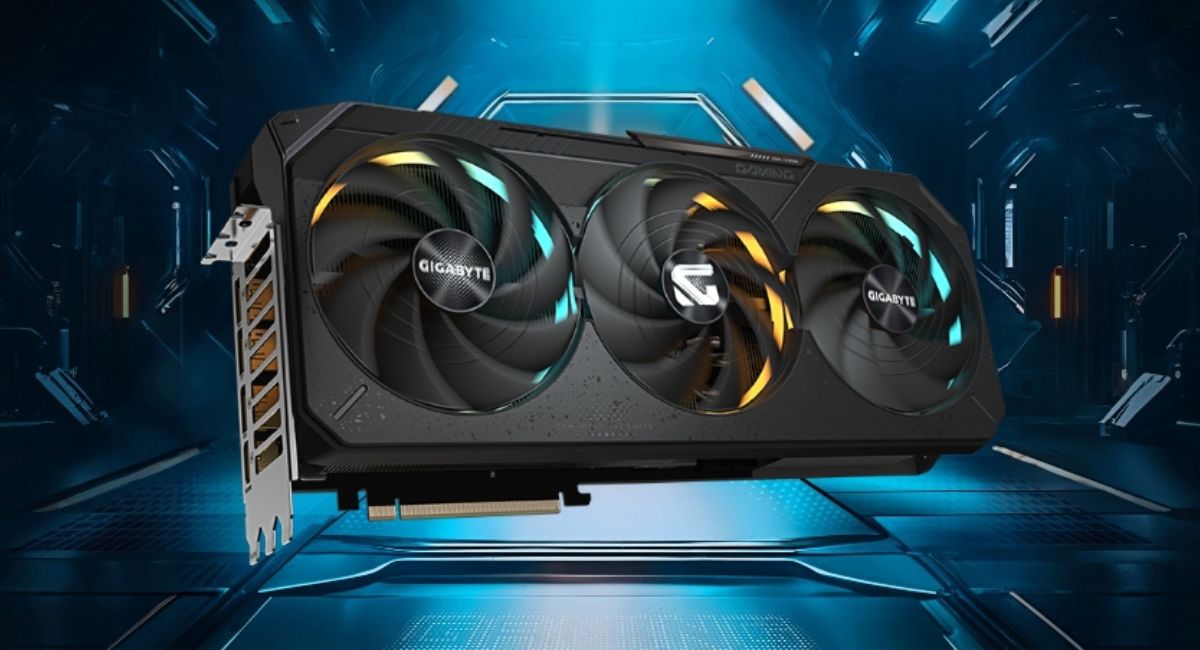
Compatible Video Cards for My Motherboard Guide
Choosing the right video card for your motherboard is essential if you want a stable and high-performing computer system. Many users upgrade their graphics cards without checking compatibility, which can lead to performance issues or even hardware failure. A compatible GPU ensures smooth communication between components, better gaming performance, and efficient multitasking. This guide explains everything you need to know about selecting a graphics card that works perfectly with your motherboard.
Find compatible video cards for my motherboard with our easy guide. Check GPU support, performance, and upgrades to get the best match.
- What Does Video Card Compatibility Mean?
- Understanding PCIe Slots
- Types of Video Cards
- Key Factors for Compatibility
- Features of Compatible Video Cards
- Benefits of Choosing a Compatible GPU
- How to Check Compatibility
- Common Compatibility Issues
- Tips for Choosing the Right Video Card
- Best Practices for GPU Installation and Use
- FAQ’s
- Conclusion
- Related post
What Does Video Card Compatibility Mean?
Video card compatibility refers to how well a graphics card works with your motherboard and other system components.
It is not just about fitting the card into a slot; it also involves power requirements, hardware support, and system limitations.
A compatible GPU ensures that your system runs efficiently without crashes or bottlenecks. If compatibility is ignored, users may face issues like system instability, poor performance, or even failure to boot.
Understanding PCIe Slots
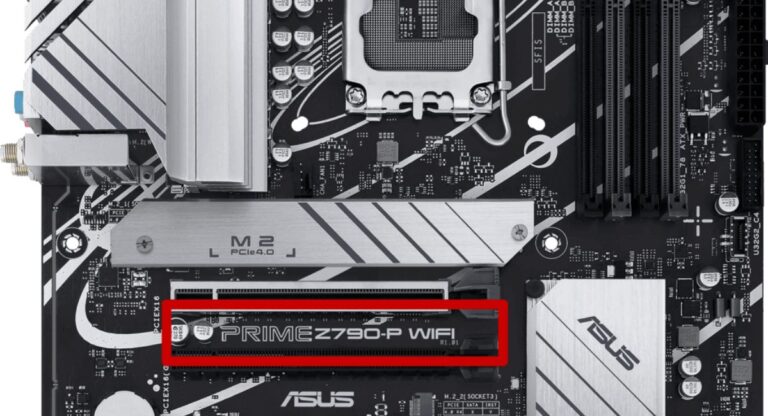
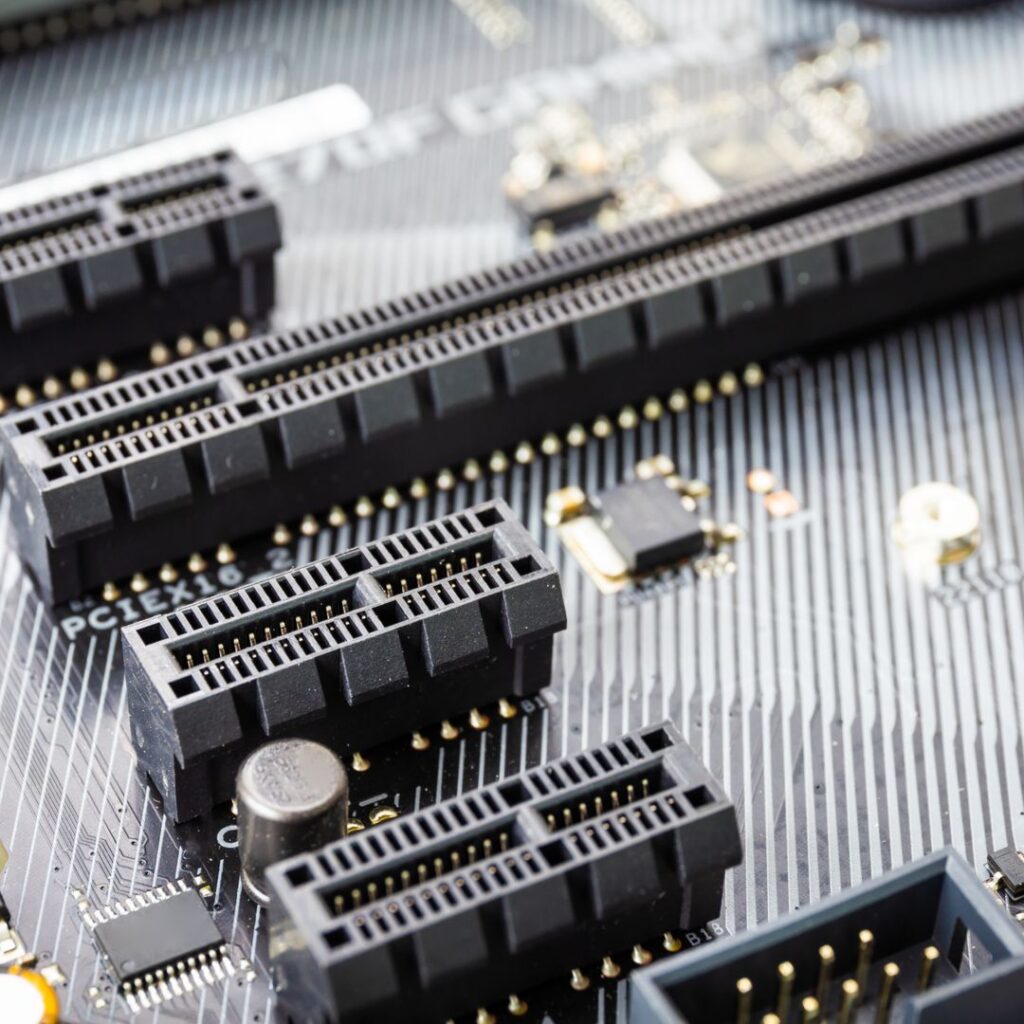
The most important factor in GPU compatibility is the PCIe slot on your motherboard. Most modern graphics cards use a PCIe x16 slot, which provides high-speed data transfer between the GPU and motherboard.
PCIe Generations
There are different PCIe generations, such as PCIe 3.0, 4.0, and 5.0. Newer GPUs are generally backward compatible, meaning they can work on older motherboards. However, performance may be slightly reduced if the motherboard uses an older PCIe version.
For example, a PCIe 4.0 GPU will still work in a PCIe 3.0 slot, but it may not reach its full potential due to bandwidth limitations.
Types of Video Cards
Integrated Graphics
Integrated graphics are built into the CPU and share system memory. These are suitable for basic tasks such as browsing, office work, and video playback. However, they are not ideal for heavy gaming or professional workloads.
Dedicated Graphics Cards
Dedicated GPUs are separate components with their own memory and processing power. These are designed for gaming, video editing, and 3D rendering. They offer significantly better performance compared to integrated graphics.
Workstation Graphics Cards
Workstation GPUs are designed for professional applications like CAD, animation, and scientific simulations. They are optimized for precision and stability rather than gaming performance.
Key Factors for Compatibility
PCIe Slot Availability
Your motherboard must have a PCIe x16 slot to support modern graphics cards. Without this slot, installing a GPU is not possible.
Power Supply Requirements
Graphics cards require sufficient power to operate. High-end GPUs often need additional power connectors from the PSU. Always check the wattage requirement before purchasing a GPU.
Physical Size of the GPU
Some GPUs are large and may not fit in smaller cases. Always check the dimensions of the card and ensure your PC case has enough space.
BIOS Compatibility
Older motherboards may require a BIOS update to support newer GPUs. Without updating the BIOS, the system may not recognize the graphics card.
Features of Compatible Video Cards
A compatible video card offers several important features that improve system performance and usability.
These include advanced cooling systems that keep temperatures under control, high memory capacity for handling complex tasks, and support for multiple displays.
Modern GPUs also include features like ray tracing, which enhances lighting and reflections in games, and AI-based technologies that improve rendering speed and image quality. These features make compatible GPUs suitable for both gaming and professional use.
Benefits of Choosing a Compatible GPU
Selecting a compatible GPU provides many advantages. It ensures smooth performance in games and applications, reduces the chances of system crashes, and improves overall efficiency.
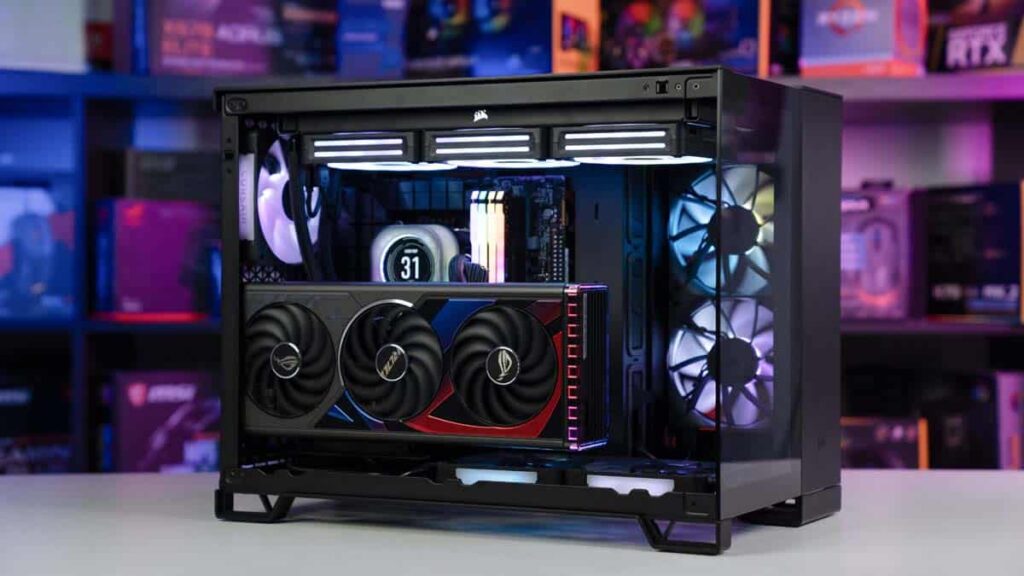
A properly matched GPU also allows better multitasking and faster processing of graphics-intensive tasks.
It helps extend the lifespan of your system and provides flexibility for future upgrades. Most importantly, it prevents unnecessary expenses caused by incompatible hardware.
How to Check Compatibility
To ensure compatibility, you need to follow a few essential steps. Start by identifying your motherboard model. This information can usually be found on the motherboard itself or in system settings.
Next, visit the manufacturer’s website to check supported hardware specifications. Verify the PCIe slot type, power requirements, and recommended GPU models. Also, make sure your power supply unit can handle the new GPU.
Checking the size of your PC case is equally important. A large GPU may not fit in a compact case, which can cause installation problems.
Common Compatibility Issues
System Not Booting
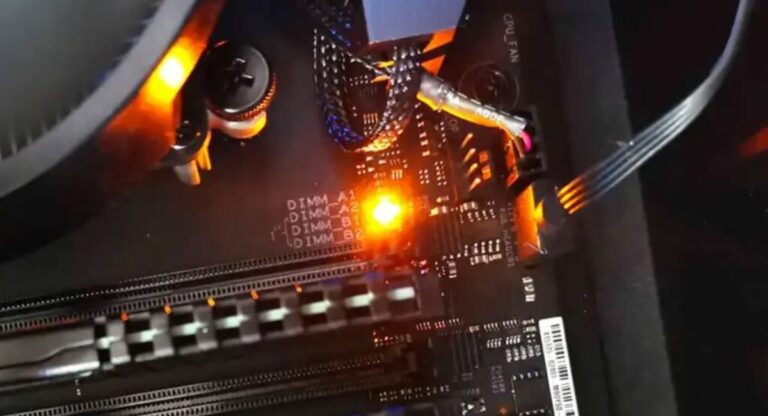
One of the most common issues is when the system fails to boot after installing a new GPU. This can happen due to BIOS incompatibility or improper installation.
No Display Output
Sometimes, users may experience no display after installing a graphics card. This could be due to incorrect cable connections or unsupported hardware.
Reduced Performance
Using a high-end GPU on an older motherboard may result in reduced performance. This is often caused by limitations in PCIe bandwidth or outdated system components.
Tips for Choosing the Right Video Card
When selecting a video card, it is important to consider your specific needs. If you are a gamer, focus on GPUs with high performance and advanced graphics features. For professional work, choose a GPU optimized for rendering and precision tasks.
Budget is another important factor. High-end GPUs offer better performance but come at a higher cost. Always balance your budget with your requirements.
It is also recommended to choose reliable brands and check user reviews before making a purchase. This helps ensure long-term reliability and performance.
Best Practices for GPU Installation and Use
Proper installation and maintenance of your GPU can significantly improve its performance and lifespan. Always install the latest drivers to ensure compatibility with new software and games.
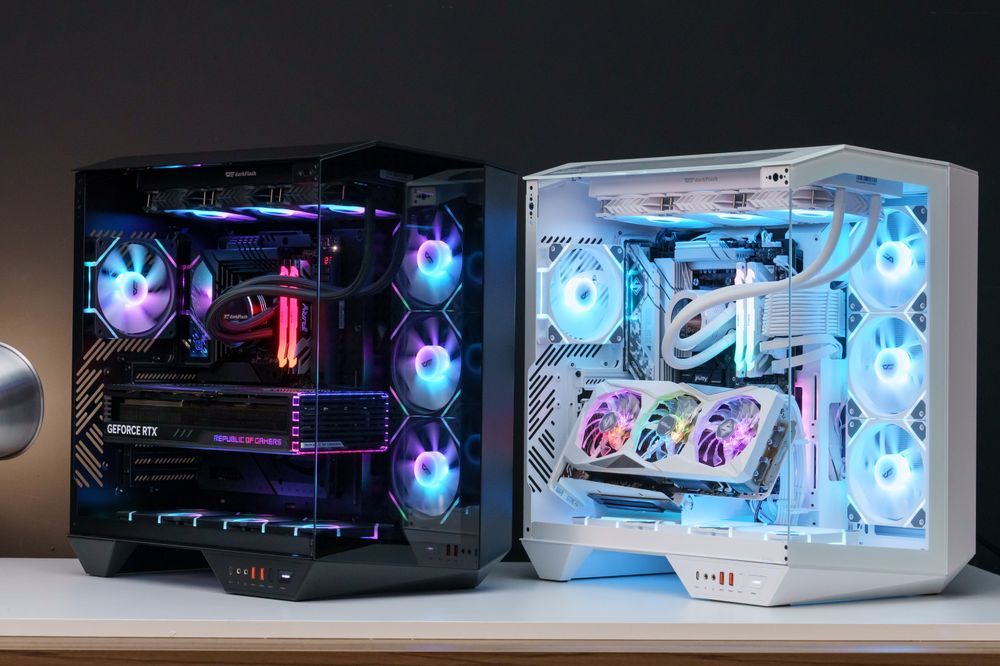
Keep your system clean and ensure proper airflow to prevent overheating. Avoid excessive overclocking unless you are experienced, as it can damage your hardware.
Regularly monitor GPU temperatures and performance to detect any issues early. This helps maintain system stability and efficiency.
FAQ’s
1.What makes a video card compatible with a motherboard?
A video card is compatible if it matches the motherboard’s PCIe slot, power supply capacity, and BIOS support, ensuring smooth operation without hardware or performance issues.
2.Can I use a new GPU on an old motherboard?
Yes, most modern GPUs are backward compatible, but performance may be limited due to older PCIe versions and system bottlenecks.
3.How do I know if my PSU supports my GPU?
Check the GPU’s required wattage and compare it with your PSU capacity. Also, ensure the PSU has the necessary power connectors.
4.Does GPU size matter for compatibility?
Yes, physical size is important. A large GPU may not fit inside smaller PC cases, so always check dimensions before purchasing.
5.Is upgrading a GPU worth it?
Upgrading a GPU is worth it if you need better performance for gaming, editing, or professional tasks, as it significantly improves system capabilities.
Conclusion
Choosing a compatible video card for your motherboard is essential for achieving optimal performance and stability. By understanding key factors such as PCIe slots, power requirements, and system limitations, you can make an informed decision. A well-matched GPU not only enhances performance but also ensures long-term reliability, making your investment worthwhile and future-ready.