How to Know if SSD is Compatible with Motherboard Tips
Upgrading your computer with an SSD is one of the best ways to improve speed, performance, and overall efficiency. However, many users face problems when the SSD they purchase is not compatible with their motherboard. Compatibility depends on factors like interface type, form factor, storage protocol, andBIOS support. Understanding these requirements before buying is very important. In this guide, you will learn simple methods to check SSD compatibility and avoid common installation issues easily and effectively.
Learn how to know if SSD is compatible with motherboard. Check SSD type, M.2/SATA slots, and specs to ensure proper compatibility and upgrade.
- What is SSD Compatibility
- Types of SSD You Should Know
- How to Check Motherboard Compatibility
- Key Factors for SSD Compatibility
- Benefits of Using Compatible SSD
- Features to Consider in SSD
- Common Compatibility Issues
- How to Avoid SSD Compatibility Problems
- SSD Installation Overview
- SATA vs NVMe SSD Comparison
- Frequently Asked Questions
- Conclusion
- Related post
What is SSD Compatibility
SSD compatibility refers to whether a solid-state drive can properly connect, function, and perform well with your motherboard. Every motherboard is designed to support specific storage interfaces and technologies, so not every SSD works with every system.
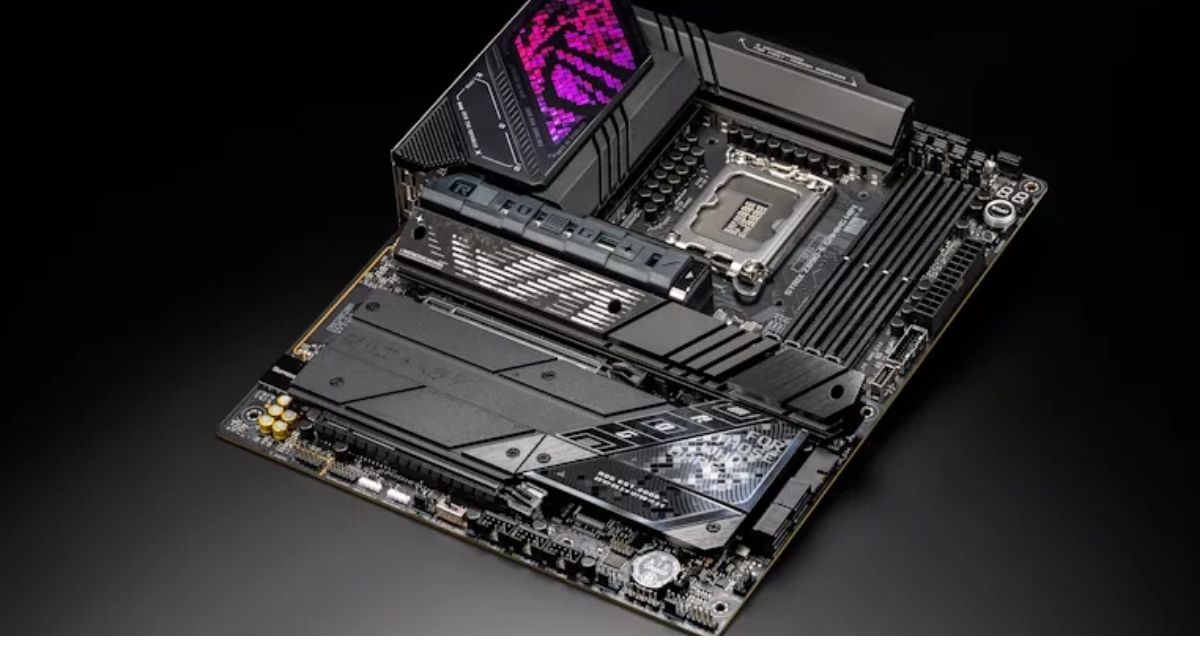
A motherboard acts as the central circuit board of a computer, connecting CPU, RAM, storage, and other components. If the SSD does not match the supported interface or slot type, it may not be detected or may work with reduced performance.
Types of SSD You Should Know
Understanding SSD types is the first step in checking compatibility.
SATA SSD
SATA SSDs are traditional solid-state drives that use SATA ports and are compatible with most older and budget systems.
Features
- Uses SATA III interface
- Affordable and widely available
- Compatible with older motherboards
- Easy installation process
- Moderate speed performance
SATA SSDs are often chosen by users who want a simple upgrade from HDD without spending too much money. They are reliable and work in almost every desktop or laptop that has a SATA port.
NVMe SSD
NVMe SSDs are high-speed storage devices that use PCIe lanes instead of SATA connections.
Features
- Extremely fast read/write speeds
- Uses M.2 or PCIe slots
- Ideal for gaming and heavy workloads
- Requires modern motherboard support
- Higher price than SATA SSDs
NVMe SSDs are designed for performance-heavy tasks like video editing, gaming, and 3D rendering. They are much faster because they directly connect to the CPU through PCIe lanes.
M.2 SSD
M.2 SSD is a form factor, meaning it describes physical shape rather than speed type.
Features
- Compact and space-saving design
- No cables required
- Supports both SATA and NVMe types
- Direct motherboard installation
- Available in different lengths like 2242, 2260, 2280
M.2 SSDs are popular in modern systems because they save space and provide faster installation. However, users must still check whether their motherboard supports SATA or NVMe M.2 drives.
How to Check Motherboard Compatibility
Before buying an SSD, you must carefully check your motherboard specifications.

Check Motherboard Manual
The motherboard manual clearly lists supported storage types, interfaces, and slots.
Inspect Physical Slots
Open your PC case and check for available SATA ports or M.2 slots.
Use System Information Tools
You can use built-in system tools in Windows to find motherboard model and specifications quickly.
Visit Manufacturer Website
Search your motherboard model on the official website to check detailed SSD compatibility information.
These methods are very important because guessing compatibility can lead to wrong purchases. A few minutes of checking can save both time and money.
Key Factors for SSD Compatibility
Interface Type
The interface must match between SSD and motherboard.
Details
- SATA SSD requires SATA port
- NVMe SSD requires PCIe M.2 slot
- Mismatch leads to non-detection
Form Factor
Form factor refers to physical size and shape of SSD.
Common Types
- 2.5-inch SATA SSD
- M.2 2280 SSD
- PCIe expansion card SSD
Storage Protocol
Storage protocols define how data is transferred between SSD and system.
Types
- AHCI protocol for SATA drives
- NVMe protocol for PCIe drives
BIOS Support
Older motherboards may require BIOS updates to support NVMe SSDs properly.
All these factors work together to determine compatibility. Missing even one requirement can cause performance issues or complete detection failure.
Benefits of Using Compatible SSD
- Faster system boot time
- Smooth multitasking performance
- Improved gaming experience
- Faster file transfer speeds
- Better system stability
- Lower power consumption
A compatible SSD not only improves speed but also increases the overall lifespan of your system. It reduces lag and makes everyday tasks much smoother.
Features to Consider in SSD
- High read and write speed
- Storage capacity options
- Long durability and lifespan
- Thermal management system
- Warranty and brand support
- Endurance rating (TBW)
Choosing the right SSD is not only about compatibility but also about performance and reliability. A good SSD ensures long-term stability and better user experience.
Common Compatibility Issues
Problems Users Face
- SSD not detected in BIOS
- Incorrect slot selection
- Unsupported NVMe drive on old motherboard
- Physical size mismatch
- Slow performance due to wrong interface
Most of these issues happen when users skip checking motherboard specifications. Proper research can easily prevent all these problems.
How to Avoid SSD Compatibility Problems
Useful Tips
- Always check motherboard specifications first
- Match SSD type with available slot
- Prefer updated BIOS version
- Avoid buying without research
- Choose trusted SSD brands
Following these simple tips ensures that your SSD upgrade goes smoothly without technical issues or extra expenses.
SSD Installation Overview
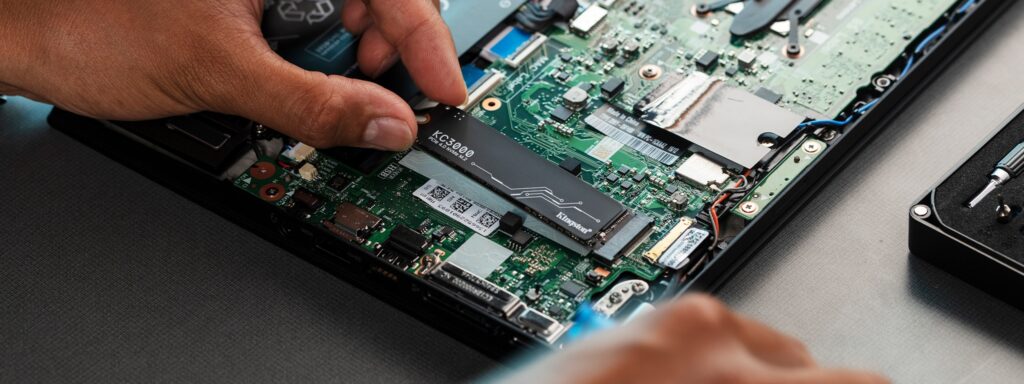
- Turn off the computer completely
- Disconnect power supply
- Open computer case carefully
- Insert SSD into correct slot
- Secure SSD properly
- Close case and restart system
- Check BIOS or Disk Management
Installation becomes very easy once compatibility is confirmed. Even beginners can install an SSD by following basic safety steps.
SATA vs NVMe SSD Comparison
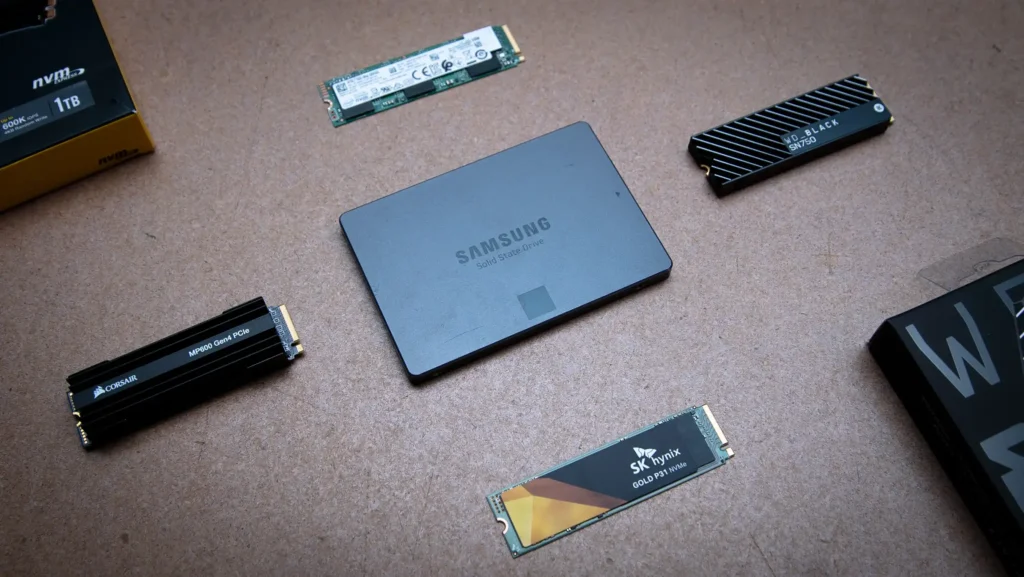
SATA SSD
- Lower cost
- Slower speed
- Works on almost all systems
- Ideal for basic usage
NVMe SSD
- Very high speed
- Expensive
- Requires modern motherboard
- Best for heavy workloads
Both SSD types are useful, but the choice depends on your motherboard and usage needs.
Frequently Asked Questions
1.What happens if SSD is not compatible?
If the SSD is not compatible with your motherboard, it may not be detected by the system, may fail to install properly, or may not deliver expected performance levels.
2.Can I use NVMe SSD in any motherboard?
No, NVMe SSD requires a motherboard with M.2 PCIe slot support. Without this, the SSD will not function at all.
3.How do I check my motherboard model?
You can check it using system information tools, BIOS menu, or by physically inspecting the motherboard for printed model name and number.
4.Is SATA SSD still useful in 2026?
Yes, SATA SSD is still widely used because it is affordable, reliable, and compatible with most older and budget systems.
5.How to always ensure SSD compatibility before buying carefully?
Always check motherboard specifications, confirm interface type, verify slot availability, ensure BIOS support, and compare SSD form factor and PCIe version before purchasing.
Conclusion
Understanding SSD compatibility with your motherboard is essential for a smooth upgrade experience. It helps avoid errors, saves money, and ensures better performance. Always verify interface type, form factor, and system support before buying an SSD. A properly matched SSD improves speed, stability, and efficiency, making your computer faster and more reliable for long-term use.