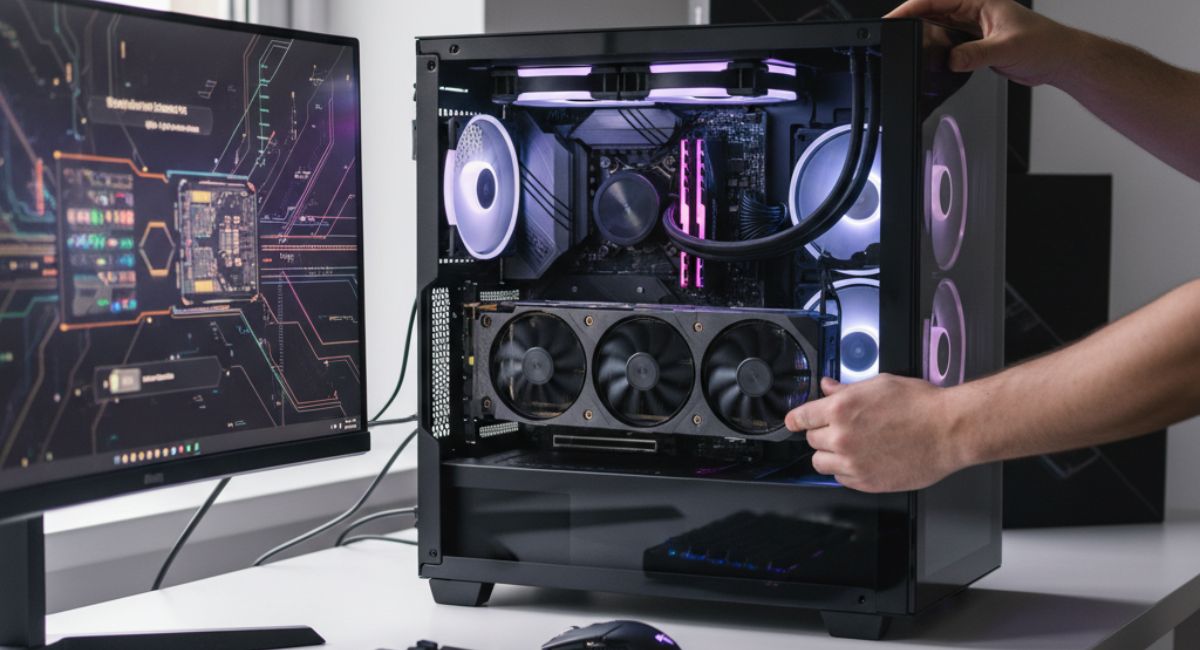
How to Check GPU Compatibility with Your Motherboard
Choosing the right graphics card for your computer is essential, especially if you want smooth gaming, video editing, or high-performance tasks. However, many users struggle to determine whether a GPU is compatible with their motherboard. Understanding compatibility ensures you avoid wasted money and technical frustration. This guide explains everything in a simple yet detailed way, helping you confidently check compatibility, understand requirements, and make informed decisions before upgrading your system without unnecessary risks.
Learn how to know if GPU is compatible with motherboard. Check PCIe slots, power needs, size, and tips to ensure smooth performance and avoid issues easily.
- What Does GPU and Motherboard Compatibility Mean?
- Key Factors to Check for Compatibility
- Benefits of Checking GPU Compatibility
- Key Features to Look for in a Compatible GPU
- Step-by-Step Guide to Check Compatibility
- Common Mistakes to Avoid
- Advanced Compatibility Considerations
- Tips for Beginners
- FAQs
- Conclusion
- Related post
What Does GPU and Motherboard Compatibility Mean?
GPU compatibility refers to whether your graphics card can physically fit, connect properly, and function efficiently with your motherboard.
It involves multiple technical factors including slot type, power requirements, BIOS support, and available space inside your PC case.
A compatible setup ensures optimal performance without crashes, bottlenecks, or hardware damage. Ignoring compatibility can lead to system failure or underperformance, which is why proper understanding is critical.
Key Factors to Check for Compatibility
PCIe Slot Compatibility

The most important factor is the PCI Express (PCIe) slot on your motherboard.
- Most modern GPUs use PCIe x16 slots
- PCIe versions include 3.0, 4.0, and 5.0
- Backward compatibility usually exists
Even if your GPU is newer, it will work in an older PCIe slot, though performance may be slightly limited.
Physical Space Inside the Case
Not all GPUs will fit in every PC case.
- Check GPU length and width
- Compare with available space in your case
- Consider airflow clearance
Large GPUs may require removing drive bays or upgrading your case.
Power Supply Requirements
Your GPU must receive enough power to function properly.
- Check wattage requirements
- Ensure your PSU has required connectors
- Avoid overloading your power supply
Using an insufficient PSU can cause crashes or hardware damage.
CPU Bottleneck Consideration
Even if your GPU is compatible, your CPU may limit its performance.
- Older CPUs may not handle modern GPUs
- Balanced hardware ensures maximum performance
- Avoid pairing high-end GPU with low-end CPU
This ensures smooth and efficient computing.
BIOS and Firmware Support
Some GPUs require updated BIOS to function properly.
- Update motherboard BIOS if needed
- Check manufacturer compatibility list
- Ensure system recognizes GPU
Outdated BIOS can prevent your GPU from working.
Monitor Compatibility
Ensure your monitor supports your GPU outputs.
- HDMI, DisplayPort, or DVI compatibility
- Resolution and refresh rate support
- Cable availability
This ensures you can fully utilize your GPU.
Benefits of Checking GPU Compatibility
Checking GPU compatibility before making a purchase provides several important advantages that can save both time and money.
It helps prevent buying hardware that does not work with your system, avoiding unnecessary expenses and returns.
Proper compatibility also protects your components from potential damage caused by mismatched hardware. In addition, it ensures your system runs smoothly with better performance, fewer crashes, and improved stability.
By confirming compatibility in advance, you also reduce troubleshooting efforts and create a more efficient, reliable, and future-ready computer setup.
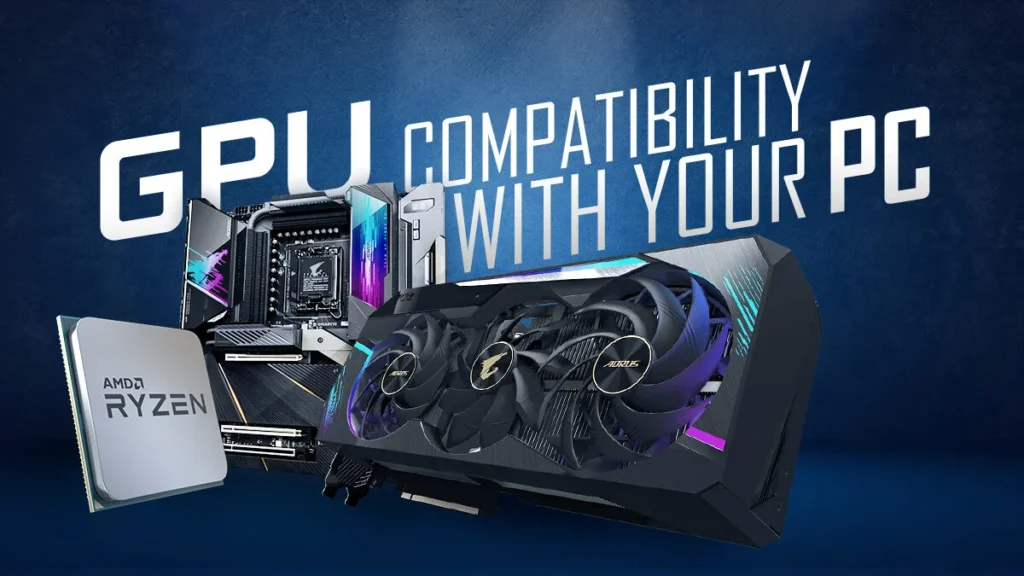
Key Features to Look for in a Compatible GPU
- PCIe x16 interface support
- Adequate VRAM for your needs
- Efficient cooling system
- Power-efficient design
- Compatibility with your PSU
- Support for modern APIs
- Multi-display support
Step-by-Step Guide to Check Compatibility
Identify Your Motherboard Model
- Checking system information
- Looking at the motherboard physically
- Using software tools
Check PCIe Slot Availability
- Ensure you have a PCIe x16 slot
- Verify it is not damaged or blocked
- Confirm generation compatibility
Measure Available Space
- Open your PC case
- Measure clearance area
- Compare with GPU dimensions
Verify Power Supply
- Check PSU wattage
- Look for required connectors
- Ensure stable power output
Check Manufacturer Specifications
- Visit official websites
- Compare compatibility details
- Read product manuals
Update BIOS if Needed
- Download latest BIOS
- Follow safe update process
- Restart and test system
Common Mistakes to Avoid
- Ignoring GPU size
- Using weak power supply
- Not checking CPU compatibility
- Forgetting BIOS updates
- Buying based only on price
- Skipping research
Avoiding these mistakes will save time and money.
Advanced Compatibility Considerations
When looking beyond basic compatibility, there are several advanced factors that can influence how well your GPU performs with your motherboard.
PCIe bandwidth plays an important role, as newer graphics cards may not reach their full performance potential when installed in older PCIe versions, even though they remain functional.
Additionally, users planning multi-GPU setups must ensure their motherboard supports technologies like SLI or CrossFire.
Cooling is another critical consideration because powerful GPUs generate significant heat, requiring proper airflow and case ventilation.
Lastly, while often overlooked, RAM speed and system memory configuration can indirectly affect GPU performance, especially in demanding tasks like gaming, rendering, and multitasking.
Tips for Beginners
- Always double-check specifications
- Use online compatibility tools
- Watch installation tutorials
- Ask experts before buying
- Start with mid-range GPUs
These steps make upgrading easier and safer.
FAQs
1. How do I know if my motherboard supports a GPU?
Check if your motherboard has a PCIe x16 slot and verify compatibility through manufacturer specifications to ensure the GPU can connect and function properly.
2. Can any GPU work with any motherboard?
Most modern GPUs work with most motherboards, but you must check slot type, power requirements, and physical space to ensure full compatibility and proper performance.
3. Does the PCIe version matter?
PCIe versions affect speed, but they are backward compatible, meaning newer GPUs can work on older slots with slightly reduced performance depending on bandwidth limitations.
4. What happens if the GPU is not compatible?
An incompatible GPU may not fit physically, fail to boot, or cause system instability, preventing proper functioning and possibly damaging other hardware components over time.
5. How important is power supply for GPU?
Power supply is critical because insufficient wattage or missing connectors can cause crashes, overheating, or failure, making it essential to match PSU capacity with GPU requirements exactly.
Conclusion
Checking GPU compatibility with your motherboard is essential for building a reliable and high-performing system. By understanding PCIe slots, power requirements, and physical limitations, you can avoid costly mistakes. Always research thoroughly and verify specifications before purchasing. A well-matched GPU and motherboard combination ensures smooth performance, long-term stability, and a better overall computing experience for every type of user.