Motherboard and Graphics Card Compatibility Complete Guide
When building or upgrading a computer, one of the most important concerns is compatibility between components. Many users assume that every motherboard works with every graphics card, but this is not always true. Several technical factors such as PCIe slots, power supply, and system limitations play a key role. Understanding these aspects helps prevent costly errors, improves performance, and ensures your system runs smoothly for gaming, editing, and professional workloads.
Are all motherboards compatible with all graphics cards Learn key factors like PCIe slots power supply and compatibility tips for better PC performance.
- Understanding Motherboard and GPU Compatibility
- Role of PCI Express in Compatibility
- Types of Motherboards
- Types of Graphics Cards
- Key Factors That Affect Compatibility
- Features of a Compatible System
- Benefits of Proper Compatibility
- Common Compatibility Issues
- How to Check Compatibility Before Buying
- Tips for Choosing the Right Components
- Future Trends in Compatibility
- FAQ’s
- Conclusion
- Related post
Understanding Motherboard and GPU Compatibility
Compatibility between a motherboard and a graphics card (GPU) is not just about plugging the card into a slot.
It involves a combination of hardware standards, power requirements, and system balance. While most modern GPUs use the PCI Express (PCIe x16) slot, not all motherboards are designed to handle every GPU efficiently.
A system may boot successfully even if the GPU is not fully compatible, but you may experience performance drops, instability, or even hardware damage in extreme cases.
Therefore, understanding compatibility ensures your PC performs at its best without unexpected issues.
Role of PCI Express in Compatibility
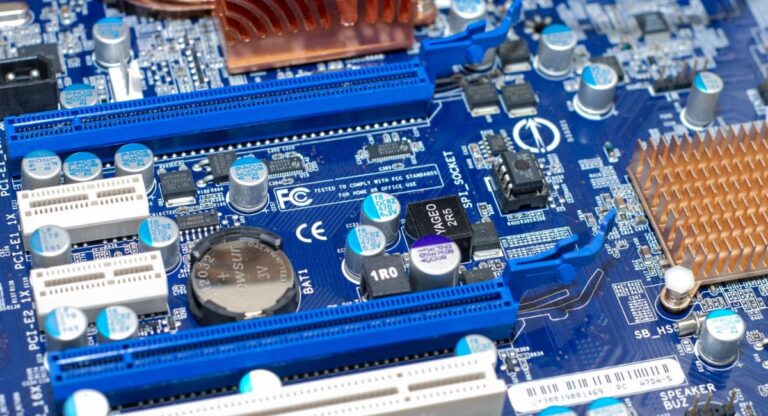
The PCI Express (PCIe) interface is the primary connection between the motherboard and the graphics card. Over time, PCIe has evolved into several versions, including PCIe 2.0, 3.0, 4.0, and 5.0.
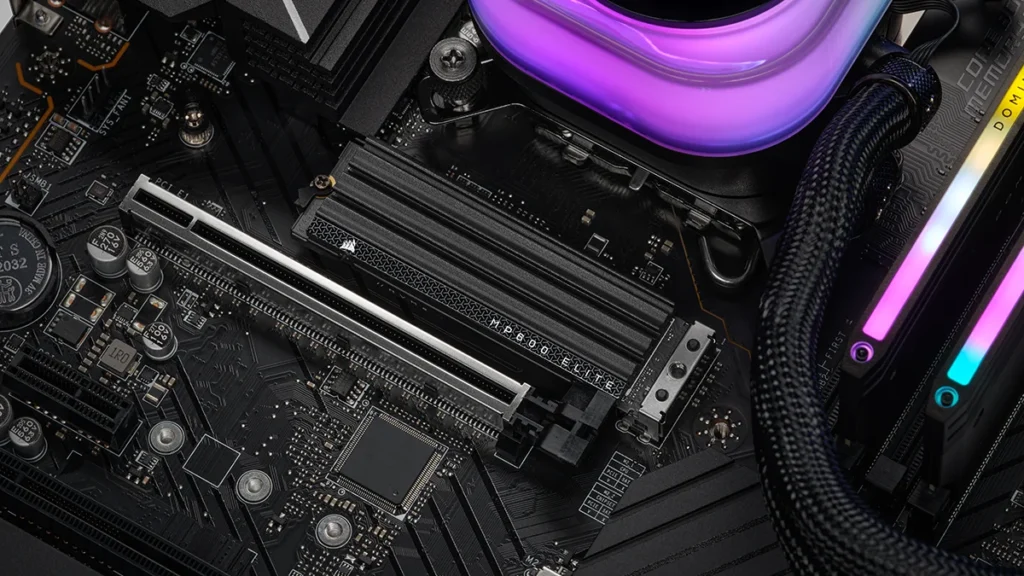
One of the biggest advantages of PCIe is its backward and forward compatibility. This means you can install a newer GPU into an older motherboard, and it will still work. However, the performance may be limited due to lower bandwidth.
For example, if you install a PCIe 4.0 GPU into a PCIe 3.0 slot, the GPU will function but not at its full potential. This is important for users who want maximum performance from high-end graphics cards.
Types of Motherboards
There are several types of motherboards, each designed for different system sizes and purposes. The most common form factors are ATX, Micro-ATX, and Mini-ITX.
ATX motherboards are the most popular choice for gaming and professional builds. They provide multiple PCIe slots, better power delivery systems, and improved cooling options.
These boards are ideal for users who want to install powerful GPUs and additional components.
Micro-ATX motherboards are slightly smaller but still offer decent performance and features. They are suitable for mid-range systems and budget builds.
Mini-ITX motherboards are compact and designed for small form-factor PCs. While they are great for saving space, they often have limited expansion options and may struggle with large, high-performance GPUs due to space constraints and thermal limitations.
Choosing the correct motherboard type is essential because it directly impacts what kind of GPU you can install and how well it will perform.
Types of Graphics Cards
Graphics cards are categorized based on their performance and intended use. Entry-level GPUs are designed for basic computing tasks such as watching videos and light gaming. They consume less power and are usually smaller in size.
Mid-range GPUs are suitable for most gamers and content creators. They offer a balance between performance and price, making them a popular choice for everyday users.
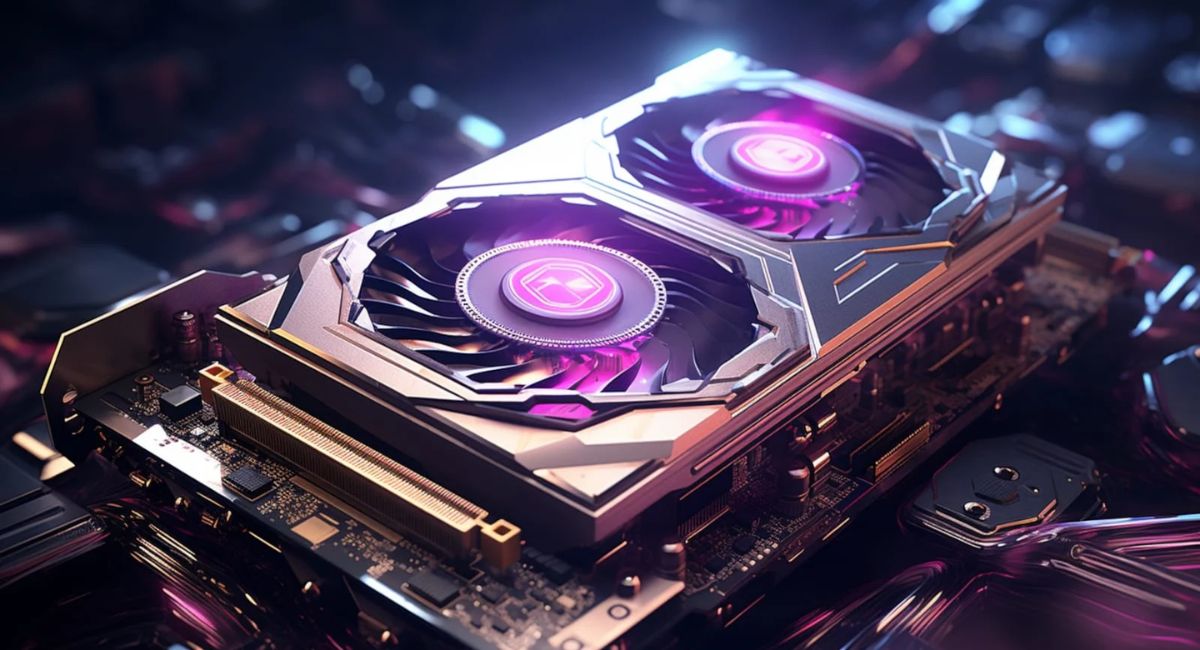
High-end GPUs are designed for demanding applications like 4K gaming, 3D rendering, and machine learning. These cards are larger, consume more power, and require advanced cooling systems.
High-end GPUs often need additional power connectors and a strong power supply unit (PSU).
Not all motherboards can support these requirements, especially smaller or older models. This makes it crucial to match your GPU with a compatible motherboard.
Key Factors That Affect Compatibility
PCIe Slot Availability
- Ensure the motherboard has a PCIe x16 slot
- Check the PCIe generation for performance
- Avoid blocked or shared slots
Power Supply Requirements
- Verify total wattage capacity
- Check for 6-pin / 8-pin connectors
- Ensure stable power delivery
Physical Size and Space
- Measure GPU length and thickness
- Confirm case compatibility
- Maintain proper airflow
CPU Bottleneck
- Weak CPU limits GPU performance
- Balanced system ensures efficiency
BIOS Compatibility
- Older boards may require BIOS updates
- Updated firmware improves hardware support
Features of a Compatible System
- Smooth and stable performance
- Efficient hardware communication
- Proper cooling and airflow
- Reduced risk of crashes or errors
- Optimized gaming and productivity

Benefits of Proper Compatibility
- Maximum GPU performance
- Increased system lifespan
- Fewer technical problems
- Better upgrade flexibility
- Improved power efficiency
Common Compatibility Issues
When compatibility is ignored, users may face several problems. One common issue is no display output, where the GPU is not recognized by the system.
Another issue is system crashes or unexpected shutdowns, often caused by insufficient power supply.
Overheating is also a major concern, especially when large GPUs are installed in small cases with poor airflow.
Additionally, performance bottlenecks occur when the CPU or motherboard cannot keep up with the GPU’s capabilities.
These issues highlight the importance of proper planning before building or upgrading a PC.
How to Check Compatibility Before Buying
Before purchasing any hardware, it is important to verify compatibility. Start by checking the motherboard specifications to confirm it has a PCIe x16 slot. Then review the graphics card requirements, including power consumption and physical size.
Next, ensure your power supply unit (PSU) can handle the GPU’s power demands. You should also measure your PC case to confirm that the GPU will fit properly.
Using online compatibility tools and reading manufacturer guidelines can further help in making the right decision. Taking these steps reduces the risk of installation issues and ensures a smooth experience.
Tips for Choosing the Right Components
- Match GPU requirements with PSU capacity
- Choose a motherboard with future upgrade options
- Avoid installing large GPUs in small cases
- Ensure proper cooling solutions
- Maintain balance between CPU and GPU performance
Future Trends in Compatibility
Technology is constantly evolving, and future motherboards and GPUs will continue to improve in terms of compatibility. Newer PCIe versions will provide higher bandwidth, allowing GPUs to perform even better.

Manufacturers are also focusing on improving power efficiency and thermal management, making it easier to use high-performance components in smaller systems.
However, as technology advances, compatibility requirements may become more complex. Staying updated with the latest standards is important for building a future-proof system.
FAQ’s
1.Can every graphics card work with every motherboard
No, compatibility depends on PCIe slots, power requirements, and system limitations. Not all GPUs will function properly with every motherboard.
2.Does PCIe version affect GPU performance
Yes, newer PCIe versions offer higher bandwidth, which improves performance, but older versions can still run modern GPUs with slightly reduced efficiency.
3.Is BIOS update necessary for new GPUs
In some cases, older motherboards require a BIOS update to properly recognize and support newer graphics cards.
4.Can small motherboards support high-end GPUs
It depends on space, cooling, and power support, but compact motherboards often struggle with large high-performance GPUs.
5.Can a low watt power supply run a powerful graphics card
A low watt power supply cannot safely support a powerful graphics card, causing instability, crashes, overheating, and possible damage due to insufficient power delivery.
Conclusion
Understanding motherboard and graphics card compatibility is essential for building a reliable system. Not all components work together perfectly, so careful planning is necessary. By checking PCIe slots, power requirements, and system balance, you can avoid problems and achieve maximum performance. A well-matched PC ensures stability, efficiency, and long-term usability for all computing needs.