Plug Monitor Into GPU or Motherboard? Which Is Better?
Many PC users get confused about whether to plug the monitor into the GPU or motherboard during setup. Although both ports may appear similar, they provide very different performance levels. The correct connection depends on your computer hardware and the type of tasks you perform daily. Connecting the monitor properly improves display quality, gaming performance, video editing speed, and overall system efficiency. This guide explains the differences, advantages, setup methods, and the best option for gaming, office work, and professional use.
Learn whether to plug monitor into GPU or motherboard for best performance. Discover gaming vs office setup, benefits, and correct PC connection guide.
- What Happens When You Plug a Monitor Into the GPU?
- What Happens When You Plug a Monitor Into the Motherboard?
- GPU vs Motherboard Display Connection
- Why Plugging Into the GPU Is Better for Gaming
- When You Should Use the Motherboard Connection
- Advantages of Plugging Monitor Into GPU
- Advantages of Plugging Monitor Into Motherboard
- How to Check if Your Motherboard Supports Display Output
- Why Motherboard Display Ports Sometimes Stop Working
- Can You Use GPU and Motherboard Ports Together?
- HDMI vs DisplayPort for GPU Connections
- Common Monitor Connection Mistakes
- How to Identify GPU and Motherboard Ports
- Does Motherboard Connection Reduce Graphics Performance?
- Tips for Better Monitor Performance
- FAQ’s
- Conclusion
- Related post
What Happens When You Plug a Monitor Into the GPU?
When a monitor is connected directly to the graphics card (GPU), the dedicated graphics hardware handles all visual processing tasks. This setup is commonly used in gaming PCs and high-performance computers.
Dedicated GPUs are specifically designed to manage demanding graphics workloads, making them ideal for advanced visual tasks.
Common GPU Ports
- HDMI
- DisplayPort
- DVI
- VGA (older systems)
Modern graphics cards also support multiple monitors for productivity and gaming setups.
What Happens When You Plug a Monitor Into the Motherboard?
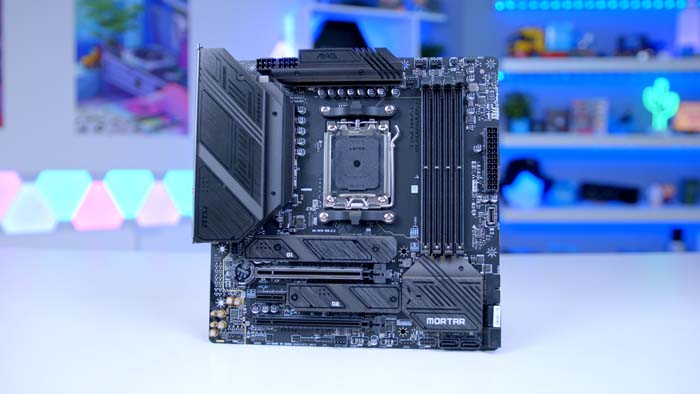
Connecting the monitor to the motherboard means your system uses integrated graphics built into the processor instead of the dedicated graphics card.
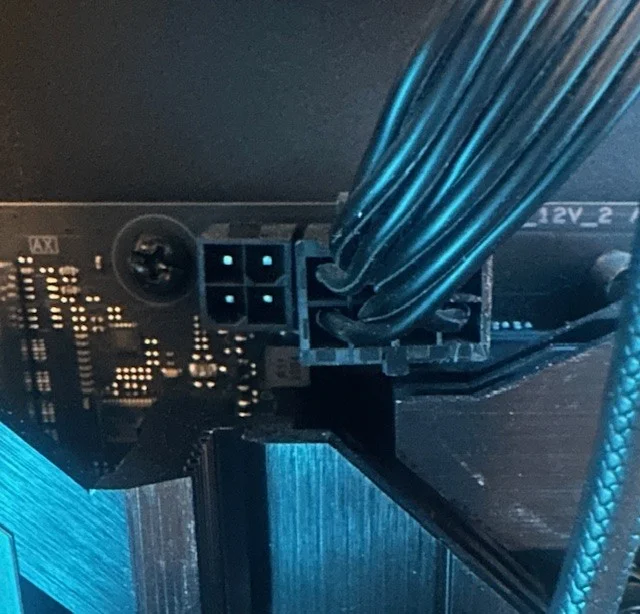
Integrated graphics are suitable for lightweight tasks such as:
- Web browsing
- Office work
- Watching videos
- Online meetings
- Basic multitasking
This setup consumes less power but delivers lower graphics performance.
GPU vs Motherboard Display Connection
There are clear differences between using GPU ports and motherboard ports.
| Feature | GPU Connection | Motherboard Connection |
| Graphics Power | High | Basic |
| Gaming Performance | Excellent | Limited |
| Video Editing | Smooth | Moderate |
| Power Usage | Higher | Lower |
| Multi-Monitor Support | Better | Limited |
| Best For | Gaming & Creative Work | Everyday Tasks |
For demanding tasks, GPU connections provide significantly better results.
Why Plugging Into the GPU Is Better for Gaming
Gaming requires strong graphics performance, which integrated graphics usually cannot provide efficiently.
Benefits of GPU Connection for Gaming
- Higher FPS performance
- Better graphics quality
- Lower input lag
- Smooth gameplay
- Support for high refresh rates
- Improved 4K gaming experience
Using the motherboard connection may reduce gaming performance and visual quality.
When You Should Use the Motherboard Connection
Motherboard display output is suitable for users who perform simple computing tasks.
Best Uses for Motherboard Graphics
- Office work
- School assignments
- Internet browsing
- Watching movies
- Energy-saving systems
For basic usage, integrated graphics are often enough.
Advantages of Plugging Monitor Into GPU
Using the GPU connection unlocks the full performance of your graphics card.
Main Benefits
- Faster rendering speeds
- Better multitasking
- Enhanced video playback
- Advanced graphics features
- Stronger gaming performance
- Better support for professional software
This setup is highly recommended for gamers and content creators.
Advantages of Plugging Monitor Into Motherboard
Although less powerful, motherboard graphics still offer several benefits.
Main Benefits
- Lower power consumption
- Reduced heat generation
- Quiet system performance
- Cost-effective setup
- Simple installation
Integrated graphics are ideal for users who do not need heavy graphical processing.
How to Check if Your Motherboard Supports Display Output
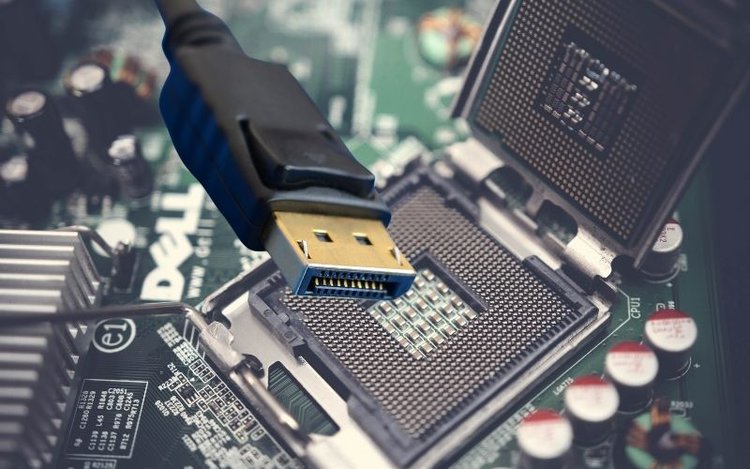
Not every computer supports motherboard display output. Your processor must include integrated graphics support.
CPUs That Usually Support Integrated Graphics
- Intel processors with Intel UHD Graphics
- AMD Ryzen processors with Radeon Graphics
Without integrated graphics, motherboard display ports will not function.
Why Motherboard Display Ports Sometimes Stop Working
Many users notice that motherboard HDMI or DisplayPort stops working after installing a graphics card.
Common Reasons
- Integrated graphics disabled in BIOS
- CPU lacks integrated graphics
- GPU automatically becomes primary display source
- Incorrect monitor cable connection
Checking BIOS settings can often fix the issue.
Can You Use GPU and Motherboard Ports Together?
Yes, some systems allow both GPU and motherboard display outputs simultaneously.
Benefits of Dual Display Setup
- Connect multiple monitors
- Increase workspace
- Improve multitasking
- Separate workloads efficiently
This setup is useful for streamers, editors, and productivity users.
HDMI vs DisplayPort for GPU Connections
Both HDMI and DisplayPort are popular monitor connection options.
HDMI Features
- Easy compatibility
- Commonly available
- Great for TVs and monitors
DisplayPort Features
- Higher refresh rates
- Better gaming support
- Improved performance for advanced monitors
DisplayPort is usually preferred for competitive gaming.
Common Monitor Connection Mistakes
Incorrect setup can prevent users from getting maximum performance.
Mistakes to Avoid
- Connecting to motherboard instead of GPU
- Using damaged display cables
- Choosing the wrong monitor input source
- Missing graphics driver updates
Proper setup improves display stability and visual quality.
How to Identify GPU and Motherboard Ports
Recognizing port locations helps avoid confusion during setup.
GPU Port Location
- Lower section of the PC case
- Attached to graphics card slots
- Positioned horizontally
Motherboard Port Location
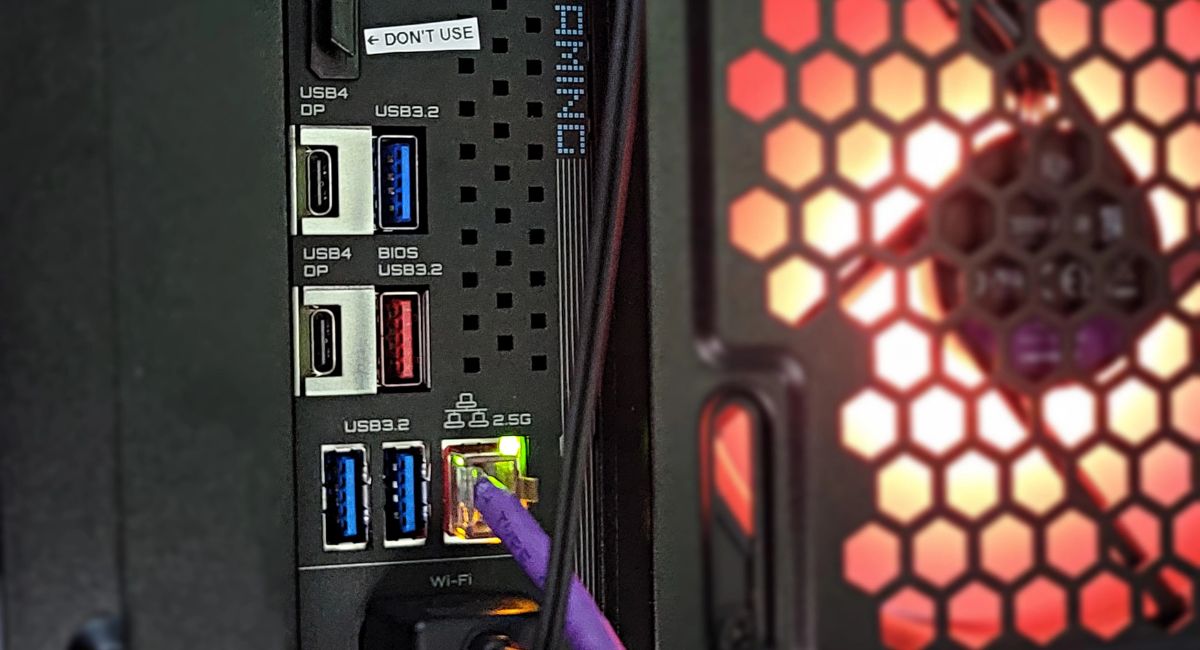
- Near USB and audio ports
- Connected directly to motherboard panel
- Located vertically
Knowing the difference ensures correct monitor connection.
Does Motherboard Connection Reduce Graphics Performance?
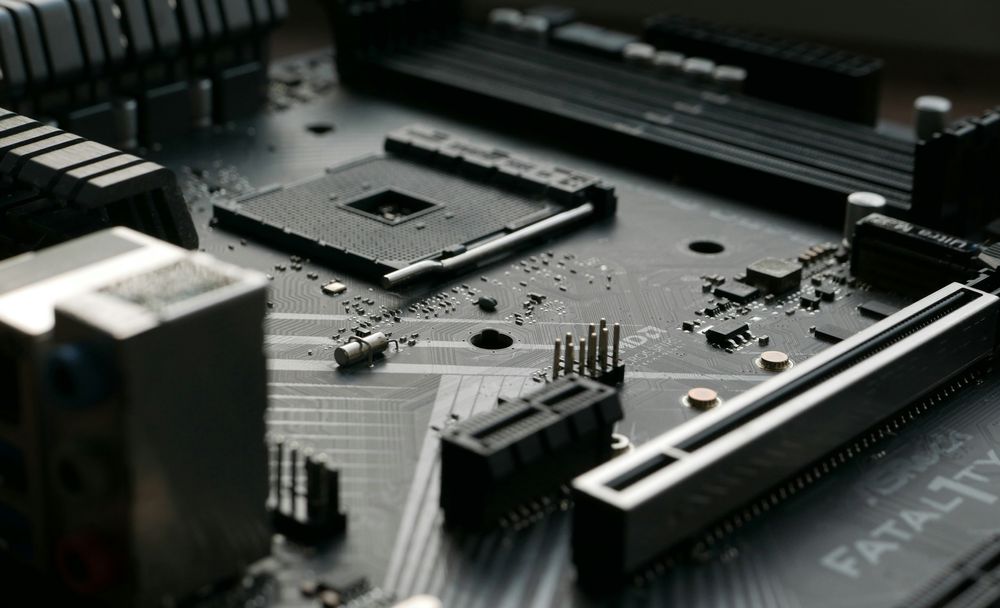
Yes, motherboard graphics provide lower performance compared to dedicated GPUs.
Performance Limitations
- Lower gaming FPS
- Reduced graphics quality
- Slower rendering
- Limited support for advanced games
Users performing demanding tasks should always prefer GPU connections.
Tips for Better Monitor Performance
Following proper setup methods improves long-term display quality.
Helpful Tips
- Keep graphics drivers updated
- Use quality HDMI or DisplayPort cables
- Enable correct refresh rates
- Monitor system temperatures
- Clean dust regularly
These practices help maintain stable performance and better visuals.
FAQ’s
1.Should gamers connect monitors to the GPU or motherboard?
Gamers should always connect monitors directly to the GPU because it provides higher FPS, better graphics quality, and smoother gameplay performance.
2.Can I use motherboard HDMI with a graphics card installed?
Yes, but your processor must support integrated graphics and the feature must be enabled inside the BIOS settings properly.
3.Why does my motherboard HDMI not work?
The motherboard HDMI port may not work because integrated graphics are disabled or your processor does not support onboard graphics output.
4.Does connecting to the motherboard lower gaming performance?
Yes, integrated graphics provide weaker gaming performance than dedicated GPUs, which can reduce FPS and overall graphics quality significantly.
5.Can I connect two monitors using GPU and motherboard together?
Yes, many systems support dual display setups using both GPU and motherboard outputs for better multitasking and expanded screen space.
Conclusion
Deciding whether to plug the monitor into the GPU or motherboard depends on your computer usage and hardware setup. For gaming, editing, streaming, and professional workloads, connecting the monitor to the GPU delivers the best performance and graphics quality. Motherboard connections are more suitable for everyday tasks like browsing and office work. Understanding the differences between both options helps users avoid setup mistakes, improve display performance, and maximize overall system efficiency.