Motherboard Code 70 Error- Fix and Troubleshooting Guide
Motherboard Code 70 is a common boot error that appears during the POST (Power-On Self-Test) process. This issue usually indicates problems related to RAM, BIOS settings, CPU communication, or hardware compatibility. When this error appears, the computer may fail to boot properly, display a black screen, or restart continuously. Understanding the causes and solutions of Code 70 is important for maintaining system stability and preventing hardware failures in the future.
Fix Motherboard Code 70 error with easy troubleshooting steps. Learn causes, BIOS fixes, RAM solutions, and methods to restore system stability.
- What Is Motherboard Code 70 Error?
- Common Causes of Motherboard Code 70
- Symptoms of Motherboard Code 70 Error
- Types of Motherboard Code 70 Errors
- How to Fix Motherboard Code 70 Error
- Check and Reseat the RAM
- Reset BIOS Settings
- Update the BIOS Firmware
- Inspect the CPU Installation
- Check the Power Supply Unit
- Disconnect External Hardware
- Test Motherboard RAM Slots
- How to Prevent Motherboard Code 70 Error
- Common Mistakes to Avoid
- When to Replace the Motherboard
- Importance of Professional Repair
- FAQ’s
- Conclusion
- Related post
What Is Motherboard Code 70 Error?
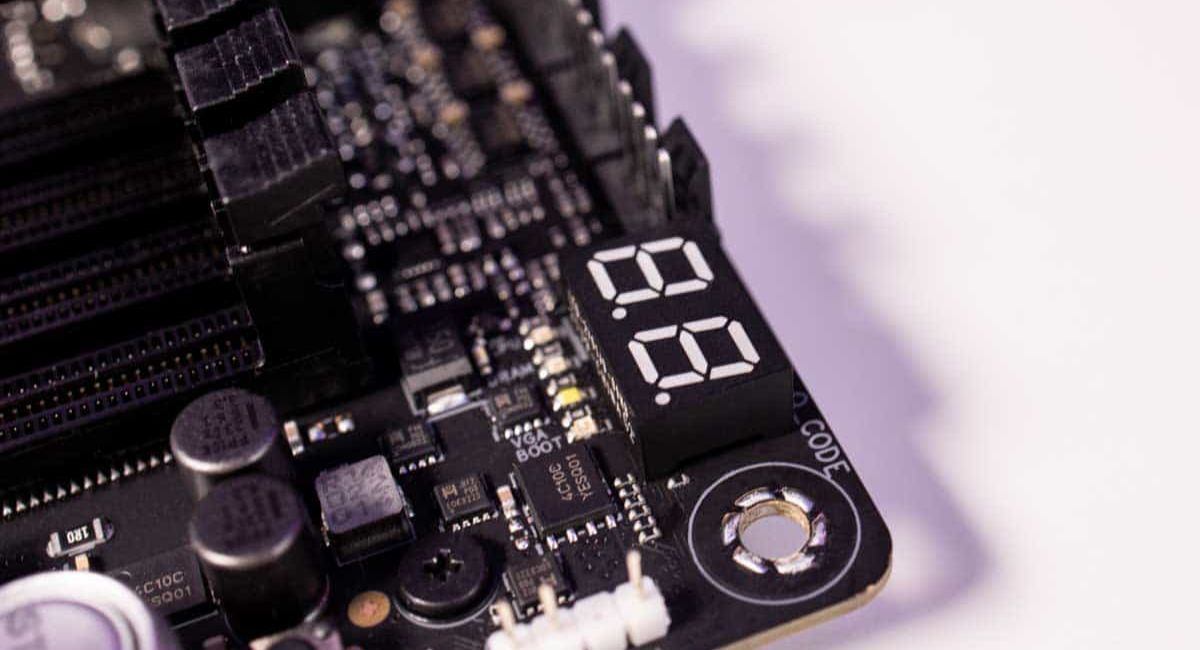
Motherboard Code 70 is a diagnostic error code shown on the motherboard debug display during system startup. It generally points to hardware initialization problems that prevent the motherboard from completing the boot sequence successfully.
Different motherboard manufacturers may define this code slightly differently, but in most cases, it is connected to memory detection, BIOS configuration, or CPU communication issues.
Common Causes of Motherboard Code 70
Several hardware and software issues can trigger the Code 70 error. Identifying the exact cause is the first step toward solving the problem.
Main Causes
- Faulty or incompatible RAM
- Incorrect BIOS settings
- Corrupted BIOS firmware
- CPU installation problems
- Loose hardware connections
- Defective motherboard slots
- Weak power supply unit
- Hardware compatibility conflicts
Symptoms of Motherboard Code 70 Error
Before troubleshooting the issue, it is important to recognize the warning signs associated with Code 70.
Common Symptoms
- Computer fails to boot
- Black screen after powering on
- Continuous restarting
- Debug LED showing “70”
- Keyboard and mouse not responding
- BIOS screen inaccessible
- No display signal
Types of Motherboard Code 70 Errors
Motherboard Code 70 can appear in different forms depending on the hardware issue involved.
RAM Initialization Error
This is the most common type of Code 70 problem. The motherboard cannot properly detect or initialize the installed memory modules. Incompatible RAM or damaged memory sticks are usually responsible for this issue.
BIOS Configuration Error
Incorrect BIOS settings may interrupt the POST process and prevent the motherboard from starting normally. Overclocking settings can also trigger this error.
CPU Communication Error
The motherboard may fail to communicate correctly with the processor because of bent pins, overheating, or improper CPU installation.
Hardware Compatibility Error
Certain hardware components may not fully support the motherboard chipset or BIOS version, causing system initialization failure.
BIOS Firmware Corruption
A damaged or outdated BIOS firmware can stop the motherboard from completing the startup sequence correctly.
How to Fix Motherboard Code 70 Error
There are several proven methods to troubleshoot and fix the Code 70 motherboard error. Follow each solution carefully.
Check and Reseat the RAM
RAM issues are one of the leading causes of Code 70 errors. Start by checking the memory modules installed in your system.
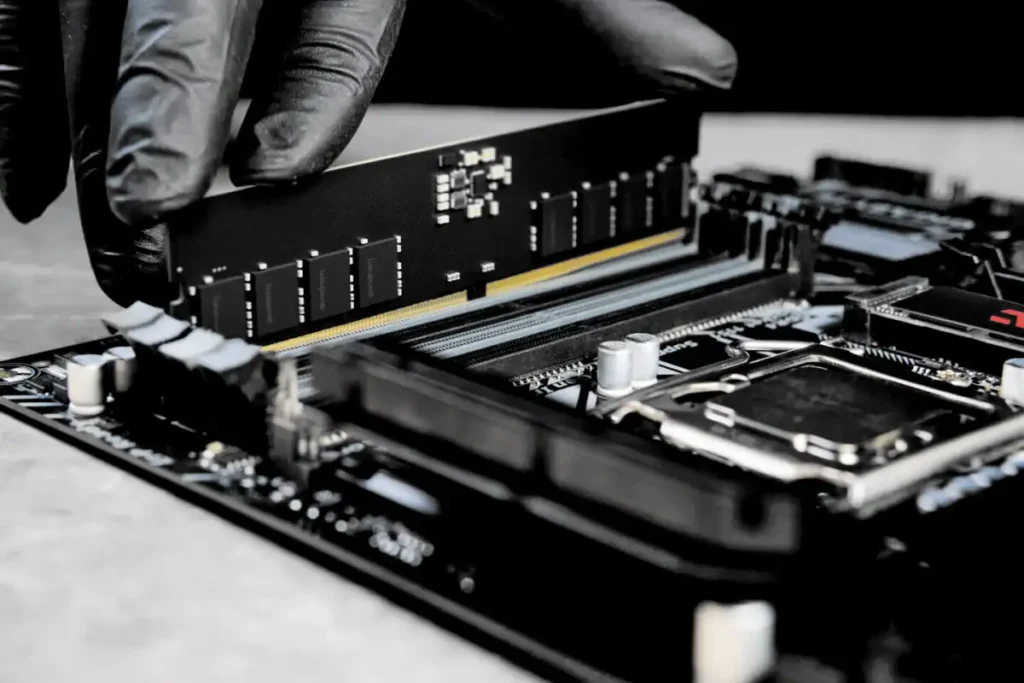
Turn off the computer completely and disconnect the power cable. Carefully remove the RAM modules and gently wipe the connectors using a clean, soft cloth to remove dust or dirt.
Carefully remove the RAM modules and gently wipe the connectors using a clean, soft cloth to remove dust or dirt.
Reinstall one RAM stick at a time and test different RAM slots to identify faulty memory or damaged slots.
Benefits of RAM Testing
- Detects faulty memory modules
- Identifies damaged motherboard slots
- Improves boot stability
- Resolves memory detection issues
Reset BIOS Settings
Incorrect BIOS settings can interrupt the startup process and trigger Code 70. Resetting the BIOS restores the default configuration and removes unstable settings.
To reset the BIOS, remove the CMOS battery from the motherboard for a few minutes and then reinstall it. You can also use the motherboard CMOS reset jumper if available.
Advantages of BIOS Reset
- Restores default settings
- Removes boot conflicts
- Fixes unstable overclocking settings
- Improves hardware detection
Update the BIOS Firmware
Outdated BIOS firmware can create compatibility problems with modern hardware components. Updating the BIOS may solve the Code 70 error.
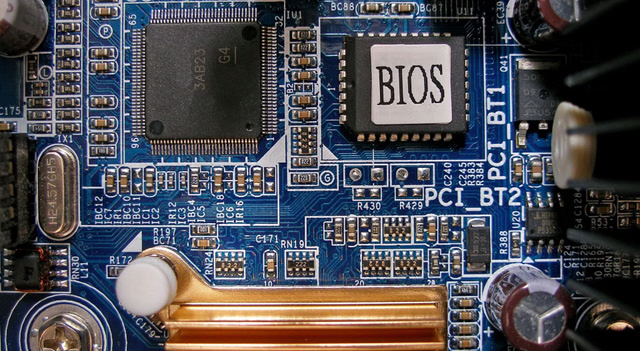
Go to the official website of your motherboard manufacturer and download the newest BIOS update that matches your motherboard model correctly. Follow the official instructions carefully during the update process.
Important BIOS Update Tips
- Use the correct BIOS file
- Never turn off the system during the update
- Keep backup power available
- Read manufacturer guidelines carefully
Inspect the CPU Installation
Improper CPU installation can prevent communication between the motherboard and processor. This issue may result in the Code 70 error.
Remove the CPU cooler carefully and inspect the processor for bent pins or thermal issues. Reinstall the CPU properly and apply fresh thermal paste before attaching the cooler again.
CPU Inspection Benefits
- Improves processor communication
- Prevents overheating problems
- Enhances system stability
- Reduces startup failures
Check the Power Supply Unit
A weak or unstable power supply unit (PSU) can cause motherboard initialization problems. If the PSU cannot provide stable voltage, the system may fail during boot.
Inspect all power cables connected to the motherboard and graphics card. If possible, test the system using another reliable PSU.
Features of a Good PSU
- Stable voltage output
- Overload protection
- Better efficiency rating
- Improved hardware safety
Disconnect External Hardware
External devices sometimes create hardware conflicts during the POST process. Disconnect unnecessary components and test the system again.
Remove USB devices, external drives, expansion cards, and additional peripherals before restarting the computer.
Benefits of Hardware Isolation
- Detects conflicting devices
- Simplifies troubleshooting
- Improves system startup
- Reduces boot errors
Test Motherboard RAM Slots
Damaged RAM slots can also trigger Code 70 errors. Testing each slot individually helps identify faulty motherboard channels.
Install one RAM module in different slots and boot the system each time. If one slot consistently fails, the motherboard may require repair or replacement.
How to Prevent Motherboard Code 70 Error
Preventive maintenance can reduce the chances of encountering motherboard boot errors in the future.
Prevention Tips
- Update BIOS regularly
- Use compatible RAM modules
- Avoid excessive overclocking
- Keep the motherboard clean
- Use a high-quality power supply
- Monitor system temperatures
Common Mistakes to Avoid
Many users accidentally worsen the problem during troubleshooting. Avoid these common mistakes when fixing Code 70.
Mistakes to Avoid
- Installing the wrong BIOS version
- Forcing the system to restart repeatedly
- Touching components without grounding
- Using low-quality power supplies
- Installing RAM incorrectly
When to Replace the Motherboard
If all troubleshooting methods fail, the motherboard itself may be permanently damaged. Physical damage, burned circuits, or dead RAM slots are serious warning signs.
A replacement may be necessary if the motherboard repeatedly shows Code 70 despite testing all other hardware components successfully.
Importance of Professional Repair
If you are not experienced with computer hardware, seeking professional repair assistance is the safest option. Technicians can diagnose hidden motherboard problems using specialized testing equipment and prevent further hardware damage.
Professional repair services also save time and reduce the risk of incorrect installations or accidental component damage.
FAQ’s
1.What does motherboard Code 70 mean?
Motherboard Code 70 usually indicates a memory initialization or hardware communication problem during the system boot process.
2.Can faulty RAM cause Code 70?
Yes, damaged or incompatible RAM modules are one of the most common reasons behind the Code 70 motherboard error.
3.Is resetting the BIOS safe?
Resetting BIOS is generally safe and helps restore default settings that may solve startup and compatibility issues.
4.Can a bad PSU trigger Code 70?
Yes, an unstable power supply unit can interrupt motherboard initialization and lead to boot-related errors like Code 70.
5.Should I replace the motherboard immediately?
No, you should first test RAM, CPU, BIOS, and PSU before deciding whether motherboard replacement is necessary.
Conclusion
Motherboard Code 70 is a serious boot error that can occur because of RAM issues, BIOS problems, CPU installation errors, or hardware conflicts. Proper troubleshooting methods such as testing memory, resetting BIOS, checking the PSU, and inspecting hardware connections can solve the issue in most cases. Regular maintenance and quality components help prevent future motherboard errors and improve overall system stability and performance.