Computer Motherboard Problems Symptoms- 12 Warning Signs You Should Never Ignore
Your motherboard is the central hub of your computer, connecting the CPU, RAM, storage drives, and other critical components. When it begins to fail, you may experience crashes, boot issues, hardware detection problems, and unexpected shutdowns. Identifying computer motherboard problems symptoms early can help prevent costly repairs and data loss. This guide covers the most common warning signs, possible causes of motherboard failure, and practical steps to diagnose and address the problem before it worsens.
Learn computer motherboard problems symptoms, warning signs, causes, and fixes. Detect failures early to prevent damage, crashes, and data loss.
- What Is a Motherboard and Why Is It Important?
- 12 Common Computer Motherboard Problems Symptoms
- What Causes Motherboard Failure?
- How to Diagnose a Faulty Motherboard
- Can a Damaged Motherboard Be Repaired?
- Can You Recover Data From a Computer With a Failed Motherboard?
- How to Prevent Motherboard Problems
- Frequently Asked Questions
- Conclusion
- Related post
What Is a Motherboard and Why Is It Important?
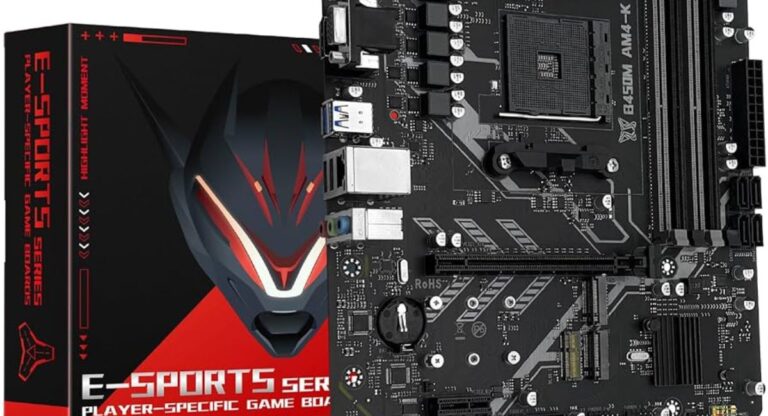
A motherboard is the main circuit board inside a computer. Every major hardware component connects to it, making it one of the most important parts of any PC.
If the motherboard becomes damaged, communication between components may break down. As a result, your computer may experience boot failures, random crashes, hardware detection issues, and other serious problems. Understanding the early signs of failure can save both time and money.
12 Common Computer Motherboard Problems Symptoms
Random Freezes and Blue Screen Errors
One of the most common computer motherboard problems symptoms is frequent system freezing or the appearance of the Blue Screen of Death (BSOD).
If your computer crashes randomly even after updating drivers and checking software issues, the motherboard may be struggling to communicate properly with connected components.
These crashes often become more frequent as the motherboard continues to deteriorate.
Computer Fails to Boot
A healthy computer should start within seconds after pressing the power button. If your PC refuses to boot, gets stuck on the startup screen, or continuously restarts, the motherboard could be the source of the problem.
A damaged motherboard may fail to initialize critical hardware during the startup process, preventing the operating system from loading.
USB Ports Stop Working Randomly
Faulty USB ports are another common warning sign.
You may notice external devices disconnecting unexpectedly or failing to be detected altogether. Since USB controllers are integrated into the motherboard, damage to these circuits can lead to unreliable connectivity.
If multiple USB ports stop working at the same time, the motherboard should be inspected immediately.
RAM Is Not Detected Properly
Your motherboard manages communication between the RAM modules and the processor.
When a motherboard develops faults, it may incorrectly detect installed memory or fail to recognize certain RAM sticks. You might see less memory available than what is physically installed or encounter repeated memory-related error messages.
Storage Drives Randomly Disappear
If your SSD or HDD suddenly disappears from the operating system or BIOS, motherboard failure could be responsible.
Damaged SATA ports, failing storage controllers, or motherboard circuitry issues can interrupt communication with storage devices.
This symptom should never be ignored because it may eventually lead to data access problems.
Unexpected Shutdowns Under Load
Computers naturally generate more heat when running demanding applications such as gaming, video editing, or 3D rendering.
A failing motherboard may struggle to distribute power correctly, causing the system to shut down unexpectedly during heavy workloads.
These shutdowns often occur without warning and can result in data corruption if files are open at the time.
Expansion Cards Stop Functioning
Modern motherboards include PCIe slots for devices such as graphics cards, sound cards, and network adapters.
If one or more expansion cards suddenly stop working despite being functional in another computer, the motherboard may have damaged PCIe lanes or slot connections.
This issue often develops gradually before becoming permanent.
Overheating Components
Persistent overheating is another important warning sign.
A motherboard contains voltage regulation components that help control power delivery. When these components become damaged, temperatures may rise significantly, affecting system stability.
Overheating can cause random crashes, performance drops, and long-term hardware damage.
Swollen or Leaking Capacitors
Physical damage is one of the easiest motherboard problems to identify.
Inspect the board carefully and look for:
- Swollen capacitors
- Leaking capacitors
- Bulging tops
- Brown residue around components
Damaged capacitors can cause unstable power delivery and are often associated with motherboard failure.
BIOS Errors and Settings Resets
The BIOS controls many low-level system functions.
If BIOS settings keep resetting, the system clock becomes inaccurate, or you frequently receive BIOS-related warnings, the motherboard may have underlying problems.
Although a dead CMOS battery can sometimes cause these symptoms, motherboard faults should also be considered.
Burning Smell or Electrical Damage
A burning odor coming from your computer is never a good sign.
Electrical failures, damaged circuits, and short circuits can create visible burn marks or produce a noticeable smell. If this occurs, immediately turn off the computer and disconnect power.
Continuing to use the system could cause additional hardware damage.
Corrosion or Liquid Damage
Exposure to moisture can severely damage a motherboard.
Water, humidity, or accidental spills may corrode connectors and circuit traces. Corrosion often appears as green, white, or brown residue on metal surfaces.
Even minor liquid damage can eventually cause serious motherboard problems.
What Causes Motherboard Failure?
Several factors can contribute to motherboard damage and long-term reliability issues.
Common causes include:
- Power surges
- Overheating
- Dust buildup
- Liquid spills
- Faulty power supplies
- Short circuits
- Improper hardware installation
- Manufacturing defects
- Aging electronic components
Understanding these causes can help reduce the risk of future failures.
How to Diagnose a Faulty Motherboard
Before replacing your motherboard, perform several diagnostic checks.
Inspect for Physical Damage
Look for visible signs of damage such as swollen capacitors, burn marks, corrosion, or cracked components.
Test the Power Supply
A failing power supply unit (PSU) can produce symptoms similar to motherboard problems. Testing the PSU helps eliminate another possible cause.
Reseat Hardware Components
Remove and reinstall RAM modules, storage drives, and expansion cards. Loose connections can sometimes mimic motherboard failure.
Reset the BIOS
Restoring BIOS settings to default values may resolve configuration-related issues.
Boot With Minimal Hardware
Disconnect unnecessary components and attempt to start the system with only essential hardware installed.
This method can help isolate motherboard-related problems.
Can a Damaged Motherboard Be Repaired?
In some situations, motherboard repair is possible.
What Can Be Repaired?
- Capacitor replacement
- CMOS battery replacement
- Minor connector repairs
- Small power circuit repairs
What Usually Cannot Be Repaired?
- Severe liquid damage
- Burned PCB layers
- Major chipset failures
- Extensive corrosion
The repair decision often depends on the age and value of the computer.
Can You Recover Data From a Computer With a Failed Motherboard?
Yes. In most cases, your files are stored on the SSD or hard drive, not on the motherboard itself.
Even if the motherboard fails completely, data recovery is usually possible by connecting the storage drive to another computer or using a compatible adapter.
This is why backing up important files regularly is always recommended.
How to Prevent Motherboard Problems
Preventive maintenance can significantly increase motherboard lifespan.
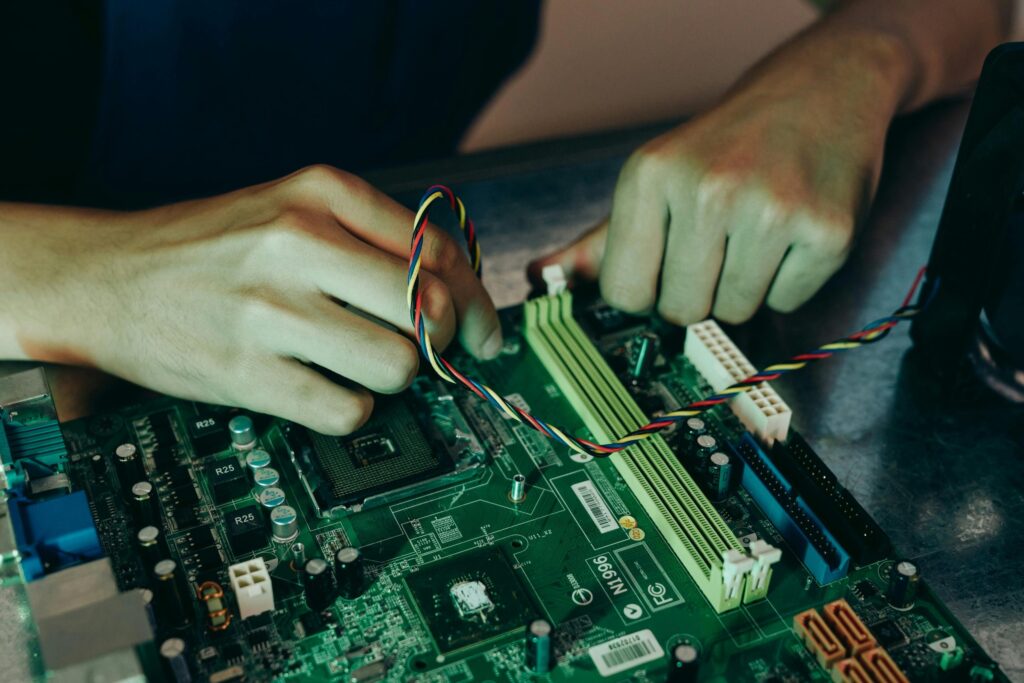
To reduce the risk of failure:
- Use a surge protector
- Keep the system clean and dust-free
- Monitor temperatures regularly
- Avoid liquid exposure
- Install hardware carefully
- Use a high-quality power supply
- Maintain proper airflow inside the case
Following these practices can help keep your motherboard functioning reliably for years.
Frequently Asked Questions
1.What are the most common computer motherboard problems symptoms?
Common symptoms include random crashes, blue screen errors, boot failures, USB port issues, RAM detection problems, overheating, and unexpected system shutdowns.
2.Can a faulty motherboard cause a computer not to boot?
Yes, a damaged motherboard can prevent the computer from starting properly by disrupting communication between essential hardware components during startup.
3.How do I know if my motherboard or power supply is failing?
Power supply issues usually affect power delivery, while motherboard failures often cause hardware detection errors, crashes, and connectivity problems across multiple components.
4.Is it worth repairing a damaged motherboard?
Minor motherboard issues can often be repaired, but severe damage, extensive corrosion, or chipset failures may make replacement the better option.
5.Can I recover data from a computer with a failed motherboard?
Yes, data is typically stored on the SSD or hard drive, allowing recovery by connecting the storage device to another compatible computer.
Conclusion
Recognizing computer motherboard problems symptoms early can prevent serious hardware failures and costly repairs. Common warning signs include random crashes, boot failures, RAM detection issues, USB port problems, overheating, storage drive errors, and unexpected shutdowns. By understanding these symptoms and performing proper diagnostics, you can identify motherboard issues before they become severe and protect both your computer and valuable data.