Computer Stuck on Motherboard Screen – Complete Fix Guide
A computer stuck on the motherboard screen is a serious startup problem where the system freezes on the manufacturer logo and does not proceed to load Windows or any operating system. This issue commonly occurs due to hardware failures, incorrect BIOS or UEFI settings, corrupted system files, or conflicts caused by external devices. It can affect desktops, laptops, gaming PCs, and workstations. In most situations, the problem can be resolved through proper troubleshooting and careful hardware inspection.
Learn how to fix a computer stuck on motherboard screen with easy troubleshooting steps, causes, and solutions for smooth and fast startup performance.
- What Does Computer Stuck on Motherboard Screen Mean?
- Main Causes of Computer Stuck on Motherboard Screen
- Warning Signs Before the Issue Happens
- How to Fix Computer Stuck on Motherboard Screen
- BIOS and Startup Repair Solutions
- Advanced Troubleshooting Methods
- Benefits of Fixing This Issue
- FAQ’s
- Conclusion
- Related post
What Does Computer Stuck on Motherboard Screen Mean?
When a computer starts, the BIOS or UEFI firmware performs a critical hardware check known as POST (Power-On Self Test).
During this process, the system verifies all essential components such as RAM, storage drives, CPU, and other connected hardware to ensure everything is functioning correctly before loading the operating system.
If the system freezes on the motherboard logo, it indicates that the boot sequence has stopped at an early stage and the computer is unable to move forward to load Windows or any other operating system.
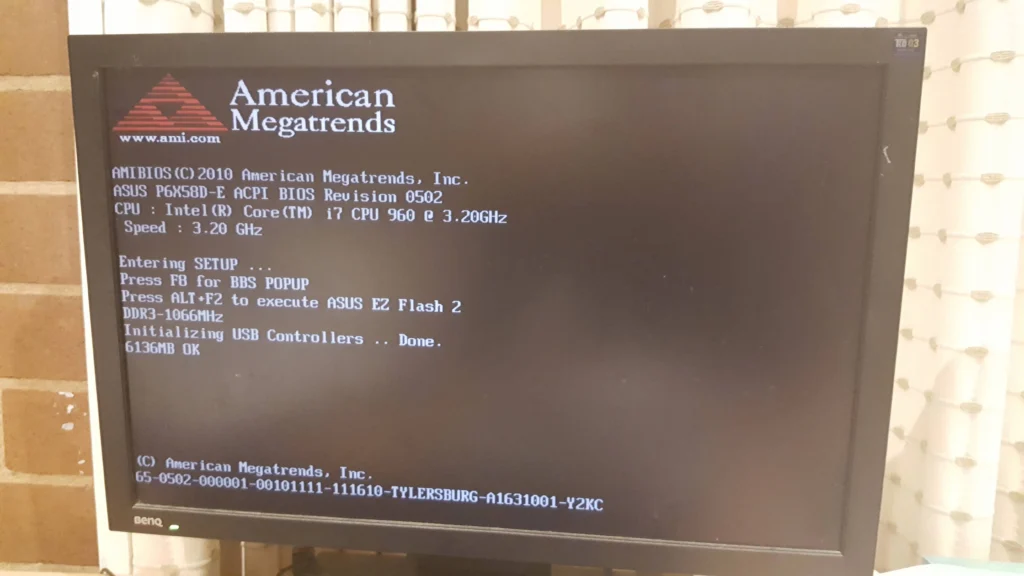
In simple terms, this issue occurs when the computer fails to establish proper communication with key hardware components like the RAM modules, storage drive (HDD/SSD), or the correct boot configuration settings.
As a result, the startup process is interrupted, leading to a complete boot failure where the system remains stuck on the manufacturer logo screen.
Main Causes of Computer Stuck on Motherboard Screen
This issue can occur due to both hardware and software-related problems. Identifying the root cause is the key to fixing it correctly.
Hardware issues are one of the most common reasons. Faulty RAM, loose SSD or HDD connections, a weak power supply, or overheating components can easily interrupt the boot process. Even a minor hardware fault can prevent the system from passing POST.
On the software side, BIOS misconfiguration or corrupted Windows system files can also stop the system from loading properly.
A wrong boot order or failed update can make the system unable to locate the operating system.
External devices like USB drives or external hard disks may also interfere with startup and cause the system to freeze unexpectedly.
Common Causes (Quick Overview)
- Faulty or improperly seated RAM
- Damaged or loose SSD/HDD
- Incorrect BIOS/UEFI settings
- Corrupted Windows system files
- Overheating CPU or GPU
- Conflicting USB or external devices
Warning Signs Before the Issue Happens
Before a computer completely freezes on the motherboard screen, it usually displays several early warning signs that indicate underlying hardware or software instability.
These symptoms are important because they help users detect potential issues before they turn into a major startup failure.
In many cases, the system may begin showing noticeably slow startup performance, random or unexpected restarts, and frequent application or system crashes during normal use. Some users may also hear unusual BIOS beep sounds during boot, which often signal hardware detection problems.
Additionally, the system might display boot device errors, temporary black screens, or delays in recognizing connected hardware such as storage drives or RAM.
If these warning signs are ignored, the condition can gradually worsen and eventually result in a complete failure where the computer gets permanently stuck on the motherboard logo screen.
How to Fix Computer Stuck on Motherboard Screen
There are several effective methods to resolve this issue. Each step should be followed carefully to avoid further system damage.
A power reset is often the simplest solution. It clears temporary glitches that may block the boot process. Removing all external devices is also important, as faulty USB devices can interfere with startup.
Checking and reseating RAM is another critical step because memory issues are one of the most common causes of boot freezing. Similarly, ensuring that SSD or HDD connections are secure can immediately resolve the issue in many cases.
Basic Troubleshooting Steps
- Perform a full power reset
- Disconnect all external USB devices
- Reseat and test RAM modules
- Check storage drive connections
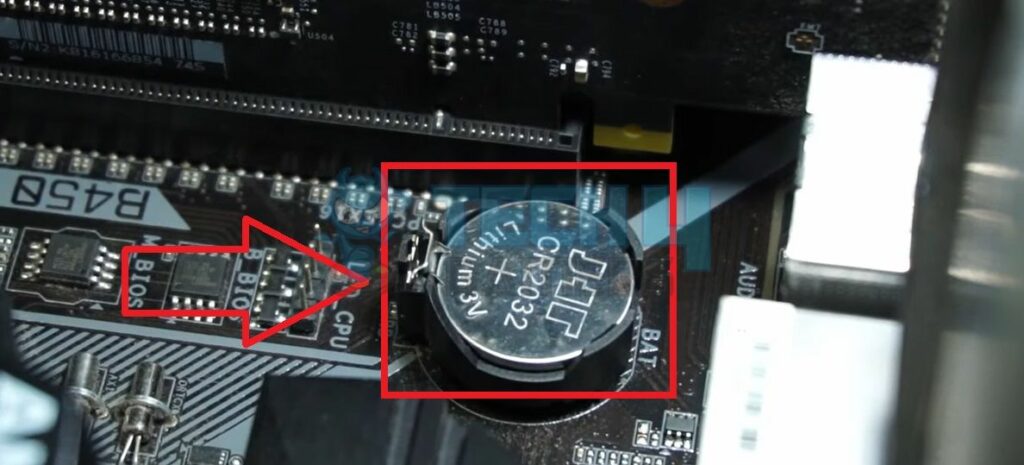
- Reset BIOS settings
- Disable Fast Boot option
BIOS and Startup Repair Solutions
The BIOS/UEFI firmware controls the entire boot process. If its settings become corrupted or misconfigured, the system may freeze at the motherboard screen.
Resetting BIOS to default settings can fix many hidden configuration issues. Disabling Fast Boot ensures that all hardware is properly checked during startup.
If the problem continues, updating BIOS or repairing Windows using a bootable USB may be required.
Advanced Troubleshooting Methods
If basic solutions fail, advanced steps may be needed. Testing the power supply unit (PSU) is important because unstable power can stop the system from booting properly.
In severe cases, performing a clean Windows installation may be required if system files are heavily corrupted. Another useful method is booting with minimal hardware, which helps identify the faulty component.
Benefits of Fixing This Issue
Fixing a computer stuck on the motherboard screen improves overall system stability and performance. Once resolved, the system boots faster, crashes less frequently, and performs better during heavy tasks such as gaming or editing.
It also helps extend hardware lifespan and reduces the risk of future system failures.
FAQ’s
1. Why does my computer freeze on the motherboard logo?
A computer freezes on the motherboard logo due to RAM failure, BIOS errors, corrupted Windows files, overheating, or faulty storage devices preventing successful system boot.
2. Can faulty RAM stop the computer from booting?
Yes, faulty or improperly installed RAM can prevent the system from completing POST, causing it to freeze on the motherboard logo during startup.
3. Is resetting BIOS safe for fixing boot issues?
Yes, resetting BIOS is safe and restores default settings, which helps fix configuration errors that may be blocking the boot process.
4. Can USB devices cause startup freezing?
Yes, faulty or incompatible USB devices can interfere with the boot process and cause the system to freeze on the motherboard screen.
5. When should I reinstall Windows?
You should reinstall Windows only when startup repair fails and system files are severely corrupted or damaged beyond normal recovery methods.
Conclusion
A computer stuck on the motherboard screen is usually caused by hardware issues, BIOS errors, or corrupted system files. With proper troubleshooting such as checking RAM, resetting BIOS, inspecting storage drives, and repairing Windows, the issue can be resolved effectively. Regular maintenance and safe system practices help prevent this problem and ensure smooth and stable computer performance.