New Motherboard Ethernet Not Working – Complete Fix Guide
Installing a new motherboard should improve your system performance, but sometimes users face Ethernet not working issues right after setup. This problem can block internet access, making it difficult to install drivers, updates, or software. In most cases, the issue is not serious and is caused by missing drivers, disabled BIOS settings, or incorrect configurations. By understanding the causes and following proper troubleshooting steps, you can easily fix the Ethernet problem and restore a stable internet connection.
Fix new motherboard ethernet not working issue with easy steps. Learn causes, driver fixes, BIOS settings, and solutions to restore stable internet quickly.
- Understanding New Motherboard Ethernet Not Working
- Step-by-Step Fix for Ethernet Not Working
- Features and Benefits of Ethernet
- Types of Ethernet Controllers
- Key Factors Affecting Ethernet Performance
- Common Mistakes to Avoid
- Preventive Measures
- Advanced Troubleshooting Techniques
- Why Ethernet Is Better Than WiFi
- Frequently Asked Questions
- Conclusion
- Related post
Understanding New Motherboard Ethernet Not Working
When a new motherboard is installed, the Ethernet port may not function immediately because the system requires proper drivers and configuration to recognize the network controller. In many cases, the operating system does not automatically detect the LAN hardware, especially on newer motherboards, so the Ethernet device stays inactive until the correct drivers are installed or BIOS settings are properly configured.
Common Causes
There are several reasons why Ethernet does not work:
- Missing or outdated LAN drivers
- LAN controller disabled in BIOS
- Faulty or unplugged Ethernet cable
- Router or modem issues
- Incorrect network configuration
- Unsupported or outdated operating system
- Hardware issue (rare case)
Types of Ethernet Problems
Users may experience different types of issues:
- Ethernet not detected at all
- Ethernet connected but no internet access
- Slow internet speed
- Random disconnection
- Limited or unidentified network
Detailed Explanation
Most Ethernet issues are software-related. When drivers are missing, the operating system cannot communicate with the motherboard’s network controller. Similarly, if LAN is disabled in BIOS, the Ethernet port will remain inactive. Understanding the root cause helps you fix the issue faster without unnecessary troubleshooting.
Step-by-Step Fix for Ethernet Not Working
To fix the Ethernet issue, follow these steps in order.
Basic Troubleshooting
Start with simple checks:
- Restart your computer
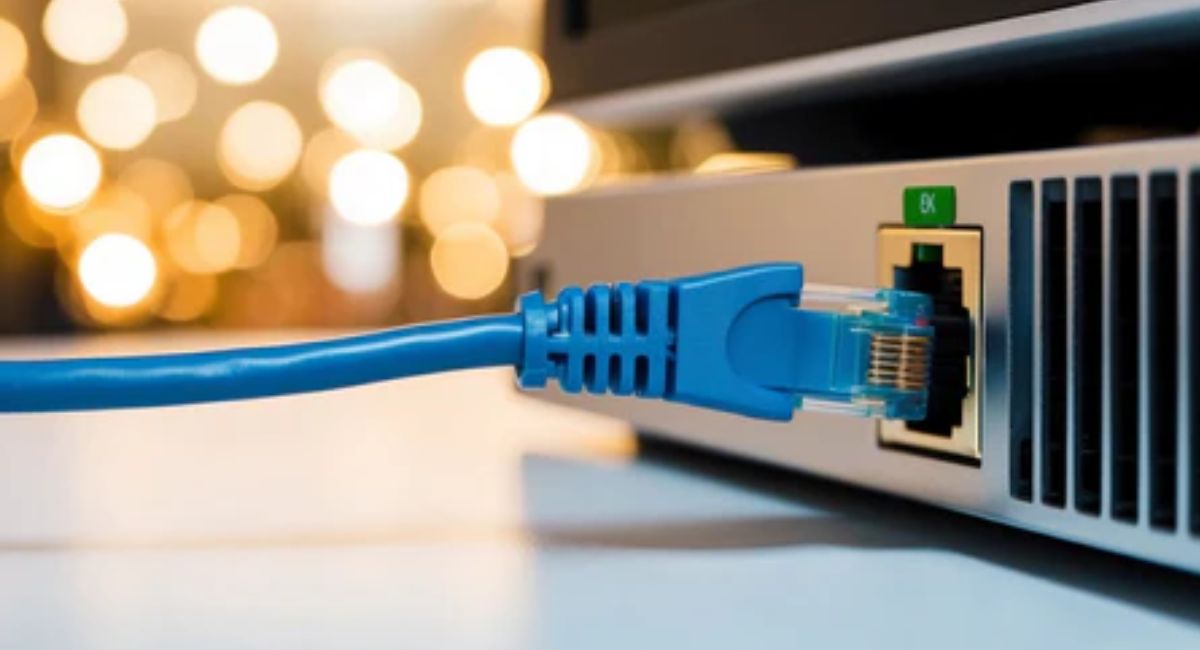
- Check Ethernet cable connection
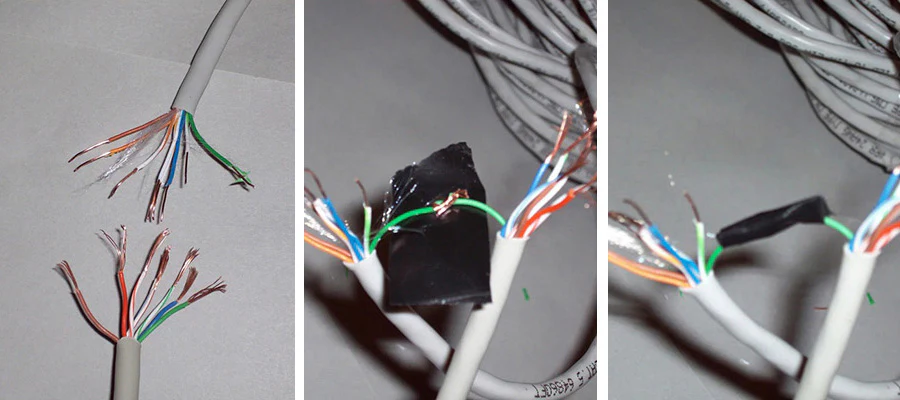
- Try a different LAN cable
- Change router port
- Restart router or modem
- Check Ethernet port lights
Install LAN Drivers
Drivers are essential for proper functionality.
- Visit motherboard manufacturer website
- Download correct LAN drivers
- Transfer using USB device
- Install drivers manually
- Restart system
Enable LAN in BIOS
Sometimes LAN is disabled by default.
- Restart PC and enter BIOS
- Navigate to onboard devices
- Enable LAN controller
- Save changes and exit
Check Device Manager
- Open Device Manager
- Look for network adapters
- Identify unknown devices
- Update or reinstall drivers
Advanced Fixes
If basic steps do not work, try advanced methods:
- Update operating system
- Reset network settings
- Update chipset drivers
- Disable power-saving options
- Use command prompt to reset network
Most Ethernet issues are resolved by installing correct drivers or enabling LAN in BIOS. Advanced troubleshooting is only needed in rare cases when basic solutions fail.
Features and Benefits of Ethernet
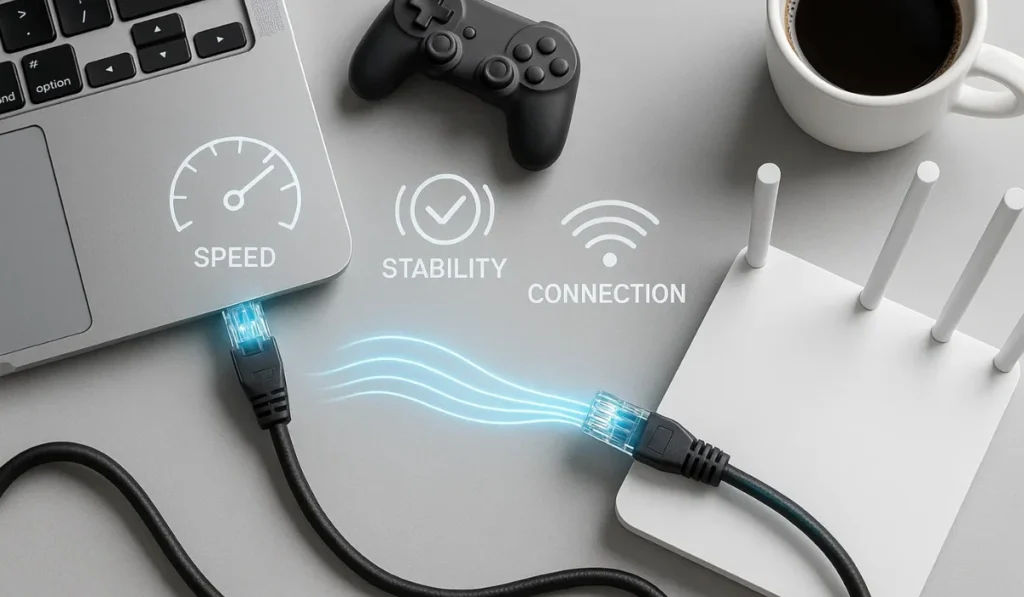
Ethernet provides a stable and fast internet connection compared to wireless networks.
Features
- High-speed wired connection
- Low latency performance
- Stable connectivity
- Built-in motherboard support
- Energy-efficient design
- Secure data transfer
Benefits
- Faster downloads and uploads
- Smooth gaming experience
- Reliable streaming quality
- Stable file transfers
- Reduced lag and interruptions
- Improved productivity
Ethernet offers a direct connection between your system and router, which reduces interference and ensures consistent speed. This makes it ideal for gaming, streaming, and professional tasks.
Types of Ethernet Controllers
Different motherboards use different LAN controllers.
Common Types
- Realtek Ethernet controller
- Intel LAN controller
- Killer networking chip
- Broadcom adapter
Differences
- Intel provides better stability
- Realtek is widely used and affordable
- Killer is optimized for gaming
- Broadcom is used in enterprise systems
Each controller offers different performance levels. Choosing the right controller can improve network performance, especially for gaming and professional use.
Key Factors Affecting Ethernet Performance
Several factors affect how well Ethernet works.
Important Factors
- Driver compatibility
- Cable quality
- Router performance
- Network configuration
- System updates
All these factors work together to determine connection quality. Ignoring any of them can result in poor performance or connectivity issues.
Common Mistakes to Avoid
Avoid these common mistakes:
Mistakes
- Not installing drivers
- Ignoring BIOS settings
- Using damaged cables
- Assuming hardware failure too quickly
- Skipping updates
Most users make simple mistakes that cause Ethernet issues. Avoiding these errors can save time and effort.
Preventive Measures
Follow these steps to avoid future issues.
Tips
- Install drivers immediately
- Keep BIOS updated
- Use high-quality Ethernet cable
- Update operating system regularly
- Check settings carefully
Preventive steps ensure long-term stability and reduce chances of Ethernet problems.
Advanced Troubleshooting Techniques
For complex issues, use advanced methods.

Methods
- Check IP configuration
- Reset DNS settings
- Update router firmware
- Test with another device
- Use external USB Ethernet adapter
Advanced troubleshooting helps identify deeper problems and ensures complete resolution of the issue.
Why Ethernet Is Better Than WiFi
Ethernet offers several advantages over wireless connections.
Advantages
- More stable connection
- Faster speeds
- Lower latency
- Less interference
- Better security
Ethernet is ideal for gaming, streaming, and professional work because it provides consistent and reliable performance.
Frequently Asked Questions
1. Why new motherboard Ethernet not working?
Ethernet may not work because drivers are missing, LAN is disabled in BIOS, or network settings are incorrect after installing the new motherboard system.
2. How to install Ethernet drivers without internet?
You can download drivers on another device, transfer them using USB, and install them manually on your system to enable Ethernet functionality easily.
3. Can BIOS settings affect Ethernet connection?
Yes, if LAN controller is disabled in BIOS, the system will not detect the Ethernet port, and it will not work until you enable it again.
4. What should I do if Ethernet is connected but no internet?
Check router, restart system, update drivers, and verify network configuration settings to fix the issue and restore internet connection properly.
5. Is motherboard Ethernet port faulty or damaged?
In most cases, it is not faulty because the issue is usually software-related and can be fixed easily through driver installation or settings adjustment.
Conclusion
New motherboard Ethernet not working is a common issue that can be fixed easily with the right approach. Most problems are caused by missing drivers or incorrect settings rather than hardware failure. By following proper troubleshooting steps, enabling LAN in BIOS, and installing correct drivers, you can restore your internet connection quickly. A stable Ethernet connection ensures better speed, reduced lag, and smooth performance for all your daily tasks.