How to Check Motherboard Specifications- Easy Guide for Beginners
If you are planning to upgrade your PC, install new hardware, or simply want to understand your system better, knowing how to check motherboard specifications is very important. The motherboard is the main foundation of your computer, and it decides what components you can use, such as CPU, RAM, and storage devices.
Many users face compatibility issues only because they do not know their motherboard details.
In this guide, you will learn simple and effective methods to check motherboard specifications without any confusion.
Learn how to check motherboard specifications using Windows, CMD, BIOS, and tools. Step-by-step beginner guide to find full motherboard details.
- What Are Motherboard Specifications?
- Why You Should Check Motherboard Specifications
- How to Check Motherboard Specifications in Windows
- Method 1: Using System Information Tool
- Method 2: Using Command Prompt (CMD)
- Method 3: Using PowerShell
- Method 4: Using Third-Party Software
- Method 5: Checking BIOS or UEFI Settings
- Method 6: Physical Inspection of Motherboard
- Important Things to Focus On
- Understanding Your Motherboard Model
- Common Mistakes to Avoid
- Tips for Beginners
- FAQ’s
- Final Thoughts
- Related post
What Are Motherboard Specifications?
Motherboard specifications are the technical details that explain the features, capabilities, and limitations of your motherboard.
They help you understand what hardware your system can support, including CPU, RAM, storage devices, and expansion options.
Knowing these specifications is very important for upgrades, ensuring compatibility, and improving overall system performance and stability. It allows you to make better hardware decisions and avoid installation or upgrade issues.
Common specifications include:
- Motherboard model and brand
- CPU socket type
- Chipset version
- RAM type (DDR3, DDR4, DDR5)
- Maximum RAM capacity
- Storage support (SATA and M.2 slots)
- PCIe slots for GPU and expansion cards
- BIOS version
These specifications are essential when upgrading or repairing your PC.
Why You Should Check Motherboard Specifications
Understanding your motherboard is important for several reasons:
1. For Upgrading Hardware
If you want to upgrade your processor, RAM, or GPU, you must check motherboard compatibility to ensure proper support, stability, and smooth system performance.
2. Avoid Compatibility Issues
Not all hardware works with every motherboard. Checking specs helps prevent wrong purchases.
3. Better Performance Planning
Knowing your motherboard helps select compatible components, ensuring better performance, stability, and smoother overall computer operation.
4. Troubleshooting Problems
If your PC has issues, motherboard details help identify faults and make accurate hardware diagnosis for quick troubleshooting.
How to Check Motherboard Specifications in Windows
You don’t always need to open your PC. Windows provides several built-in methods.
Method 1: Using System Information Tool
This is the easiest method for beginners.
Steps:
- Press Windows + R
- Type msinfo32
- Press Enter
- Look for:
- BaseBoard Manufacturer
- BaseBoard Product
- BaseBoard Version
What You Will See:
This method shows your motherboard brand and model name clearly.
Method 2: Using Command Prompt (CMD)
CMD gives accurate motherboard details quickly.
Steps:
- Open Command Prompt
- Type this command:
wmic baseboard get product,Manufacturer,version,serialnumber
- Press Enter
Output Includes:
- Motherboard manufacturer
- Model number
- Serial number
- Version details
This method is widely used by technicians.
Method 3: Using PowerShell
PowerShell is a more advanced option.
Steps:
- Open PowerShell
- Enter this command:
Get-WmiObject win32_baseboard | Format-List Product,Manufacturer,SerialNumber,Version
- Press Enter
Benefits:
- More detailed output
- Useful for advanced users
- Reliable hardware information
Method 4: Using Third-Party Software
If you want a full system overview, third-party tools are very helpful.
1. CPU-Z
- Shows motherboard model
- Chipset details
- BIOS version
- CPU and RAM info
2. Speccy
- Simple interface
- Full system summary
- Easy for beginners
3. HWiNFO
- Advanced hardware monitoring
- Real-time system stats
- Detailed motherboard analysis
These tools are popular among gamers and PC builders.
Method 5: Checking BIOS or UEFI Settings
You can also find motherboard information inside BIOS.
Steps:
- Restart your PC
- Press DEL, F2, or F10 during startup
- Open system information section
You Will Find:
- Motherboard model
- BIOS version
- Hardware configuration
This method is useful when Windows is not working.
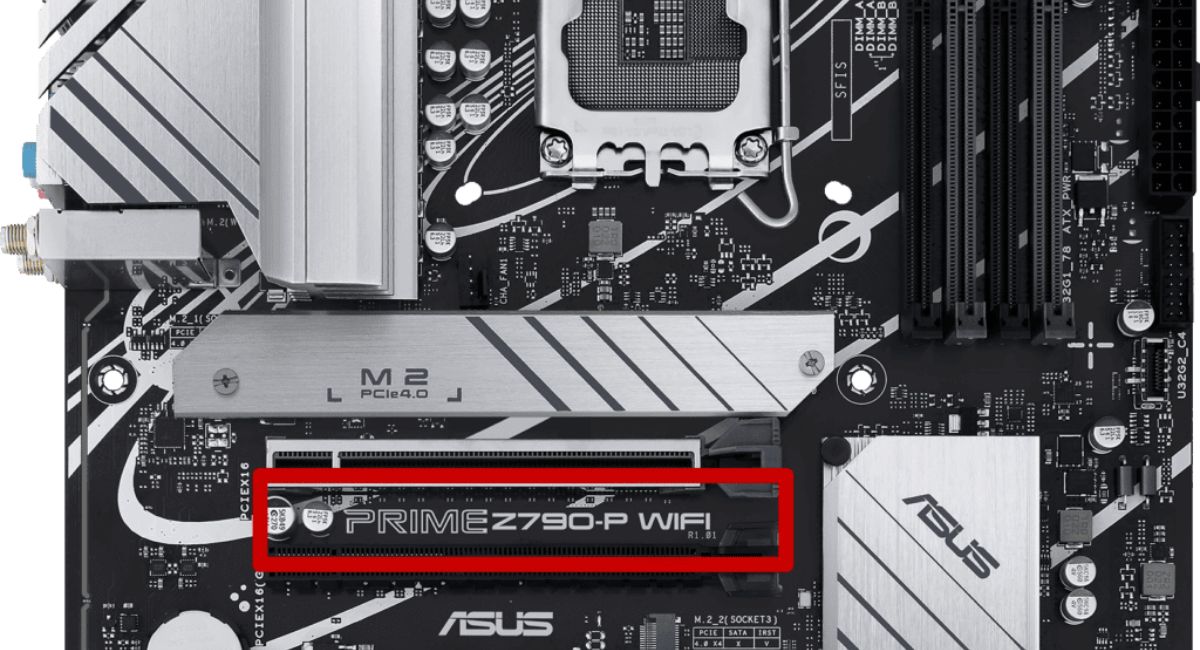
Method 6: Physical Inspection of Motherboard
If you have a desktop PC, you can check it manually.
Steps:
- Turn off and unplug your PC
- Open the CPU cabinet
- Look directly on the motherboard
Details You Can Find:
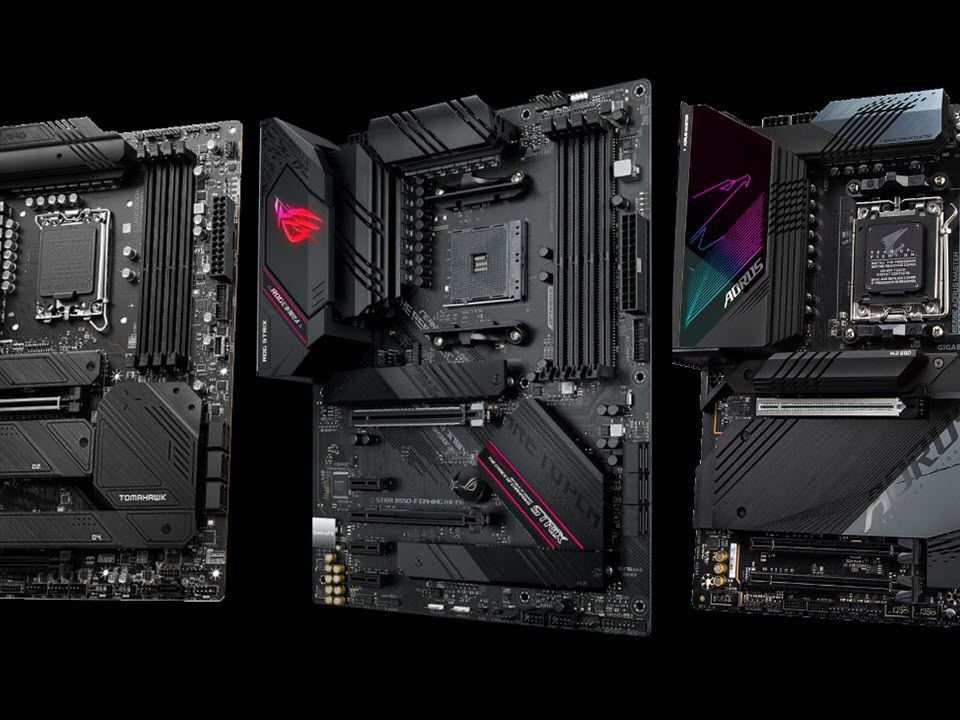
- Brand name (ASUS, MSI, Gigabyte, etc.)
- Model number printed on the board
Be careful while handling internal hardware.
Important Things to Focus On
When checking motherboard specifications, these are the most important factors:
1. CPU Socket Type
It determines which processor you can install.
2. Chipset
Chipset controls performance and feature support.
3. RAM Support
Check DDR type and maximum memory limit.
4. Expansion Slots
Important for graphics cards and other upgrades.
5. Storage Options
Includes SATA ports and M.2 SSD slots.
Understanding Your Motherboard Model
Example:
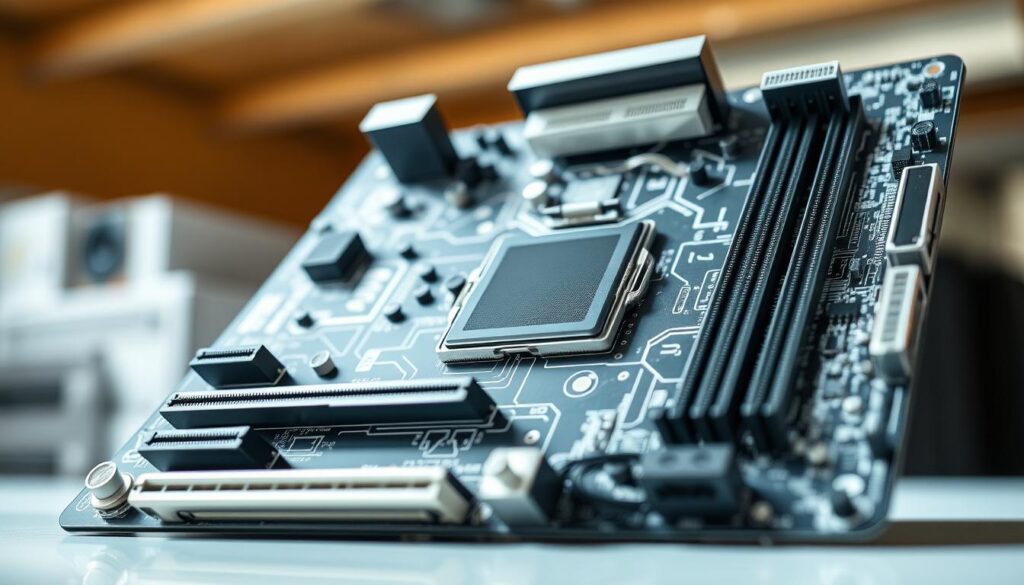
MSI B450 TOMAHAWK MAX
- MSI = Brand
- B450 = Chipset
- TOMAHAWK = Series
- MAX = Updated version
This helps you easily search compatibility online.
Common Mistakes to Avoid
1. Not Checking Socket Compatibility
Wrong CPU selection is a common issue that can lead to compatibility problems, system failure, or poor computer performance.
2. Ignoring BIOS Version
Older BIOS may not support new processors.
3. Assuming All RAM Works
RAM compatibility depends on motherboard support.
4. Buying Without Research
Always verify specifications before upgrading.
Tips for Beginners
- Always confirm motherboard model before upgrades
- Use CMD or CPU-Z for accuracy
- Visit manufacturer website for full specs
- Save your system details for future use
FAQ’s
1. What are motherboard specifications?
Motherboard specifications are technical details that show what hardware your system supports, such as CPU, RAM, and storage.
2. How can I check motherboard specifications in Windows?
You can check them using msinfo32, Command Prompt, or PowerShell without opening your PC.
3. Why is it important to know motherboard specifications?
It helps you avoid compatibility issues and choose the right hardware for upgrades, ensuring better performance, stability, and a smooth overall computing experience.
4. Can I check motherboard details without opening my PC?
Yes, you can easily use Windows tools like System Information (msinfo32) or Command Prompt (CMD) to quickly find accurate motherboard details without opening your PC.
5. What is the easiest way to check motherboard specs?
You can check motherboard specifications using msinfo32, Command Prompt, or PowerShell. These Windows tools provide quick and accurate system details without needing to open your PC case.
Final Thoughts
Learning how to check motherboard specifications is very important for every PC user. It helps you understand your system, avoid compatibility issues, and make smarter upgrade decisions. You can use Windows tools, CMD, BIOS, or third-party software to get accurate details. Once you know your motherboard specs, you can confidently choose the right hardware for a stable and powerful computer system.