What Is My Motherboard Serial Number in Windows 10
Knowing your motherboard serial number in Windows 10 is important for hardware upgrades, technical support, BIOS updates, and warranty claims. Every motherboard comes with a unique serial number provided by the manufacturer. This number helps identify the exact motherboard installed in your computer. Windows 10 offers several easy ways to find this information using built-in tools like Command Prompt, PowerShell, and BIOS settings. This guide explains all important methods with simple steps and useful troubleshooting tips.
Learn what is my motherboard serial number Windows 10 using Command Prompt, BIOS, PowerShell, and easy methods to check motherboard details quickly.
- What Is a Motherboard Serial Number?
- Why Is the Motherboard Serial Number Important?
- Method 1: Use Command Prompt
- Method 2: Use Windows PowerShell
- Method 3: Check BIOS or UEFI
- Method 4: Use Third-Party Software
- Best Software for Motherboard Information
- Difference Between Motherboard Model and Serial Number
- How to Physically Find the Motherboard Serial Number
- Common Errors While Checking Serial Numbers
- Best Method for Most Users
- Security and Privacy Tips
- FAQ’s
- Conclusion
- Related post
What Is a Motherboard Serial Number?
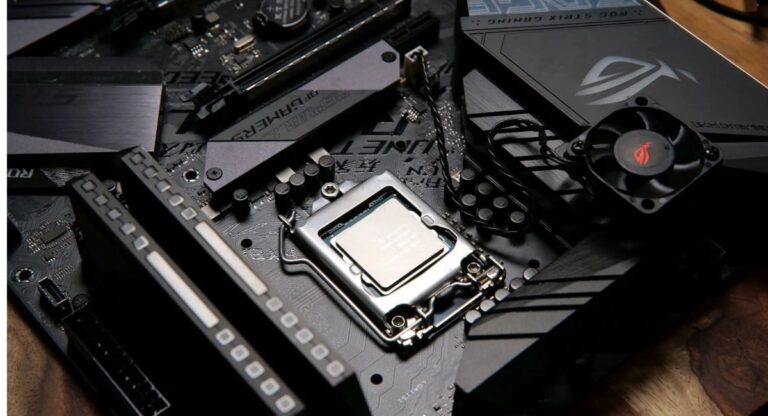
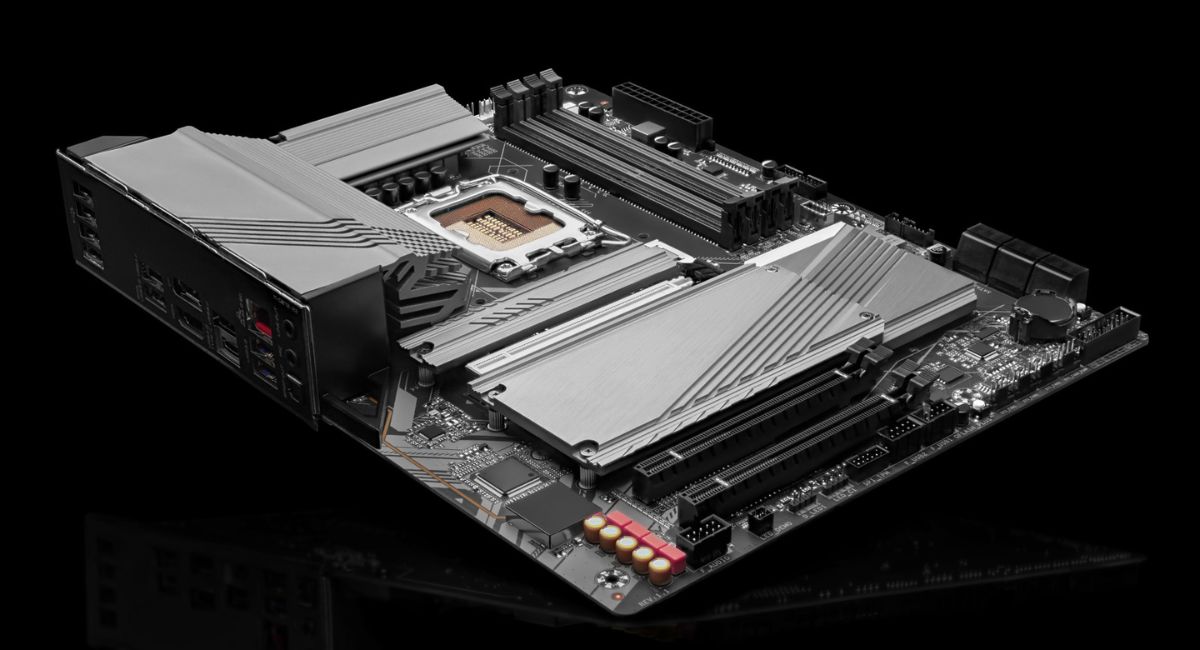
A motherboard serial number is a unique identification code assigned by the motherboard manufacturer to every motherboard produced.
This serial number helps identify a specific motherboard model and distinguish it from other devices. It is commonly used for warranty verification, technical support, BIOS updates, and hardware troubleshooting.
Manufacturers use this number to track product information, while users need it for system upgrades, driver compatibility checks, and repair services.
Main Uses of a Motherboard Serial Number
- Warranty verification
- Technical support
- BIOS updates
- Hardware troubleshooting
- Driver compatibility
- Product registration
Every motherboard has a unique serial number, even if two computers use the same motherboard model. This serial number helps manufacturers identify a specific motherboard for warranty claims, technical support, repairs, and hardware verification purposes.
Why Is the Motherboard Serial Number Important?
The motherboard serial number is useful in many situations.
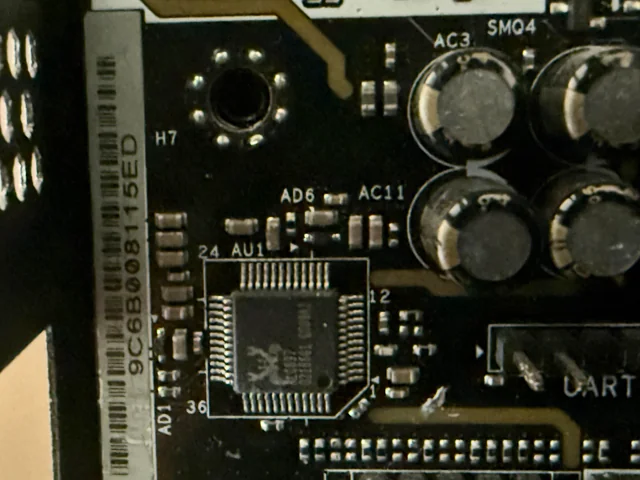
Hardware Upgrades
When upgrading components like:
- RAM
- Processor
- SSD
- Graphics card
Users often need motherboard details to check compatibility.
Warranty and Repairs
Manufacturers usually ask for the serial number before approving:
- Repairs
- Warranty services
- Replacement requests
BIOS Updates
The correct motherboard information helps users download the right:
- BIOS firmware
- Chipset drivers
- System utilities
Troubleshooting Problems
Technical support teams may ask for the motherboard serial number to diagnose:
- Hardware failures
- Boot issues
- Compatibility errors
Method 1: Use Command Prompt
The easiest method to find the motherboard serial number is using Command Prompt.
Steps to Find the Serial Number
- Press Windows + R
- Type cmd
- Press Enter
- Type the following command:
which baseboard get serialnumber
- Press Enter
The motherboard serial number will appear instantly.
Benefits of This Method
- Quick and simple
- No software installation
- Works on most computers
- Best for beginners
Common Problems
Sometimes users may see:
- Default String
- To Be Filled By O.E.M
- Blank value
This happens when motherboard information is missing from the BIOS.
Method 2: Use Windows PowerShell
PowerShell provides more detailed motherboard information.
Steps Using PowerShell
- Right-click the Start Menu
- Open Windows PowerShell
- Enter this command:
Get-WmiObject win32_baseboard | Format-List Product,Manufacturer,SerialNumber
- Press Enter
You will see:
- Manufacturer
- Motherboard model
- Serial number
Advantages of PowerShell
- Detailed hardware information
- Professional utility
- Accurate results
- Useful for IT users
Method 3: Check BIOS or UEFI
The BIOS stores hardware information directly on the motherboard.
Steps to Access BIOS
- Restart the computer
- Press the BIOS key during startup:
- F2
- Delete
- ESC
- F10
- Open the System Information section
- Locate the motherboard serial number
Benefits of BIOS Method
- Direct motherboard data
- Reliable information
- Works without Windows
Drawbacks
- Requires restarting the PC
- Different BIOS layouts
- Can confuse beginners
Method 4: Use Third-Party Software
Some software tools automatically display motherboard details.
Best Software for Motherboard Information
CPU-Z
CPU-Z is one of the most trusted hardware information tools.
Features
- Displays motherboard details
- Shows CPU information
- Free software
- Lightweight application
Speccy
Speccy provides complete hardware analysis.
Benefits
- User-friendly interface
- Temperature monitoring
- Detailed reports
- Fast scanning
HWiNFO
HWiNFO is an advanced hardware monitoring tool.
Main Features
- Professional diagnostics
- Real-time monitoring
- Detailed hardware reports
- Sensor information
Difference Between Motherboard Model and Serial Number
Many users think the motherboard model and serial number are the same, but they are different.
Motherboard Model
The model identifies the motherboard type.
Examples
- ASUS PRIME B550M-A
- MSI MAG B660
- Gigabyte Z790
Motherboard Serial Number
The serial number is unique for every motherboard unit.
Even two identical motherboard models have different serial numbers.
How to Physically Find the Motherboard Serial Number
If software methods fail, users can manually check the motherboard.

Steps
- Turn off the computer
- Disconnect the power cable
- Open the computer case
- Locate the motherboard sticker
- Find labels such as:
- SN
- Serial Number
- S/N
Safety Tips
- Avoid static electricity
- Handle hardware carefully
- Disconnect all power sources
- Use proper lighting
Common Errors While Checking Serial Numbers
Some users may face issues while checking motherboard information.
Serial Number Not Showing
Possible reasons include:
- Missing BIOS information
- OEM configuration problems
- Outdated BIOS firmware
Access Denied Error
Run Command Prompt as:
- Administrator
Incorrect Information
Try:
- Updating BIOS
- Using another method
- Checking the motherboard physically
Best Method for Most Users
The easiest method for most Windows 10 users is:
which baseboard get serialnumber
Why This Method Is Recommended
- Fast results
- No additional software
- Easy command
- Works on most systems
Security and Privacy Tips
Motherboard serial numbers should be protected carefully.
Important Tips
- Do not share publicly
- Store information safely
- Share only with trusted support providers
- Protect warranty details
FAQ’s
1. What command shows the motherboard serial number in Windows 10?
The command which baseboard gets the serial number quickly displays the motherboard serial number using Command Prompt in Windows 10.
2. Can I find the motherboard serial number without opening my PC?
Yes, users can check motherboard serial numbers using Command Prompt, PowerShell, BIOS settings, or hardware information software.
3. Why does my motherboard serial number show “Default String”?
This usually happens when the motherboard manufacturer does not properly configure BIOS hardware information.
4. Is the motherboard serial number important for warranty claims?
Yes, manufacturers use motherboard serial numbers to verify warranty eligibility and technical support requests.
5. Which software is best for checking motherboard details?
Popular tools like CPU-Z, Speccy, and HWiNFO provide detailed motherboard information, including serial numbers and motherboard models.
Conclusion
Finding your motherboard serial number in Windows 10 is simple using Command Prompt, PowerShell, BIOS, or third-party software. This information is useful for hardware upgrades, technical support, BIOS updates, and warranty claims. Knowing your motherboard details helps users troubleshoot problems faster, improve system management, and keep important hardware information secure for future maintenance needs.