ASUS ROG STRIX B650-A Motherboard BIOS Update Guide
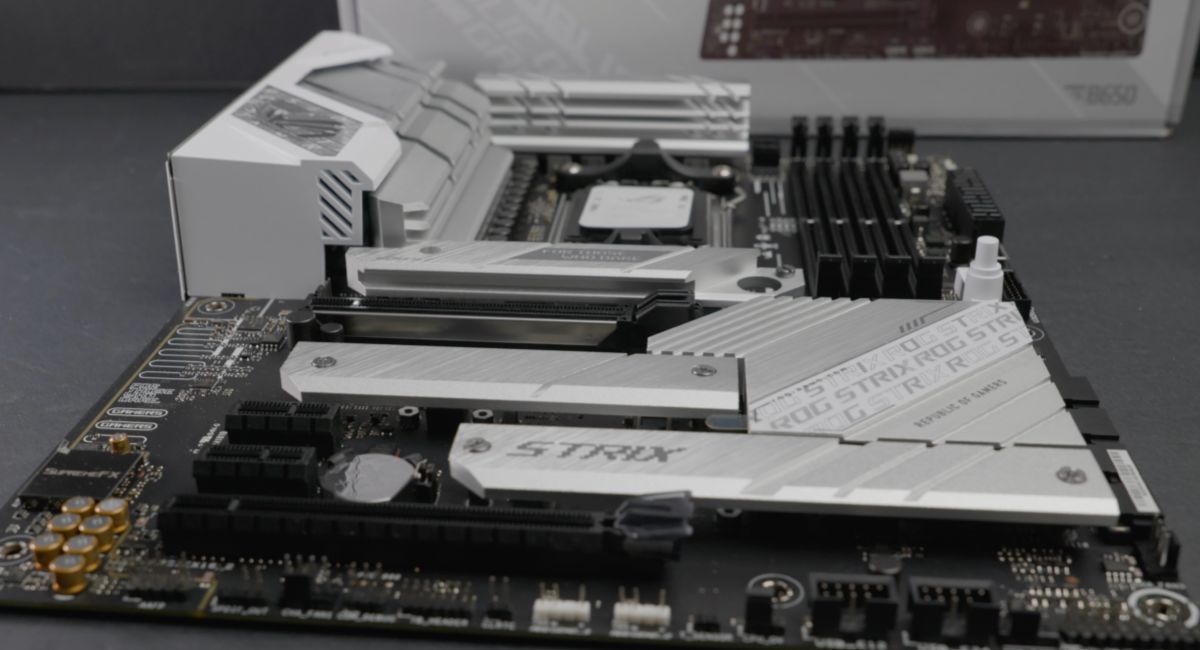
The ASUS ROG STRIX B650-A is a feature-rich AMD Ryzen motherboard built for gaming, content creation, and high-performance computing. Keeping the BIOS updated helps improve system stability, hardware compatibility, and overall security. BIOS updates can also add support for newer processors, memory modules, and firmware enhancements. By installing the latest BIOS version, users can ensure their motherboard operates efficiently, remains compatible with modern hardware, and delivers a reliable computing experience.
ASUS ROG STRIX B650-A motherboard BIOS update guide for improved performance, stability, and compatibility. Learn safe update steps and key benefits quickly.
- What Is a BIOS Update?
- Why You Should Update the BIOS
- Key BIOS Features of ASUS ROG STRIX B650-A
- Preparing for a BIOS Update
- How to Download the Correct BIOS File
- Updating BIOS with ASUS EZ Flash
- BIOS FlashBack Function
- Common BIOS Update Issues
- Troubleshooting BIOS Problems
- Best Practices for a Safe BIOS Update
- Performance Improvements After Updating BIOS
- FAQ’s
- Conclusion
- Related post
What Is a BIOS Update?
The BIOS (Basic Input Output System) is firmware stored on the motherboard. It initializes hardware components and allows the operating system to communicate with the computer’s hardware during startup.
A BIOS update is released by ASUS to fix bugs, improve compatibility, add support for new hardware, and optimize performance.
Unlike software updates, a BIOS update directly affects the motherboard’s firmware, making it an important maintenance task for long-term system reliability.
Why You Should Update the BIOS
Many users only update the BIOS when installing a new processor, but there are several other reasons to keep the firmware current.
A newer BIOS version can solve compatibility issues, improve memory support, and provide important security patches. It can also help reduce crashes and improve overall system performance.
Benefits of Updating the BIOS
- Better CPU compatibility
- Improved RAM support
- Enhanced system stability
- Security vulnerability fixes
- Better hardware detection
- Faster boot times
- Improved overclocking support
- Reduced system crashes
These improvements help ensure your computer runs smoothly and efficiently.
Key BIOS Features of ASUS ROG STRIX B650-A
ASUS includes several advanced tools within its BIOS interface that make updating and managing firmware easier.
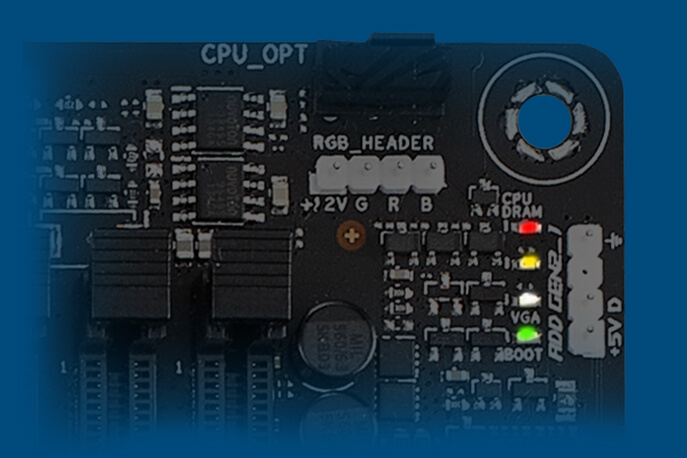
Important Features
- ASUS EZ Flash
- BIOS FlashBack
- Advanced UEFI BIOS
- Hardware monitoring tools
- Fan control settings
- CPU tuning options
- Memory optimization features
- Recovery and protection functions
These built-in tools simplify BIOS management for both beginners and advanced users.
Preparing for a BIOS Update
Before updating the BIOS, proper preparation is essential. Taking a few minutes to prepare can prevent errors and ensure a successful installation.
First, verify that you own the ASUS ROG STRIX B650-A motherboard. Next, check your current BIOS version and download the latest firmware from ASUS. It is also important to use a stable power source during the update process.
Preparation Checklist
- Verify motherboard model
- Check current BIOS version
- Download the latest BIOS file
- Use a FAT32 USB drive
- Back up BIOS settings
- Ensure stable electricity
- Close unnecessary applications
Completing these steps reduces the risk of update failures.
How to Download the Correct BIOS File
Using the correct BIOS version is extremely important. Installing firmware intended for another motherboard can create serious problems.
Visit the official ASUS support page and navigate to the BIOS section for the ROG STRIX B650-A motherboard. Download the latest stable version and extract the file. After extraction, copy the BIOS file to a properly formatted USB drive.
Always download firmware from official sources to avoid corrupted or modified files.
Updating BIOS with ASUS EZ Flash
The easiest method for updating the BIOS is through ASUS EZ Flash. This utility is built directly into the motherboard and does not require additional software.
After copying the BIOS file to your USB drive, restart the system and enter the BIOS menu. Open the EZ Flash utility, select the BIOS file, and start the update process.
EZ Flash Steps
- Download the BIOS file.
- Copy it to a USB drive.
- Restart the computer.
- Enter BIOS settings.
- Open ASUS EZ Flash.
- Select the BIOS file.
- Confirm the update.
- Wait for completion.
Do not turn off the computer during the update process.
BIOS FlashBack Function
One of the most valuable features on the ASUS ROG STRIX B650-A motherboard is BIOS FlashBack. This technology allows users to update firmware without installing a CPU or memory.

This feature is especially useful when building a new PC with a processor that requires a newer BIOS version than the one currently installed.
Advantages of BIOS FlashBack
- No CPU required
- No RAM required
- Quick firmware recovery
- Safe update process
- Ideal for new PC builds
Many experienced builders rely on BIOS FlashBack because it provides an additional layer of convenience and protection.
Common BIOS Update Issues
Although BIOS updates are generally safe, users may occasionally encounter problems. Most issues occur because of incorrect files or interrupted installations.
Common issues include the BIOS file not being detected, update failures, or boot problems after installation. Fortunately, most of these problems can be resolved with simple troubleshooting steps.
Common Problems
- BIOS file not recognized
- Incorrect firmware version
- USB drive errors
- Failed update process
- Boot issues after updating
- System instability
Understanding these issues helps users solve problems more efficiently.
Troubleshooting BIOS Problems
If your system experiences issues after a BIOS update, there are several solutions you can try.
Start by loading the default BIOS settings and resetting the CMOS. If the issue remains, verify that the correct BIOS version was installed. BIOS FlashBack can also be used to reinstall the firmware.
Troubleshooting Tips
- Reset CMOS settings
- Load BIOS defaults
- Check hardware connections
- Verify BIOS compatibility
- Use another USB drive
- Reinstall the BIOS if needed
These methods solve most BIOS-related problems.
Best Practices for a Safe BIOS Update
A BIOS update should always be performed carefully. Following proven best practices helps minimize risks.
Before updating, read the ASUS release notes to understand what changes are included. Only install updates that provide benefits relevant to your hardware configuration.
Safety Recommendations
- Use official ASUS firmware
- Keep power stable
- Do not interrupt updates
- Verify motherboard model
- Back up settings
- Follow ASUS instructions
Taking these precautions greatly increases the chances of a successful update.
Performance Improvements After Updating BIOS
Many users notice better system performance after installing a newer BIOS version. While BIOS updates do not usually provide massive FPS gains, they can improve overall stability and compatibility.

You may experience better processor support, improved memory performance, smoother operation, and fewer crashes.
New firmware can also improve communication between hardware components, resulting in a more reliable computing experience.
Possible Improvements
- Faster boot times
- Better CPU support
- Improved memory compatibility
- Enhanced stability
- Reduced crashes
- Better hardware communication
- Improved security
The exact improvements depend on your hardware and the BIOS version being installed.
FAQ’s
1. How often should I update my BIOS?
You should update the BIOS whenever ASUS releases important compatibility, security, or stability improvements relevant to your system.
2. Can a BIOS update improve gaming performance?
A BIOS update can improve stability and hardware compatibility, which may contribute to a smoother gaming experience.
3. Is BIOS FlashBack better than EZ Flash?
Both methods are reliable, but BIOS FlashBack is useful because it works without a CPU or RAM installed.
4. What happens if power fails during a BIOS update?
A power interruption can corrupt the BIOS firmware, which may require recovery using BIOS FlashBack.
5. Will BIOS settings reset after an update?
Conclusion
Updating the ASUS ROG STRIX B650-A BIOS is an important step for maintaining a secure, stable, and high-performing computer. New BIOS versions often include compatibility improvements, bug fixes, and security enhancements that help your system operate more efficiently. By following the correct update procedures and using official ASUS firmware, users can safely update their motherboard and enjoy improved reliability, better hardware support, and long-term performance.