MSI Motherboard BIOS Update- Complete Guide for Safe Installation
An MSI motherboard BIOS update is essential for improving system stability, hardware compatibility, gaming performance, and security. Updating the BIOS helps your motherboard support new CPUs, RAM, and advanced system features. Many gamers and PC users update their MSI BIOS to fix bugs, improve boot performance, and optimize hardware communication. However, performing the process incorrectly can create serious issues. Understanding the correct BIOS update method ensures a safer and smoother upgrade experience.
Learn how MSI motherboard BIOS update improves gaming performance, hardware compatibility, system stability, and fixes motherboard issues safely and efficiently.
- What Is an MSI Motherboard BIOS Update?
- Why MSI BIOS Updates Are Important
- When Should You Update MSI BIOS?
- How to Check Your Current BIOS Version
- How to Download MSI BIOS Update
- Preparing for an MSI BIOS Update
- How to Update MSI Motherboard BIOS
- Common MSI BIOS Update Problems
- How to Fix Failed MSI BIOS Updates
- Best Practices for Safe BIOS Updates
- MSI BIOS Features Gamers Should Know
- Does BIOS Update Improve Gaming Performance?
- How Long Does MSI BIOS Update Take?
- Signs Your BIOS Needs an Update
- Future of MSI BIOS Technology
- FAQ’s
- Conclusion
- Related post
What Is an MSI Motherboard BIOS Update?
A BIOS update upgrades the motherboard firmware responsible for controlling hardware communication between the CPU, RAM, storage devices, and graphics card.
The BIOS manages:
- System startup
- Hardware detection
- Voltage control
- Fan settings
- Boot priority
- Memory compatibility
Updating the BIOS helps improve overall motherboard functionality and system reliability.
Why MSI BIOS Updates Are Important
Many users ignore BIOS updates, but they offer several important benefits for gaming and productivity systems.
Major Benefits of MSI BIOS Updates
- Improved CPU compatibility
- Better RAM stability
- Enhanced gaming performance
- Security vulnerability fixes
- Bug and crash fixes
- Better system temperatures
- Faster boot performance
Modern hardware often requires the latest BIOS version for maximum performance.
When Should You Update MSI BIOS?
Updating BIOS is recommended in specific situations.
You Should Update BIOS If:
- Installing a new processor
- Facing system crashes
- Experiencing boot issues
- Upgrading RAM compatibility
- Fixing motherboard bugs
- Improving gaming stability
However, if your system runs perfectly without problems, updating may not always be necessary.
How to Check Your Current BIOS Version
Before updating, check your motherboard’s current BIOS version.
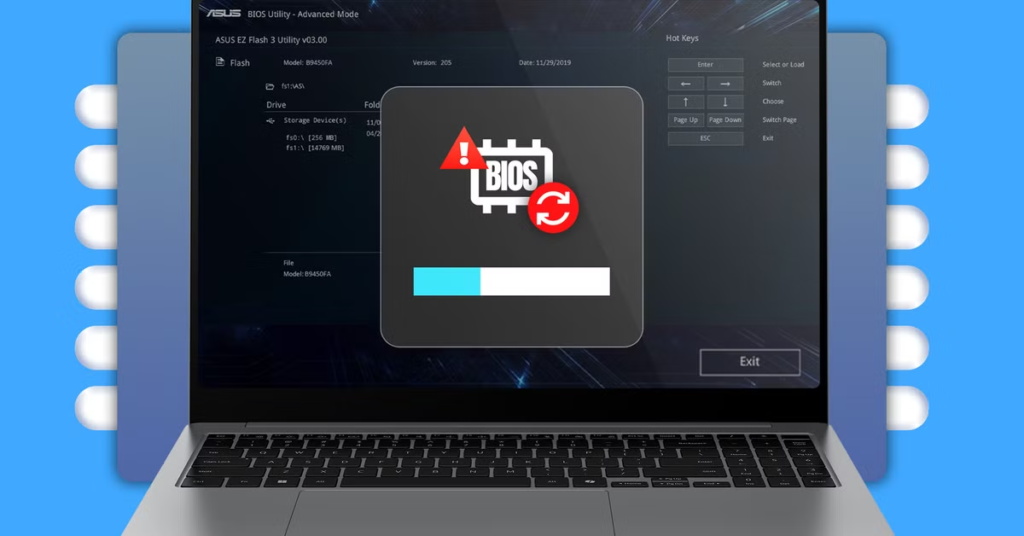
Method 1: Using System Information
Follow these steps:
- Press Windows + R
- Type msinfo32
- Press Enter
- Look for BIOS Version/Date
Method 2: BIOS Menu
You can also enter the BIOS during startup and check version details directly.
How to Download MSI BIOS Update
Downloading the correct BIOS version is extremely important.
Steps to Download MSI BIOS
- Visit the official MSI website
- Search your motherboard model
- Open the support section
- Select the BIOS tab
- Download the latest BIOS file
Always confirm the exact motherboard model before downloading firmware.
Preparing for an MSI BIOS Update
Proper preparation reduces update risks significantly.
Important Preparation Steps
- Use a stable power supply
- Backup important files
- Format USB drive to FAT32
- Download the correct BIOS version
- Avoid interrupting the update process
Power failure during BIOS installation may corrupt the motherboard firmware.
How to Update MSI Motherboard BIOS
Method 1: M-Flash BIOS Update
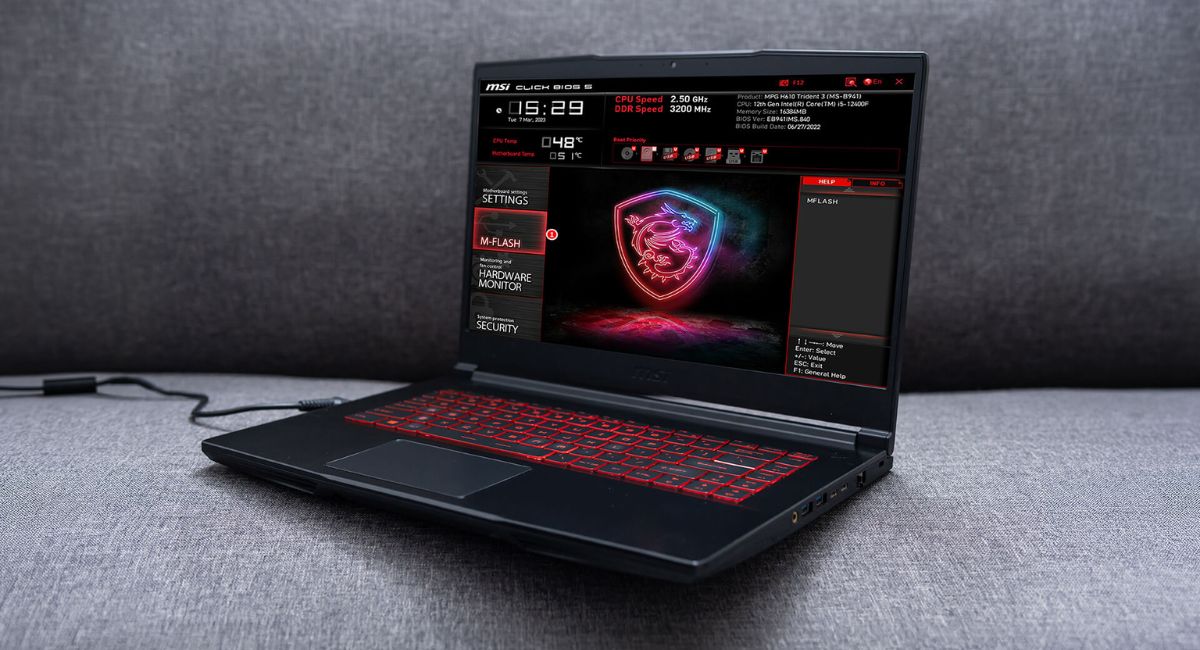
MSI motherboards include the M-Flash utility for safer BIOS updates.
Steps for M-Flash Update
- Download BIOS files
- Extract files to USB drive
- Restart the PC
- Enter BIOS using the Delete key
- Open M-Flash
- Select BIOS file
- Start the update process
The system will restart automatically after completion.
Method 2: BIOS Flashback
Some MSI boards support BIOS Flashback, allowing BIOS updates without installing a CPU.
Benefits of BIOS Flashback
- Easier recovery process
- No CPU required
- Helpful for unsupported processors
- Safer emergency updates
Common MSI BIOS Update Problems
Sometimes users face issues during BIOS updates.
System Not Booting
A failed BIOS installation may prevent startup completely.
Black Screen Issues
Incorrect BIOS files can create display problems after rebooting.
USB Not Detected
Improperly formatted USB drives may fail during installation.
Update Freezing
Interrupting the update process can damage BIOS firmware permanently.
How to Fix Failed MSI BIOS Updates
Clear CMOS
Resetting CMOS may restore motherboard functionality.
Use BIOS Flashback
Many MSI boards allow recovery through Flashback features.
Reinstall BIOS Files
Downloading a fresh BIOS version sometimes fixes corrupted files.
Check Hardware Compatibility
Unsupported CPUs or RAM may create BIOS conflicts.
Best Practices for Safe BIOS Updates
Following safety guidelines minimizes motherboard risks.
Recommended Safety Tips
- Use a UPS for power backup
- Never turn off the PC during updates
- Avoid updating during storms
- Use official MSI BIOS files only
- Read motherboard instructions carefully
These precautions help prevent BIOS corruption.
MSI BIOS Features Gamers Should Know
Modern MSI motherboards include advanced BIOS features for gaming optimization.
Popular MSI BIOS Features
- XMP memory profiles
- CPU overclocking controls
- Fan speed customization
- Secure Boot
- Hardware monitoring
- Resizable BAR support
These settings improve gaming performance and system control.
Does BIOS Update Improve Gaming Performance?
In some cases, BIOS updates improve gaming stability and hardware communication.
Possible gaming improvements include:
- Better FPS stability
- Improved RAM compatibility
- Reduced crashes
- Faster boot times
- Better CPU optimization
However, BIOS updates usually provide stability improvements rather than massive FPS gains.
How Long Does MSI BIOS Update Take?
Most MSI BIOS updates take:
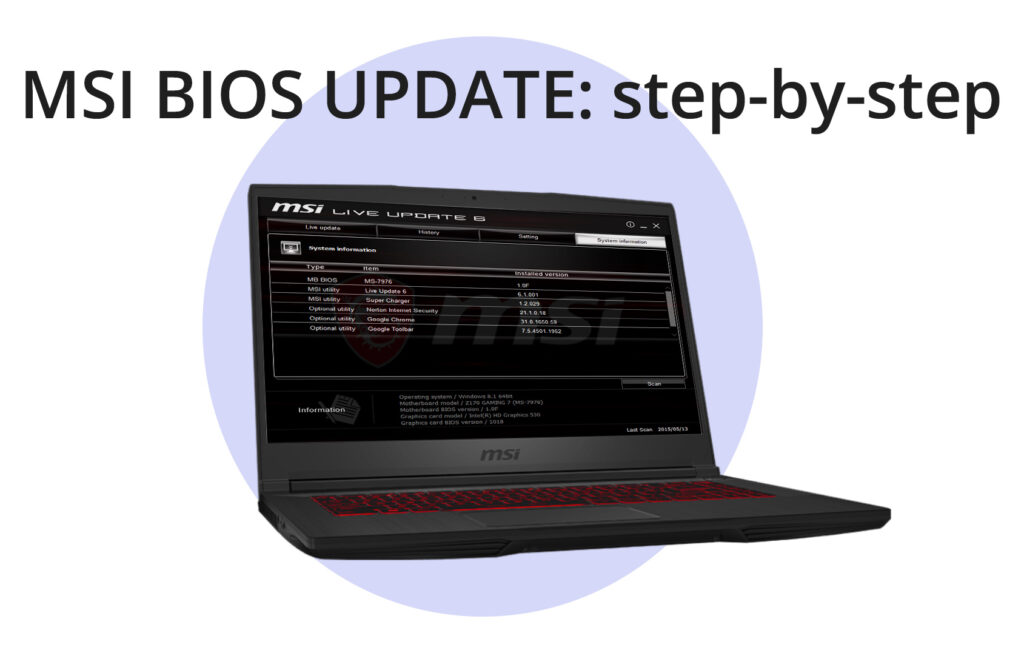
- 5 to 15 minutes
The duration depends on the motherboard model and BIOS size.
Never restart or shut down the PC during the process.
Signs Your BIOS Needs an Update
You may need a BIOS update if you experience:
- Frequent crashes
- Hardware detection issues
- CPU compatibility problems
- Random restart loops
- RAM instability
- Boot failures
Updating the BIOS may resolve these issues effectively.
Future of MSI BIOS Technology
MSI continues improving BIOS technology with advanced motherboard features.
Upcoming innovations may include:
- AI-based optimization
- Faster firmware installation
- Improved security systems
- Advanced thermal controls
- Better hardware compatibility
Future BIOS systems will likely become easier and safer for beginners.
FAQ’s
1.Is MSI motherboard BIOS update safe?
Yes, an MSI motherboard BIOS update is generally safe when users follow official instructions and avoid interrupting the installation process during firmware updates.
2.Can a BIOS update improve gaming performance?
BIOS updates mainly improve hardware stability, compatibility, and system optimization, although some updates may slightly improve gaming performance and reduce crashes.
3.What happens if BIOS update fails?
A failed BIOS update can prevent the motherboard from booting properly, but BIOS Flashback or CMOS reset may help recover the system successfully.
4.Do I need a USB drive for BIOS updates?
Yes, most MSI BIOS update methods require a FAT32-formatted USB drive to store and install the downloaded BIOS firmware files safely.
5.How often should I update MSI BIOS?
You should update MSI BIOS only when necessary for hardware compatibility, bug fixes, security improvements, or motherboard stability enhancements.
Conclusion
An MSI motherboard BIOS update improves system stability, hardware compatibility, and overall gaming performance. Using official BIOS files, following proper installation steps, and ensuring stable power during updates helps prevent motherboard issues. Regular BIOS updates allow gamers and PC users to enjoy smoother performance, better hardware support, reduced crashes, and improved reliability for modern applications and demanding gaming experiences.