DRAM and CPU Light on Motherboard- Complete Troubleshooting Guide
The DRAM and CPU lights on a motherboard help identify hardware problems during the computer boot process. These diagnostic LEDs indicate issues related to RAM, the processor, BIOS settings, cooling, or the power supply. Many users experience these errors after upgrading components or building a new gaming PC. Understanding these motherboard warning lights helps troubleshoot startup problems faster, improves system stability, and reduces the risk of expensive hardware damage while maintaining reliable computer performance daily.
Learn how to fix DRAM and CPU light on motherboard issues with easy troubleshooting steps for RAM, CPU, BIOS, and power supply problems.
- What Are DRAM and CPU Lights on a Motherboard?
- Common Causes of DRAM Light on Motherboard
- Common Causes of CPU Light on Motherboard
- Types of Motherboard Debug Lights
- Symptoms of DRAM and CPU Light Problems
- How to Fix DRAM Light on Motherboard
- Reinstall the RAM Correctly
- Test RAM Modules Individually
- Reset the BIOS
- Update the BIOS
- Change RAM Slots
- How to Fix CPU Light on Motherboard
- Reinstall the CPU Properly
- Inspect CPU Pins Carefully
- Apply Fresh Thermal Paste
- Check CPU Cooler Installation
- Verify Power Supply Connections
- Advanced Troubleshooting Methods
- Benefits of Motherboard Debug Lights
- Importance of RAM Compatibility
- Importance of CPU Compatibility
- Common Mistakes During PC Building
- Best Practices to Prevent DRAM and CPU Issues
- When to Seek Professional Help
- Future of Motherboard Diagnostic Technology
- Frequently Asked Questions
- Conclusion
- Related post
What Are DRAM and CPU Lights on a Motherboard?
Modern motherboards include debug LEDs designed to detect hardware issues during startup. During the boot sequence, the motherboard checks all major components. If any hardware fails the test, the corresponding LED light stays on.
DRAM Light
The DRAM light indicates a problem related to the system memory (RAM). This issue may be caused by incompatible RAM, incorrect installation, faulty memory modules, or unstable BIOS settings.
CPU Light
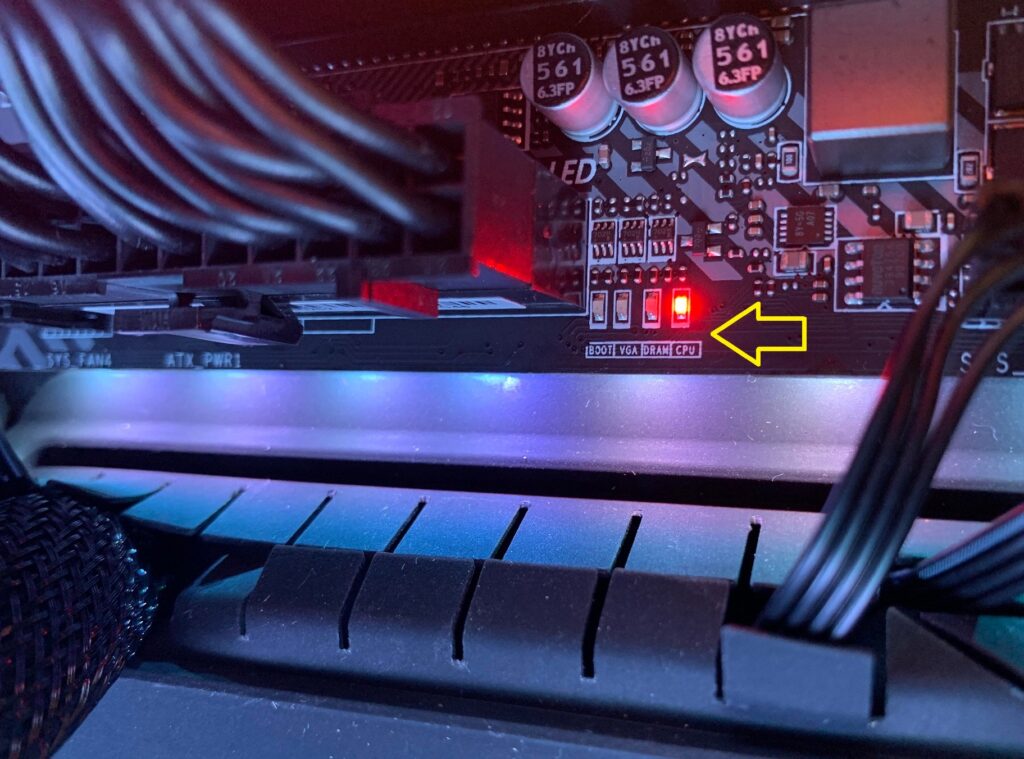
The CPU light points to a processor-related issue. It can appear because of overheating, improper CPU installation, BIOS incompatibility, damaged pins, or power supply problems.
Common Causes of DRAM Light on Motherboard
Several hardware and software issues can trigger the DRAM debug LED.
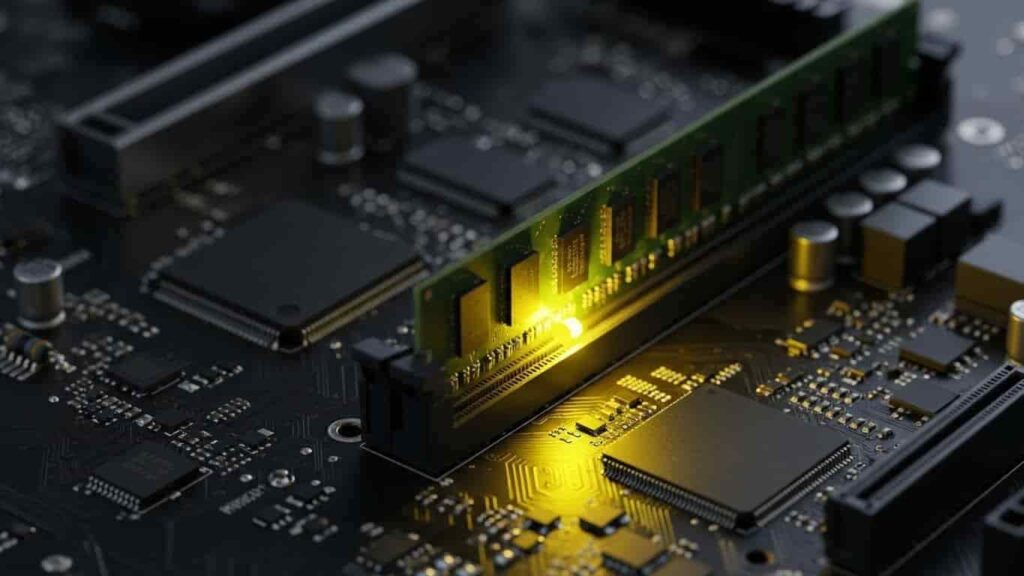
Incorrect RAM Installation
Improper RAM installation is one of the most common causes of DRAM errors.
Common installation mistakes include:
- RAM not fully inserted into the slot
- Lock clips not secured properly
- Installing RAM in incorrect slots
- Dust inside memory slots
Faulty RAM Modules
A damaged memory stick can stop the computer from booting.
Signs of faulty RAM include:
- Blue screen errors
- Frequent system crashes
- Automatic restarts
- Random freezing
Incompatible RAM
Not every RAM module works with every motherboard.
Compatibility issues may involve:
- Unsupported RAM frequency
- Incorrect memory voltage
- DDR4 RAM on a DDR5 motherboard
- Unsupported memory capacity
BIOS Configuration Problems
Incorrect BIOS settings can also activate the DRAM light.
Common BIOS-related causes include:
- Unstable RAM overclocking
- Incorrect XMP profile settings
- Outdated BIOS version
- Memory timing errors
Common Causes of CPU Light on Motherboard
The CPU light appears when the motherboard cannot properly communicate with the processor.
Improper CPU Installation
Incorrect CPU placement may prevent the system from starting.
Common installation errors include:
- Misaligned CPU placement
- Unlocked CPU socket
- Uneven pressure from the CPU cooler
Bent or Damaged CPU Pins
Bent pins interrupt communication between the CPU and motherboard.
This issue is common in:
- AMD processors
- Mishandled CPUs
- Incorrect installation attempts
CPU Overheating
Excessive heat can stop the processor from functioning correctly.
Overheating may occur because of:
- Missing thermal paste
- Faulty CPU cooler
- Poor airflow inside the case
- Dust accumulation
BIOS Compatibility Issues
Some modern CPUs require updated BIOS support.
Symptoms of BIOS incompatibility include:
- Black screen during startup
- Fans spinning without display
- CPU light remaining on continuously
Power Supply Problems
Insufficient power delivery can also cause CPU errors.
Common PSU-related issues include:
- Loose CPU power cable
- Low-quality power supply
- Damaged connectors
- Insufficient wattage
Types of Motherboard Debug Lights
Most modern gaming and high-performance motherboards include multiple diagnostic LEDs.
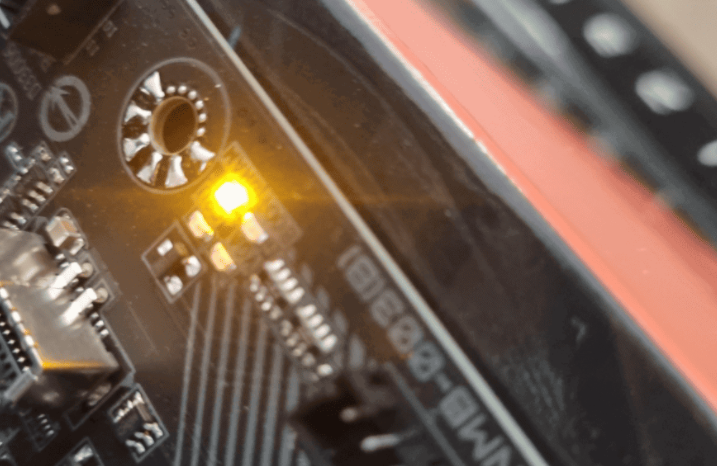
CPU LED
Detects processor-related issues.
DRAM LED
Checks RAM functionality and compatibility.
VGA LED
Indicates graphics card problems.
BOOT LED
Shows storage drive or operating system boot issues.
Symptoms of DRAM and CPU Light Problems
When these motherboard lights remain on, users may notice several system problems.
System Fails to Boot
The computer powers on but does not fully start.
Black Screen
The monitor receives no display signal.
Continuous Restarting
The system repeatedly reboots during startup.
Beep Sounds
Some motherboards use beep codes to indicate hardware errors.
Slow System Performance
RAM-related issues may reduce overall system speed.
How to Fix DRAM Light on Motherboard
There are several effective methods to solve DRAM-related problems.
Reinstall the RAM Correctly
Sometimes the RAM is simply loose or improperly installed.
Steps to Reinstall RAM
- Shut down the computer
- Disconnect the power cable
- Remove the RAM carefully
- Clean the memory slots
- Reinsert the RAM firmly
Test RAM Modules Individually
Testing one memory stick at a time helps identify faulty RAM.
Benefits of Individual Testing
- Detects damaged memory modules
- Improves troubleshooting accuracy
- Helps identify unstable RAM
Reset the BIOS
Resetting BIOS restores default motherboard settings.
BIOS Reset Methods
- Remove the CMOS battery
- Use the Clear CMOS button
- Reset BIOS from settings
Update the BIOS
Updating BIOS improves compatibility and stability.
Benefits of BIOS Updates
- Better RAM support
- Improved CPU compatibility
- Enhanced system performance
- Reduced hardware errors
Change RAM Slots
Sometimes the motherboard memory slot itself becomes faulty.
Recommended Solution
- Move RAM to another slot
- Follow motherboard manual instructions
- Test dual-channel setup carefully
How to Fix CPU Light on Motherboard
CPU-related issues require careful inspection and troubleshooting.
Reinstall the CPU Properly
Incorrect CPU placement can prevent the motherboard from booting.
Important Installation Tips
- Align the CPU correctly
- Lock the socket securely
- Avoid touching the CPU pins
Inspect CPU Pins Carefully
Bent pins must be fixed carefully.
Warning Signs of Pin Damage
- Missing pins
- Bent corners
- Uneven alignment
Apply Fresh Thermal Paste
Thermal paste improves heat transfer between the CPU and cooler.
Benefits of Thermal Paste
- Lower CPU temperatures
- Better cooling performance
- Improved processor lifespan
- Stable gaming performance
Check CPU Cooler Installation
A poorly installed cooler can lead to overheating.
Features of a Good CPU Cooler
- Efficient airflow
- Quiet operation
- Strong heat dissipation
- Reliable mounting mechanism
Verify Power Supply Connections
Ensure all motherboard power cables are connected securely.
Important Power Connectors
- 24-pin motherboard cable
- 8-pin CPU power connector
- GPU power cables
Advanced Troubleshooting Methods
If the issue continues, advanced troubleshooting may help identify the faulty component.
Remove Unnecessary Hardware
Disconnect extra hardware temporarily.
Examples include:
- Extra SSDs
- USB devices
- Expansion cards
- Additional RAM modules
Test Using Spare Components
Replacing hardware one by one helps locate the problem.
Monitor CPU Temperatures
Check processor temperatures using BIOS or monitoring software.
Benefits of Motherboard Debug Lights
Motherboard diagnostic LEDs provide several advantages for users.
Main Benefits
- Faster error detection
- Easier troubleshooting
- Reduced repair time
- Better hardware maintenance
- Improved user experience
Importance of RAM Compatibility
Using compatible RAM improves stability and performance.
Advantages of Compatible RAM
- Faster boot times
- Better multitasking
- Improved gaming performance
- Stable overclocking
- Lower crash risk
Importance of CPU Compatibility
A compatible processor allows the motherboard to function properly.
Benefits of CPU Compatibility
- Stable system operation
- Better power efficiency
- Lower temperatures
- Improved productivity
Common Mistakes During PC Building
Many users accidentally create hardware problems during PC assembly.
Frequent Mistakes
- Incorrect RAM installation
- Forgetting thermal paste
- Loose power cables
- Ignoring BIOS updates
- Using a low-quality PSU
Best Practices to Prevent DRAM and CPU Issues
Regular maintenance helps prevent motherboard errors.
Recommended Practices
- Use high-quality hardware
- Clean the PC regularly
- Keep BIOS updated
- Maintain proper airflow
- Avoid unstable overclocking
When to Seek Professional Help
Some motherboard issues require expert assistance.
Signs You Need a Technician
- Burn smell from the motherboard
- Broken CPU socket pins
- Physical motherboard damage
- Persistent boot failures
- Repeated hardware crashes
Future of Motherboard Diagnostic Technology
Motherboard technology continues to improve rapidly.
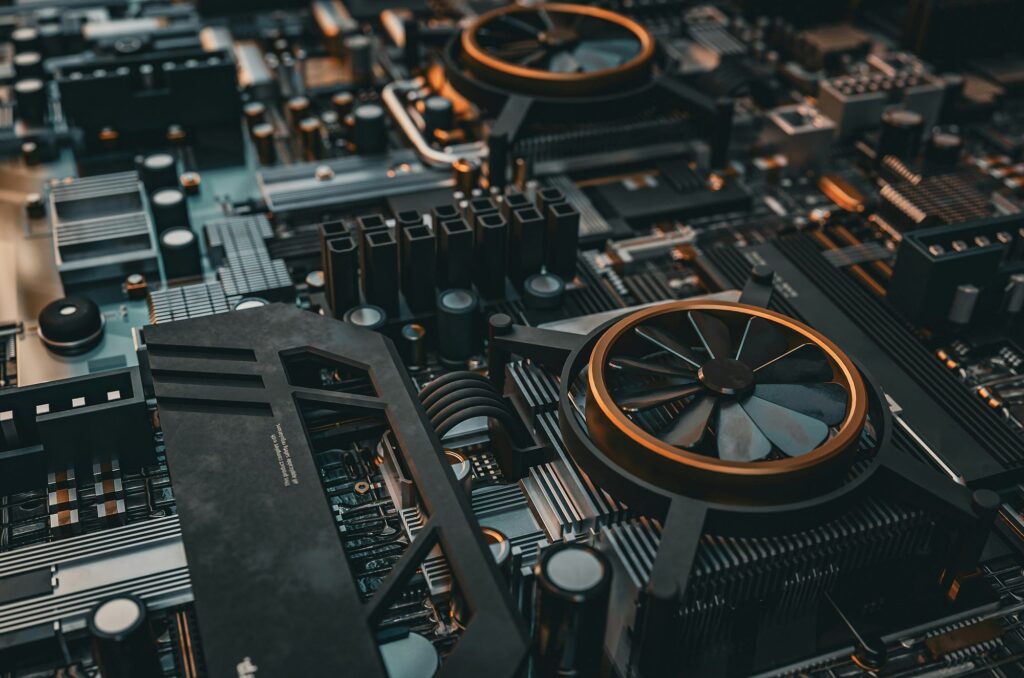
Upcoming Innovations
- AI-powered diagnostics
- Smart troubleshooting systems
- Advanced monitoring tools
- Faster hardware detection
- Mobile app integration
Frequently Asked Questions
1.What does the DRAM light mean on a motherboard?
The DRAM light indicates a memory-related issue caused by faulty RAM, incorrect installation, incompatible modules, or unstable BIOS settings during startup.
2.Why is the CPU light on but the computer will not boot?
The CPU light usually appears because of processor overheating, loose power connections, bent pins, BIOS incompatibility, or incorrect CPU installation.
3.Can faulty RAM damage a motherboard?
Faulty RAM typically does not physically damage the motherboard, but it can cause crashes, instability, failed boots, and poor system performance over time.
4.Does updating BIOS fix CPU light problems?
Yes, updating the BIOS can solve CPU light issues by improving processor compatibility and fixing motherboard firmware-related startup problems.
5.How can I fix the DRAM light quickly?
You can fix the DRAM light by reinstalling the RAM properly, cleaning memory slots, resetting BIOS settings, and testing RAM sticks individually.
Conclusion
The DRAM and CPU lights on a motherboard help detect hardware problems during startup. These issues are often caused by RAM installation errors, CPU compatibility problems, overheating, BIOS settings, or power supply faults. Proper troubleshooting and regular maintenance can prevent most errors. Understanding these warning indicators helps improve system stability, maintain performance, and reduce the risk of costly hardware damage over time.