How to Check Motherboard RAM Compatibility Guide
Upgrading your computer memory is one of the most effective ways to improve performance, speed, and multitasking ability. However, many users face issues when the RAM they buy is not compatible with their motherboard. Compatibility depends on RAM type, speed, capacity, and motherboard support. If these factors do not match, the system may not boot or may perform poorly. In this guide, you will learn how to check motherboard RAM compatibility step by step in detail.
Learn how to check motherboard RAM compatibility easily. This guide explains how to use your motherboard specs to verify RAM support and upgrades.
- Understanding Motherboard RAM Compatibility
- Types of RAM You Should Know
- How to Check Motherboard RAM Compatibility
- Key Factors for RAM Compatibility
- Benefits of Compatible RAM
- Features to Look in RAM
- Common RAM Compatibility Issues
- How to Avoid RAM Compatibility Problems
- RAM Installation Overview
- DDR4 vs DDR5 Comparison
- Online Methods to Check Compatibility
- Why RAM Compatibility is Important
- Tips for Beginners
- Frequently Asked Questions
- Conclusion
- Related post
Understanding Motherboard RAM Compatibility
Motherboard RAM compatibility means whether a specific RAM module can properly work with your system’s motherboard. Every motherboard is designed to support specific RAM generations, frequencies, and maximum memory limits.
If the RAM does not match these specifications, the system may fail to start or may become unstable during usage. This is why checking compatibility is one of the most important steps before upgrading memory.
RAM is temporary memory that helps your computer run applications smoothly. If RAM and motherboard are not compatible, data transfer between processor and memory becomes slow or unstable, causing performance issues and system errors.
In simple words, compatibility ensures that your hardware components understand each other properly. Without it, even high-quality RAM cannot deliver expected performance.
Types of RAM You Should Know
DDR3 RAM
DDR3 is an older generation memory used in older PCs.
Features
- Lower speed performance
- Budget-friendly option
- Used in legacy systems
- Limited modern support
DDR3 RAM is suitable only for basic computing tasks like browsing and office work. It is not recommended for modern gaming or heavy applications.
DDR4 RAM
DDR4 is the most widely used RAM type today.
Features
- Faster than DDR3
- Energy efficient
- Broad compatibility
- Stable performance
DDR4 RAM is the standard choice for most users. It provides a balance of speed, cost, and reliability, making it suitable for gaming, office work, and multitasking.
Most modern motherboards support DDR4, which is why it is commonly found in laptops and desktops used for everyday and professional work.
DDR5 RAM
DDR5 is the latest generation of RAM technology.
Features
- Very high speed
- Improved efficiency
- Advanced architecture
- Future-ready performance
DDR5 RAM is used in high-end systems. It delivers excellent performance for demanding tasks such as video editing, 3D rendering, and advanced gaming.
How to Check Motherboard RAM Compatibility
Check Motherboard Manual
The motherboard manual is the most reliable source. It clearly shows supported RAM types, speeds, and maximum capacity.
Check CPU Support
RAM compatibility also depends on your processor, so always check CPU specifications.
Use System Tools
Tools like Task Manager, CPU-Z, or system information help identify current RAM and supported limits.
Visit Manufacturer Website
Motherboard manufacturers provide detailed compatibility lists online.
Check RAM Slot Type
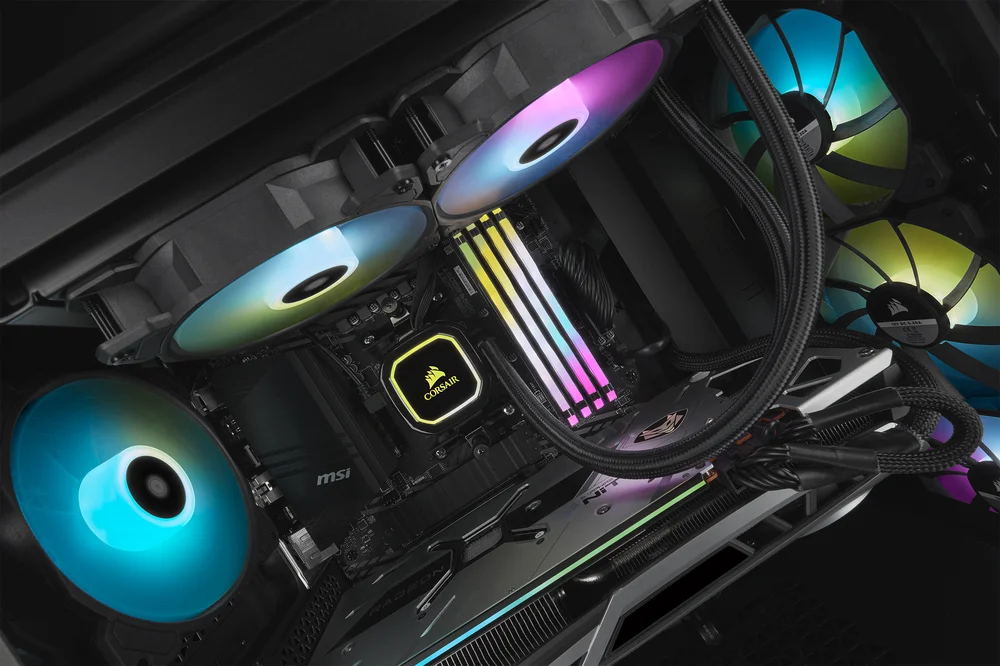
Physically check whether your motherboard has DDR3, DDR4, or DDR5 slots.
These methods together give you a complete understanding of what RAM your system can support. Skipping these checks can lead to wrong purchases and hardware issues.
It is always better to verify compatibility before buying RAM instead of fixing problems later after installation fails.
Key Factors for RAM Compatibility
RAM Type
The RAM generation must match motherboard support.
Details
- DDR3 for older systems
- DDR4 for modern systems
- DDR5 for latest systems
RAM Speed
Speed is measured in MHz and affects performance.
Points
- Higher speed improves performance
- Motherboard limits maximum speed
- Mismatch may reduce efficiency
RAM Capacity
Capacity refers to total memory size.
Common Sizes
- 4GB basic usage
- 8GB standard usage
- 16GB gaming
- 32GB+ professional work
Dual Channel Support
Dual channel uses two RAM sticks for better performance.
BIOS Support
Some systems require BIOS updates for newer RAM support.
Voltage Compatibility
Different RAM generations require different voltage levels.
All these factors work together to determine whether your RAM will function correctly or not. Ignoring even one factor can create performance or boot issues.
Benefits of Compatible RAM
- Faster system performance
- Smooth multitasking
- Better gaming experience
- Reduced lag
- Stable system operation
- Improved productivity
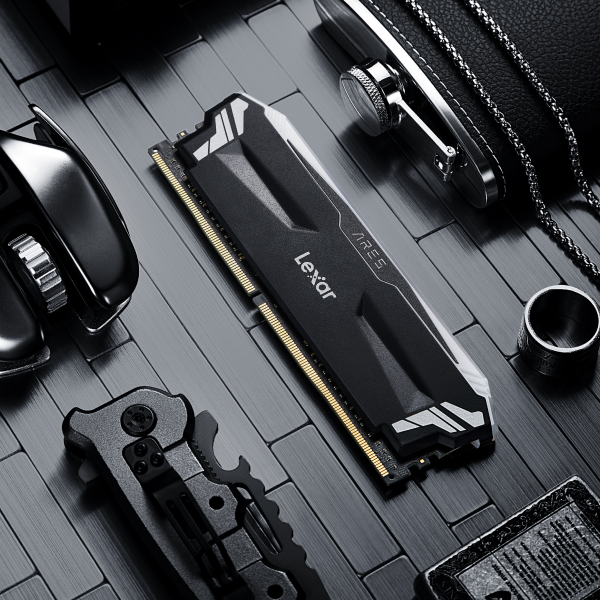
Compatible RAM ensures your system runs without interruptions. It allows your processor to access data quickly and improves overall responsiveness.
A properly matched RAM upgrade can also extend the life of your system by reducing hardware stress and improving efficiency.
Features to Look in RAM
- High frequency speed
- Low latency timing
- Energy efficiency
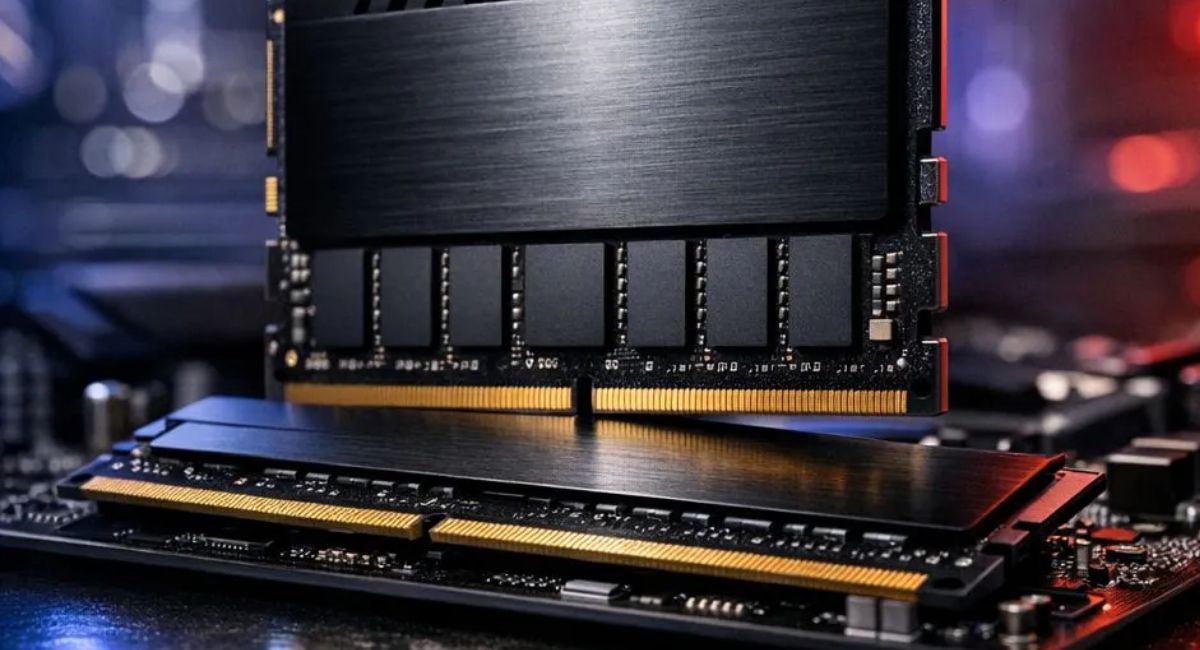
- Heat spreader design
- Trusted brand quality
- High durability
Choosing high-quality RAM ensures long-term stability and better performance under heavy workloads.
Common RAM Compatibility Issues
Problems
- System not booting
- RAM not detected
- Blue screen errors
- Slow performance
- Incompatible slot usage
Most issues occur when users install RAM without checking motherboard specifications or mix different generations of RAM.
Even a small mismatch in RAM type or speed can cause instability, which is why proper checking is necessary.
How to Avoid RAM Compatibility Problems
Tips
- Check motherboard specifications first
- Match DDR generation correctly
- Verify maximum supported RAM
- Update BIOS if required
- Use trusted brands only
- Avoid mixing RAM types
Following these steps ensures smooth installation and prevents system errors or hardware conflicts.
RAM Installation Overview
Steps
- Turn off PC
- Disconnect power
- Open case
- Locate RAM slots
- Insert RAM properly
- Lock clips
- Boot system
- Check BIOS
RAM installation is simple, but only if compatibility is confirmed beforehand. Incorrect installation can lead to system failure or instability.
DDR4 vs DDR5 Comparison
DDR4 RAM
- Affordable
- Widely supported
- Balanced performance
DDR5 RAM
- Very high speed
- Expensive
- Advanced technology
DDR4 remains widely used, while DDR5 represents the future of high-performance computing systems.
Online Methods to Check Compatibility
- Search motherboard model online
- Use RAM compatibility tools
- Check official documentation
- Read user forums and reviews
Why RAM Compatibility is Important
RAM compatibility ensures system stability and performance. Without proper matching, your computer may crash, slow down, or fail to boot.
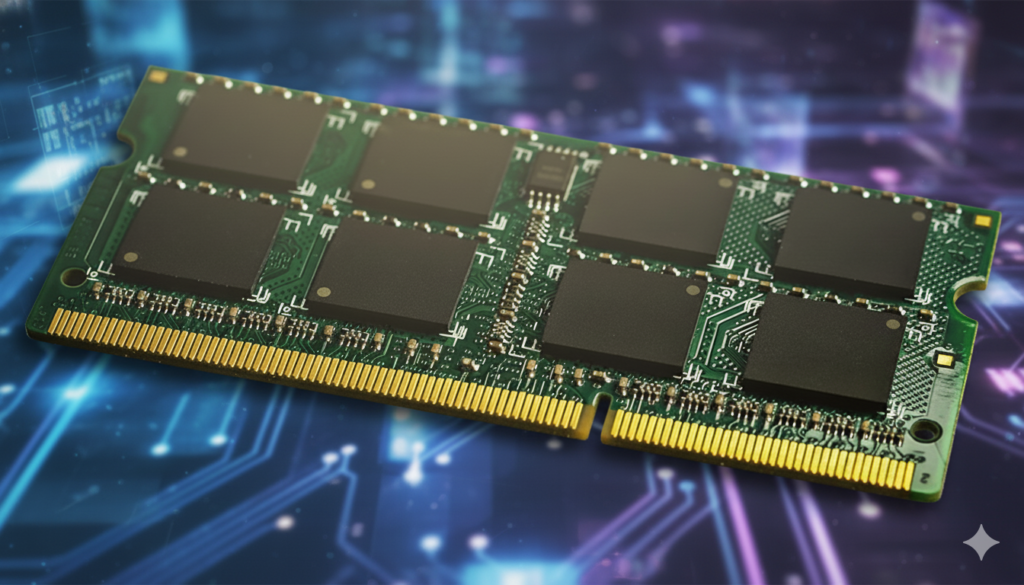
It also ensures that your system uses hardware at its full potential, improving speed and efficiency during multitasking and heavy workloads.
Tips for Beginners
Beginner Advice
- Start with DDR4 RAM
- Avoid mixing different RAM types
- Learn basic specifications
- Use online guides
- Ask experts if unsure
Frequently Asked Questions
1.What happens if RAM is not compatible?
If RAM is not compatible, your system may not boot, may show errors, crash frequently, or fail to detect memory properly, resulting in unstable performance.
2.Can I mix DDR3 and DDR4 RAM?
No, DDR3 and DDR4 RAM cannot be used together because they have different physical design and electrical structure, making them incompatible.
3.How to check RAM type in PC?
You can check RAM type using Task Manager, BIOS settings, system information tools, or software like CPU-Z easily.
4.Is more RAM always better?
More RAM improves performance only when it is compatible with your system; otherwise, it will not increase speed or efficiency.
5.How to check motherboard RAM compatibility before buying carefully always?
Always check motherboard manual, confirm DDR generation, verify maximum capacity, check speed support, ensure CPU compatibility, and review official specifications before purchasing RAM.
Conclusion
Understanding how to check motherboard RAM compatibility is essential for building a fast and stable system. Always verify RAM type, speed, and capacity before upgrading. Proper compatibility ensures smooth performance, better multitasking, and system stability. A correct RAM choice improves speed and efficiency, making your computer reliable, powerful, and ready for modern computing tasks without issues.