Cannot Boot From USB Gigabyte Motherboard – Complete Fix Guide
If your system shows “cannot boot from USB Gigabyte motherboard”, it usually means BIOS settings, boot order, or USB drive setup is incorrect. This problem commonly occurs during Windows installation or system recovery. In most cases, it is not a hardware failure but a configuration issue. Understanding BIOS options, correct boot priority, and proper USB creation methods can help you fix this issue easily, safely, and quickly without causing any damage to your system or data.
Fix cannot boot from USB Gigabyte motherboard issue with easy BIOS settings, boot order changes, and USB setup tips for smooth OS installation and repair.
- What Does “Cannot Boot From USB” Mean?
- Common Causes of USB Boot Failure
- How to Fix Cannot Boot From USB Gigabyte Motherboard
- How to Make a Bootable USB Correctly
- BIOS Settings for Gigabyte Motherboard
- USB Port Issues
- Common Mistakes Users Make
- Benefits of Fixing USB Boot Issue
- Advanced Troubleshooting
- When to Seek Professional Help
- FAQ’s
- Conclusion
- Related post
What Does “Cannot Boot From USB” Mean?
When a Gigabyte motherboard cannot boot from USB, it means the system BIOS is not detecting or prioritizing the USB device as a valid boot option. In this case, the computer automatically tries to start from the internal hard drive instead of the USB drive.
This issue is commonly seen during Windows installation, Linux setup, or system recovery processes.
It usually occurs due to incorrect boot settings, disabled USB boot option, or improperly created bootable USB media, which prevents the system from recognizing it as a startup device.
This issue usually happens during Windows installation, Linux setup, or system recovery processes.
Common Causes of USB Boot Failure
Several reasons can cause this error on a Gigabyte motherboard. One of the most common reasons is incorrect BIOS boot order settings. If the USB drive is not set as the first boot device, the system will ignore it.
Another major cause is improper USB formatting. If the USB is not made bootable correctly, the motherboard will not recognize it as a boot device. Secure Boot and Legacy Mode settings can also block USB booting in many systems.
Main Causes
- Incorrect BIOS boot order
- USB not bootable
- Disabled USB boot option
- Secure Boot enabled
- Wrong UEFI/Legacy mode
- Corrupted USB drive
- Faulty USB port
How to Fix Cannot Boot From USB Gigabyte Motherboard
Fixing this issue is usually simple if you follow the correct steps carefully. Most users can solve it by changing BIOS settings or recreating the bootable USB.
Enter BIOS Setup
Restart your computer and press the Delete (DEL) key repeatedly to enter the Gigabyte BIOS menu. This is where all boot settings are configured.
Enable USB Boot
Inside BIOS, go to the boot settings and ensure that USB Boot is enabled. If it is disabled, the system will not detect your USB device.
Change Boot Priority
Set your USB drive as the first boot option. This allows the motherboard to try booting from USB before the hard drive.
Disable Secure Boot
Secure Boot can block unofficial or improperly signed USB drives. Turn it off if you are installing Windows or Linux from USB.
Switch UEFI/Legacy Mode
If your USB was created in Legacy mode, make sure BIOS is set to Legacy or CSM mode. If it is UEFI bootable, keep UEFI enabled.
Recreate Bootable USB
If the problem still exists, recreate your USB using tools like Rufus or Windows Media Creation Tool. Make sure the file system and partition scheme match your BIOS mode.
How to Make a Bootable USB Correctly
A properly created USB is very important for successful booting. If it is not created correctly, the motherboard will not recognize it.
Use reliable software and select the correct settings based on your system:
- For UEFI systems: GPT + FAT32
- For Legacy systems: MBR + NTFS
Always ensure the ISO file is not corrupted.
BIOS Settings for Gigabyte Motherboard
Gigabyte motherboards offer advanced BIOS features that must be configured properly for USB boot.
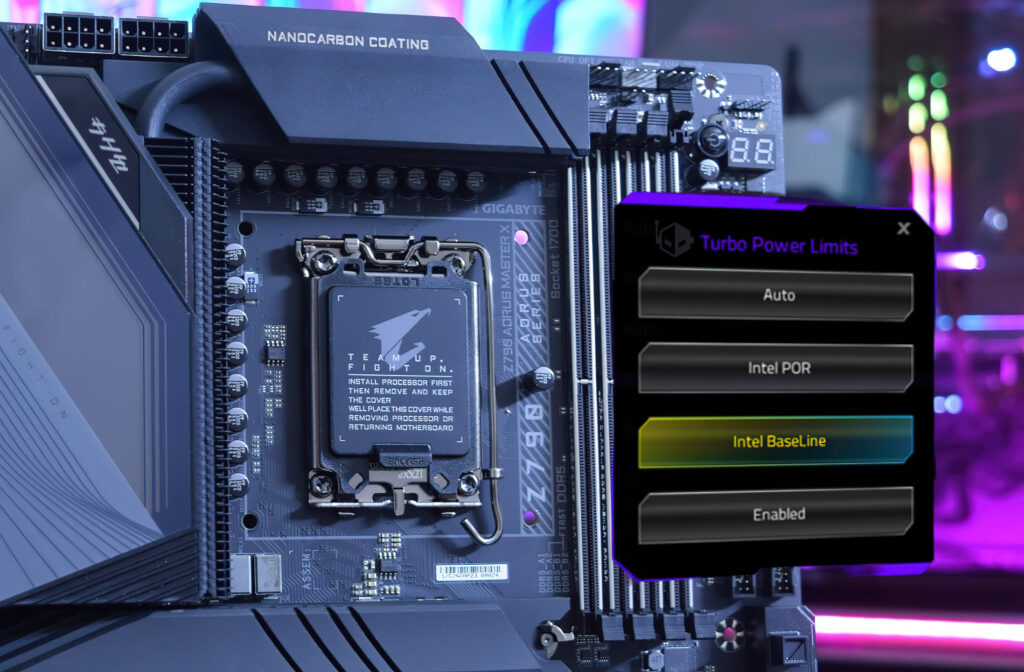
Important settings include:
- Boot Option Priorities
- CSM Support
- Secure Boot Control
- USB Configuration
- Fast Boot Settings
Incorrect configuration in any of these settings can prevent USB booting.
USB Port Issues
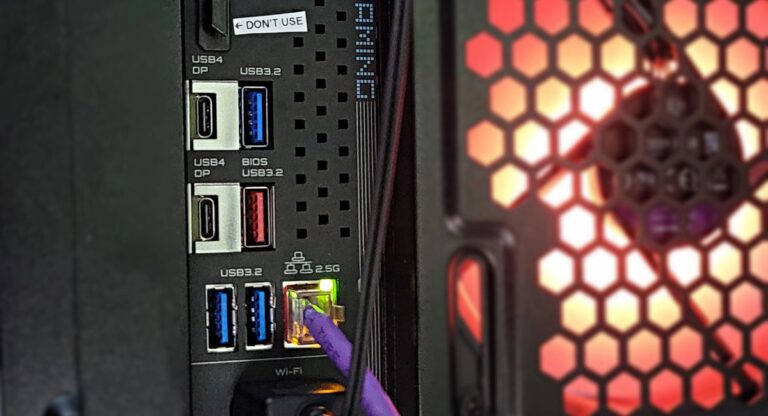
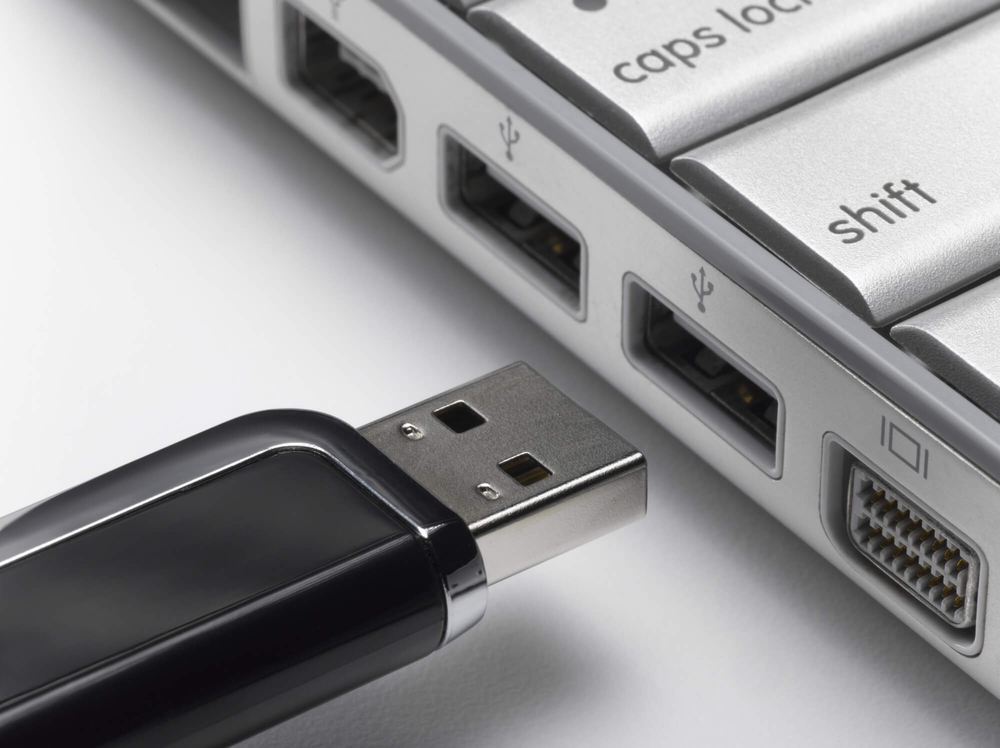
Sometimes the problem is not BIOS but the USB port itself. Try using different USB ports, especially USB 2.0 ports, because they are more compatible during boot.
Avoid using USB hubs or front panel ports if the system does not detect the device.
Common Mistakes Users Make
Many users face this issue due to simple mistakes such as:
- Plugging USB after starting PC
- Using corrupted ISO files
- Not selecting correct boot mode
- Ignoring BIOS updates
- Using unsupported USB format
Fixing these mistakes usually solves the issue immediately.
Benefits of Fixing USB Boot Issue
Once the issue is fixed, users can easily install operating systems, repair corrupted systems, and recover data.
Key Benefits
- Easy OS installation
- System recovery support
- Faster troubleshooting
- Better control over boot process
- Improved system maintenance
Advanced Troubleshooting
If none of the basic steps work, updating your Gigabyte BIOS firmware may help. Sometimes older BIOS versions do not support newer USB boot methods.

You can also reset BIOS settings to default and try again.
When to Seek Professional Help
If your system still cannot boot from USB Gigabyte motherboard after all fixes, there may be hardware or BIOS corruption issues. In such cases, professional technician support is recommended.
FAQ’s
1.Why is my Gigabyte motherboard not booting from USB?
Your Gigabyte motherboard may not boot from USB due to incorrect BIOS settings, disabled USB boot option, or improperly created bootable USB drive.
2.How do I enable USB boot on the Gigabyte motherboard?
Enter BIOS using the DEL key, go to boot settings, enable USB boot, and set USB drive as the first boot priority option.
3.Does Secure Boot affect USB booting?
Yes, Secure Boot can block USB boot if the drive is not properly signed or created. Disabling Secure Boot often fixes the issue.
4.Which USB format is best for booting?
For UEFI systems use GPT with FAT32, and for Legacy systems use MBR with NTFS for proper USB boot compatibility.
5.Can a faulty USB port cause boot failure?
Yes, a damaged or incompatible USB port can prevent detection. Always try different ports, especially USB 2.0 ports, for reliable booting.
Conclusion
The cannot boot from USB Gigabyte motherboard issue is usually caused by incorrect BIOS settings or a poorly created bootable USB. By changing the boot order, disabling Secure Boot, and ensuring proper USB creation, you can fix this problem easily. With the correct configuration, your system will boot smoothly, allowing easy installation or recovery of the operating system without errors or interruptions.