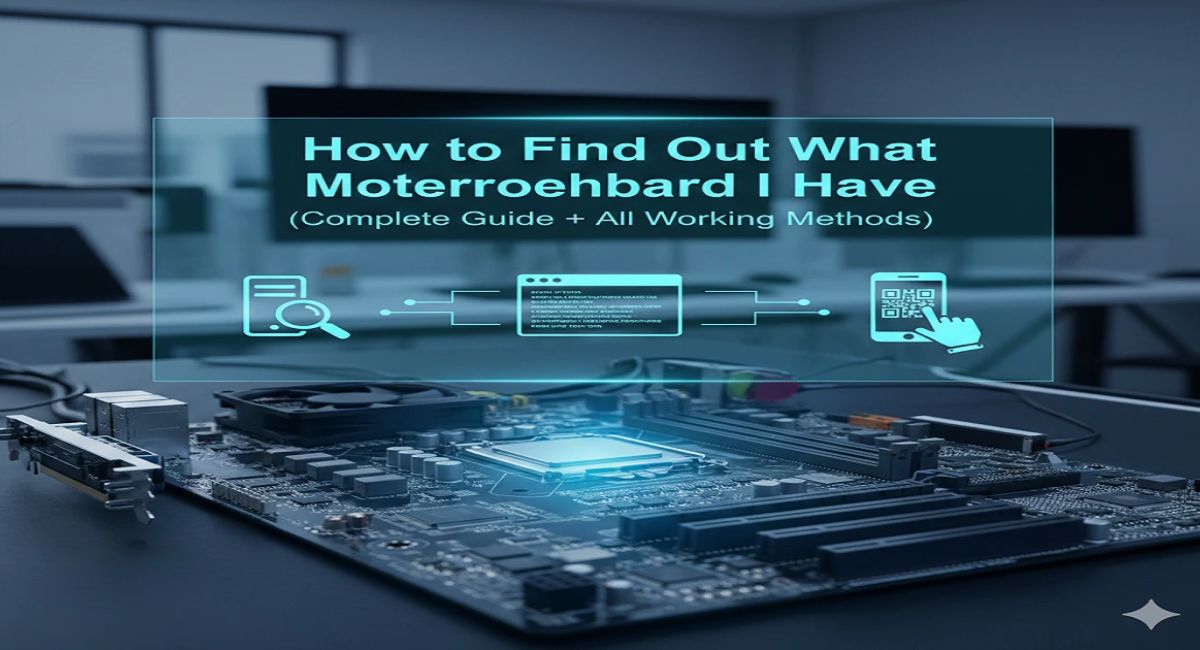
How to Figure Out What Motherboard I Have – Full Secret Guide
If you want to upgrade or troubleshoot your PC, the first step is identifying your motherboard model. It plays a key role in determining compatibility for your CPU, RAM, storage devices, and BIOS settings. Many users cannot easily find this information because it is hidden inside the system. In this complete guide, you will learn multiple simple and reliable methods to figure out what motherboard you have using Windows tools, PowerShell, BIOS, Linux, Mac, and physical inspection.
Learn how to figure out what motherboard i have using simple methods in Windows, BIOS, and system tools to quickly identify your PC motherboard model.
- What Is a Motherboard?
- Why Knowing Your Motherboard Is Important
- Method 1: System Information (msinfo32)
- Method 2: Command Prompt Method
- Method 3: PowerShell Method
- Method 4: BIOS / UEFI Method
- Method 5: Third-Party Software
- Method 6: Linux Terminal Method
- Method 7: Mac Method (Logic Board)
- Method 8: Physical Inspection
- Comparison of Methods
- Benefits of Knowing Your Motherboard
- Common Issues and Fixes
- Best Practices
- FAQ’s
- Conclusion
- Related post
What Is a Motherboard?
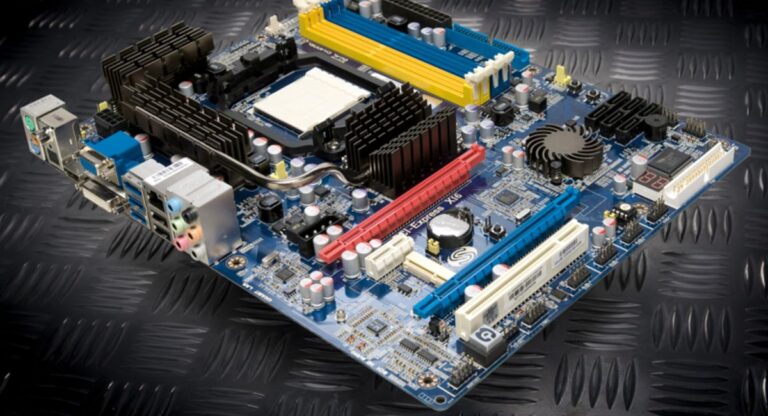
A motherboard is the main circuit board inside your computer that connects all hardware components together. It acts as the central communication hub where every major part of your system works together.
It ensures that different components can exchange data efficiently and operate as a single system. Without a motherboard, a computer cannot function because no hardware would be able to communicate.
Main Functions of a Motherboard
- Connects CPU, RAM, GPU, and storage devices
- Controls communication between all hardware parts
- Provides power distribution to components
- Supports BIOS and UEFI firmware systems
- Offers expansion slots like PCIe and M.2
Why Knowing Your Motherboard Is Important
Knowing your motherboard is essential for system upgrades and maintenance. It helps you avoid compatibility issues and ensures smooth performance when installing new hardware.
Key Benefits
- Helps choose the correct CPU upgrade
- Ensures proper RAM compatibility (DDR type and speed)
- Supports correct SSD and storage upgrades
- Required for BIOS or firmware updates
- Helps diagnose hardware or system issues
Method 1: System Information (msinfo32)
This is the simplest and fastest method for Windows users.
Steps
- Press Windows + R
- Type msinfo32
- Press Enter
- Open System Summary
- Find:
- BaseBoard Manufacturer
- BaseBoard Product
- BaseBoard Version
Why This Method Works Well
- No installation required
- Works on Windows 10 and 11
- Very fast and reliable
- Beginner-friendly
Method 2: Command Prompt Method
Command Prompt provides direct hardware information using a simple command.
Steps
- Press Windows + R
- Type cmd
- Enter the following command:
wmic baseboard get product,manufacturer,version,serialnumber
What You Get
- Motherboard brand
- Model number
- Serial number
- Version details
Benefits
- Fast execution
- Works offline
- No software required
Method 3: PowerShell Method
PowerShell is a more advanced and reliable way to detect system hardware.
Steps
- Open PowerShell
- Run the command:
Get-CimInstance -ClassName Win32_BaseBoard | Format-Table Manufacturer, Product, SerialNumber, Version -AutoSize
Advantages
- Works on modern Windows versions
- Clean and structured output
- More accurate than older CMD methods
- Ideal for advanced users
Method 4: BIOS / UEFI Method
BIOS provides deep system-level information, including motherboard details.
Steps
- Restart your PC
- Press DEL / F2 / F12 / ESC during startup
- Open system or main information tab
- Locate motherboard details
When to Use This Method
- When Windows is not working
- When system fails to boot
- When checking BIOS version
Method 5: Third-Party Software
These tools automatically detect your hardware and display detailed information.

CPU-Z
CPU-Z is one of the most popular tools for hardware detection. It shows motherboard model, chipset, and BIOS version in a simple interface.
HWiNFO
HWiNFO is an advanced system monitoring tool that provides real-time hardware data and deep motherboard information.
Speccy
Speccy is a lightweight tool designed for beginners, offering a clean overview of your entire system.
Benefits of These Tools
- Highly detailed information
- Easy to use
- Good for troubleshooting
- Useful for gaming and upgrades
Method 6: Linux Terminal Method
Linux users can find motherboard details using terminal commands.
Command
sudo dmidecode -t 2
What It Shows
- Manufacturer name
- Product model
- Version number
- Serial information
Method 7: Mac Method (Logic Board)
Mac computers use a logic board instead of a traditional motherboard.
Steps
- Open Apple Menu
- Select About This Mac
- Copy serial number
- Use system lookup tools
Result
You get details about:
- Logic board
- System configuration
- Hardware specifications
Method 8: Physical Inspection
If software methods do not work, you can check the motherboard directly.
Steps
- Turn off your PC
- Disconnect power cable
- Open PC case
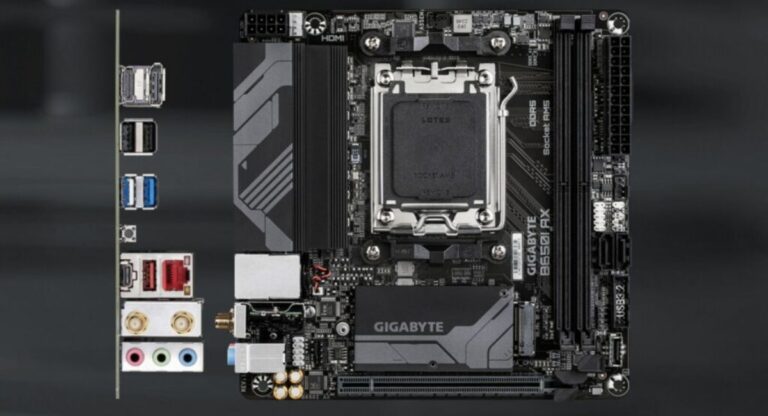
- Locate printed model number on motherboard
Where to Look
- Near RAM slots
- Around CPU socket
- Near PCIe slots
Example Labels
- ASUS ROG STRIX B550
- MSI MAG B760 TOMAHAWK
- Gigabyte AORUS ELITE
Comparison of Methods
| Method | Difficulty | Accuracy | Software Needed |
| System Info | Easy | Medium | No |
| CMD | Easy | High | No |
| PowerShell | Medium | High | No |
| BIOS | Medium | Very High | No |
| CPU-Z | Easy | Very High | Yes |
| Physical Check | Medium | Very High | No |
Benefits of Knowing Your Motherboard
Upgrade Benefits
- Helps choose compatible CPU
- Ensures correct RAM type
- Supports SSD upgrades
Performance Benefits
- Better system optimization
- Improved BIOS settings
- More stable performance
Troubleshooting Benefits
- Detect hardware issues
- Fix compatibility errors
- Improve system reliability
Common Issues and Fixes
WMIC not working
Use PowerShell instead of CMD.
Motherboard not detected
Try the CPU-Z or BIOS method.
Cannot enter BIOS
Try different keys like DEL, F2, or ESC.
Best Practices
- Always use trusted tools
- Prefer built-in Windows methods first
- Avoid unknown software downloads
- Keep system updated
- Double-check motherboard model before upgrades
FAQ’s
1.What is the easiest way to find a motherboard?
The easiest method is using msinfo32 in Windows System Information, which instantly shows BaseBoard Manufacturer and Product without requiring any software installation.
2.Can I find the motherboard without opening the PC?
Yes, you can use built-in tools like System Information, CMD, PowerShell, or CPU-Z to identify your motherboard without opening your computer case.
3.Is CPU-Z safe to use?
Yes, CPU-Z is a widely trusted tool used by professionals and gamers to safely check motherboard, CPU, RAM, and chipset information.
4.Why is my motherboard not showing in Windows?
It may not show due to system limitations or outdated data. In that case, BIOS or third-party tools provide more accurate information.
5.What happens if I don’t know my motherboard?
If you don’t know your motherboard, you risk installing incompatible CPU or RAM, causing system errors, crashes, poor performance, or complete upgrade failure issues.
Conclusion
Finding your motherboard is simple using built-in Windows tools, BIOS, Linux commands, or trusted software like CPU-Z. Each method provides accurate results without needing to open your PC. Knowing your motherboard helps you upgrade safely, avoid compatibility issues, and improve performance. Always start with the easiest method and move to advanced options for deeper system understanding and troubleshooting.