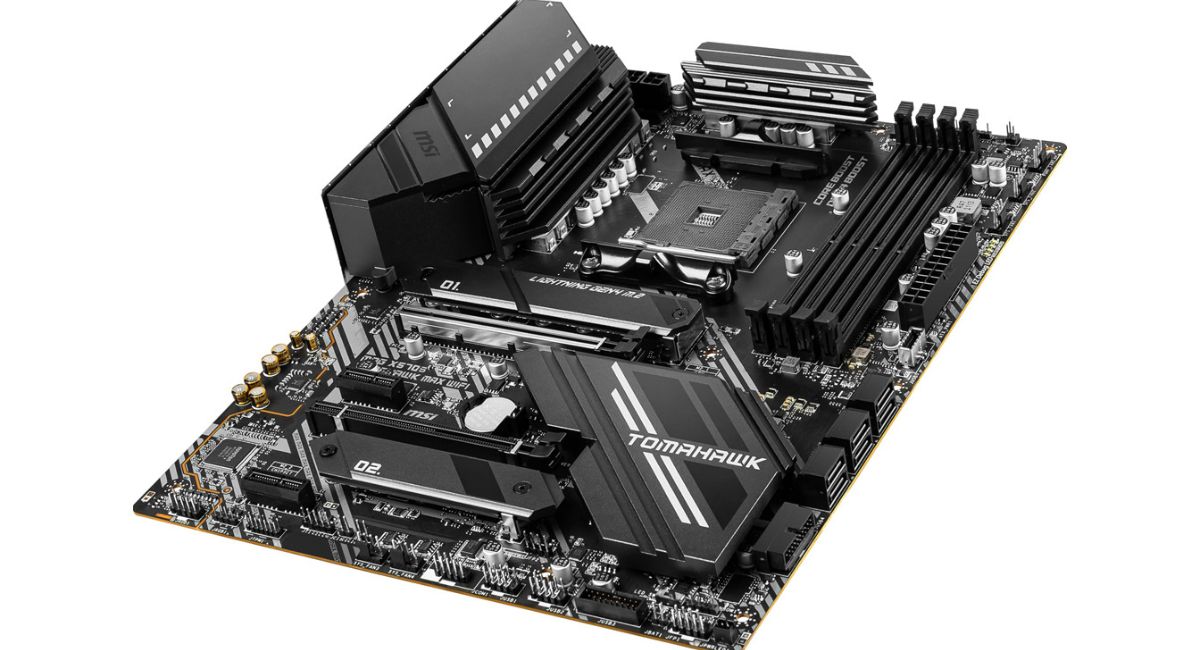
Does My Motherboard Support Secure Boot for Windows?
Secure Boot is an advanced security feature that protects computers from malware and unauthorized software during startup. It works with UEFI firmware to ensure only trusted operating systems and drivers load properly. Many users check Secure Boot support before installing Windows 11 because it improves security, stability, and system protection. This guide explains motherboard compatibility, Secure Boot features, major benefits, setup steps, and troubleshooting methods to help users understand how Secure Boot works on PCs.
Check if your PC supports Secure Boot. Learn how to enable it, verify compatibility, and improve Windows 11 security with this complete guide.
- Does My Motherboard Support Secure Boot?
- What Is a Secure Boot?
- How Secure Boot Works
- Does Every Motherboard Support Secure Boot?
- How to Check If Your Motherboard Supports Secure Boot
- Difference Between BIOS and UEFI
- Benefits of Secure Boot
- Features of Secure Boot
- Why Secure Boot Is Important for Windows 11
- How to Enable Secure Boot
- Common Problems While Enabling Secure Boot
- How to Know If Secure Boot Is Enabled
- Can Secure Boot Affect Gaming?
- Secure Boot and Linux Compatibility
- Motherboard Brands That Support Secure Boot
- Signs Your Motherboard Supports Secure Boot
- Secure Boot vs TPM
- Should You Enable Secure Boot?
- Types of Secure Boot Modes
- How BIOS Updates Improve Secure Boot
- Tips Before Enabling Secure Boot
- Future of Secure Boot Technology
- Frequently Asked Questions
- Conclusion
- Related post
Does My Motherboard Support Secure Boot?
What Is a Secure Boot?
Secure Boot is a security feature available in UEFI firmware that allows only trusted software and operating systems to load during the boot process. Its main purpose is to prevent hackers, bootkits, and low-level malware attacks from compromising your system.
When the computer starts, Secure Boot verifies the authenticity of system files, drivers, and the operating system. If an unauthorized file is detected, the system blocks it automatically.
How Secure Boot Works
Secure Boot works through digital signature verification. The motherboard firmware stores trusted certificates that verify operating systems and hardware drivers before they are loaded.
Secure Boot Process
- The computer powers on
- UEFI firmware checks startup files
- Trusted operating system loads
- Unauthorized software is blocked automatically
This process creates a safer and more secure boot environment.
Does Every Motherboard Support Secure Boot?

Not every motherboard supports Secure Boot. Support mainly depends on the motherboard generation and firmware type.
Motherboards That Usually Support Secure Boot
- Modern UEFI motherboards
- Intel 8th Generation or newer systems
- AMD Ryzen motherboards
- Gaming motherboards
- Windows 11 compatible PCs
Older Motherboards
Older systems using Legacy BIOS usually do not support Secure Boot because the feature only works with UEFI firmware.
How to Check If Your Motherboard Supports Secure Boot
There are several simple ways to check Secure Boot compatibility.
Using System Information
- Open Windows Search
- Type System Information
- Open the application
- Find Secure Boot State
If the status shows:
- On or Off → Your motherboard supports Secure Boot
- Unsupported → Secure Boot is not available
Check BIOS or UEFI Settings
- Restart your computer
- Enter BIOS or UEFI settings
- Open the Boot or Security section
- Look for the Secure Boot option
Check the Manufacturer Website
Visit your motherboard manufacturer’s website and search for your motherboard model to view its specifications.
Difference Between BIOS and UEFI
Secure Boot only works with UEFI firmware.
BIOS
- Older technology
- Limited security
- Slower boot speed
- No Secure Boot support
UEFI
- Modern firmware
- Faster startup
- Advanced security
- Supports Secure Boot
Benefits of Secure Boot
Secure Boot provides several important security and performance advantages.
Main Benefits
- Prevents malware attacks
- Blocks boot-level viruses
- Improves Windows security
- Stops unauthorized operating systems
- Protects system integrity
Performance Benefits
- Stable boot process
- Safer startup environment
- Trusted driver verification
- Better hardware compatibility
Features of Secure Boot
Secure Boot includes multiple advanced protection features.
Important Features
- Digital signature verification
- Bootloader protection
- Firmware security
- Trusted hardware authentication
- Rootkit prevention
Advanced Security Features
- Secure startup validation
- Encryption support
- Kernel protection
- Unauthorized access prevention
Why Secure Boot Is Important for Windows 11
Windows 11 officially recommends Secure Boot because it improves system security and protects against modern cyber threats.
Windows 11 Requirements
- TPM 2.0
- UEFI firmware
- Secure Boot capability
- Compatible processor
Without Secure Boot, some Windows 11 security features may not function properly.
How to Enable Secure Boot
You can enable Secure Boot through BIOS or UEFI settings.
Restart Your Computer
Restart the system and enter BIOS or UEFI settings.
Open BIOS Settings
Common BIOS keys include:
- F2
- Delete
- ESC
- F10
Locate Secure Boot
You will usually find it under:
- Boot
- Security
- Authentication
Enable UEFI Mode
If Legacy Mode is enabled, switch to UEFI Mode first.
Enable Secure Boot
Change the Secure Boot option to Enabled.
Save Changes
Save settings and restart your computer.
Common Problems While Enabling Secure Boot
Some users may face issues while enabling Secure Boot.
Common Errors
- Secure Boot option is greyed out
- Legacy BIOS is enabled
- Unsupported graphics card
- Old operating system issues
Quick Solutions
- Update BIOS firmware
- Enable UEFI mode
- Use GPT partition style
- Install the latest version of Windows
How to Know If Secure Boot Is Enabled
You can verify Secure Boot status using different methods.
Verification Methods
- System Information tool
- BIOS settings
- Windows Security application
- Command Prompt tools
If the status shows On, Secure Boot is active.
Can Secure Boot Affect Gaming?
In most cases, Secure Boot does not negatively affect gaming performance.
Gaming Advantages
- Improved anti-cheat support
- Safer online gaming
- Better driver security
Possible Gaming Issues
- Compatibility problems with old hardware
- Restrictions on modified operating systems
- Unsigned drivers may not work
Secure Boot and Linux Compatibility
Linux users may sometimes experience compatibility issues with Secure Boot.
Supported Linux Distributions
- Ubuntu
- Fedora
- Debian
- openSUSE
Possible Linux Issues
- Unsigned kernel errors
- Driver installation problems
- Bootloader conflicts
Motherboard Brands That Support Secure Boot
Most modern motherboard manufacturers support Secure Boot technology.
Popular Brands
- ASUS
- MSI
- Gigabyte
- ASRock
- Intel
Signs Your Motherboard Supports Secure Boot
You can identify Secure Boot support using several indicators.
Important Signs
- UEFI firmware is available
- Windows 11 compatibility
- TPM 2.0 support
- Modern chipset
- BIOS update support
Secure Boot vs TPM
Many users confuse Secure Boot and TPM, but they are different technologies.
Secure Boot
- Verifies startup files
- Blocks unauthorized software
TPM
- Stores encryption keys
- Provides hardware-level security
Together, they create a highly secure system environment.
Should You Enable Secure Boot?
For most users, enabling Secure Boot is highly recommended.
Recommended For
- Windows 11 users
- Online gamers
- Business computers
- Users storing sensitive data
Not Necessary For
- Legacy operating systems
- Testing environments
- Advanced Linux setups
Types of Secure Boot Modes
Different motherboards may offer multiple Secure Boot modes.
Standard Mode
Uses default security settings.
Custom Mode
Allows users to manage custom security keys.
Audit Mode
Monitors security events without blocking files.
How BIOS Updates Improve Secure Boot
Updating BIOS firmware can improve Secure Boot functionality and compatibility.
Benefits of BIOS Updates
- Better hardware support
- Security improvements
- Bug fixes
- Improved Windows compatibility
Always download BIOS updates from trusted sources.
Tips Before Enabling Secure Boot
Preparing your system properly can help avoid errors.
Important Tips
- Backup important data
- Update BIOS firmware
- Confirm GPT partition style
- Create a recovery USB drive
Future of Secure Boot Technology
As cybersecurity threats continue to grow, Secure Boot technology is becoming more important.
Future Improvements
- AI-based security protection
- Stronger firmware defense
- Cloud verification support
- Advanced encryption systems
Modern operating systems will continue relying on Secure Boot for enhanced protection.
Frequently Asked Questions
1.What does Secure Boot do on a motherboard?
Secure Boot ensures that only trusted operating systems and drivers load during startup while blocking malware and unauthorized boot files from running.
2.Can I install Windows 11 without Secure Boot?
Yes, Windows 11 can sometimes install without Secure Boot, but Microsoft officially recommends enabling it for maximum compatibility and security protection.
3.How do I know if my PC supports Secure Boot?
You can check Secure Boot support through the System Information tool or by looking for the Secure Boot option in BIOS settings.
4.Is Secure Boot safe for gaming PCs?
Yes, Secure Boot is generally safe for gaming systems and may improve security for online multiplayer games and anti-cheat software.
5.Can old motherboards use Secure Boot?
Most older motherboards using Legacy BIOS do not support Secure Boot because the feature requires modern UEFI firmware technology.
Conclusion
Secure Boot is an essential security feature for modern computers that helps protect systems from malware, bootkits, and unauthorized software. If you plan to use Windows 11 or improve your PC security, enabling Secure Boot is a smart decision. Most modern UEFI motherboards support this feature, and once properly configured, it provides a safer, more secure, and reliable computing experience.