How to Tell What Motherboard I Have on Any PC
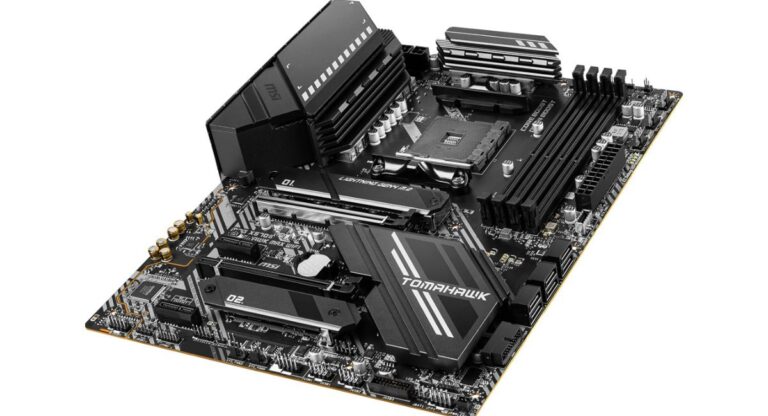
Knowing your motherboard model is essential when upgrading your computer, installing new hardware, updating BIOS, or troubleshooting system problems. Many users are unaware of which motherboard is installed in their PC, especially when using prebuilt systems. Fortunately, Windows provides several simple ways to identify motherboard details without opening the computer case. This guide explains professional methods to check your motherboard model, understand compatibility, and learn important motherboard features in an easy and beginner-friendly way.
Learn how to tell what motherboard I have using simple Windows tools, Command Prompt, PowerShell, and software to check motherboard details easily.
- Why Knowing Your Motherboard Matters
- What Is a Motherboard?
- When You Need to Check Your Motherboard
- How to Tell What Motherboard You Have in Windows
- Use Command Prompt to Check Motherboard
- Check Motherboard Using System Information
- Find Motherboard Details Using PowerShell
- How to Check Your Motherboard Physically
- Use Third-Party Software to Identify Motherboard
- Why CPU-Z Is Popular
- How to Identify a Laptop Motherboard
- Understanding Motherboard Form Factors
- Understanding Motherboard Chipsets
- How to Check Motherboard Compatibility
- How to Find BIOS Version
- Difference Between Motherboard Brand and Model
- How Motherboards Affect Performance
- Gaming Motherboards vs Standard Motherboards
- Common Motherboard Problems
- Tips to Maintain Your Motherboard
- How to Upgrade a Motherboard
- Future of Modern Motherboards
- Frequently Asked Questions
- Conclusion
- Related post
Why Knowing Your Motherboard Matters
Your motherboard is the main circuit board that connects all hardware components inside your computer. Identifying the correct motherboard helps you make better upgrade decisions and avoid compatibility issues.
Benefits of Knowing Your Motherboard
- Upgrade compatible RAM
- Choose the correct CPU
- Install supported SSDs
- Update BIOS safely
- Fix hardware issues
- Improve gaming performance
- Check expansion slot support
- Verify power compatibility
What Is a Motherboard?
A motherboard is the central board inside a computer that allows communication between the processor, RAM, graphics card, storage drives, cooling systems, and power supply. Without a motherboard, computer components cannot function together properly.
Main Components of a Motherboard
- CPU socket
- RAM slots
- PCIe expansion slots
- SATA connectors
- M.2 SSD slots
- BIOS chip
- Power connectors
- USB headers
When You Need to Check Your Motherboard
There are several situations where identifying your motherboard becomes necessary.
Common Reasons
- Upgrading the processor
- Installing additional RAM
- Replacing damaged hardware
- Updating the BIOS
- Building a custom gaming PC
- Checking hardware compatibility
- Installing faster storage drives
How to Tell What Motherboard You Have in Windows
Windows includes built-in tools that make motherboard identification fast and simple.
Use Command Prompt to Check Motherboard
One of the easiest ways to identify your motherboard is through Command Prompt.
Steps to Follow
- Press Windows + R
- Type CMD
- Press Enter
- Enter the following command:
which baseboard get product, manufacturer, version, serial number
- Press Enter
After running the command, Windows will display:
- Motherboard manufacturer
- Product model
- Version number
- Serial number
Advantages of This Method
- Fast and simple
- No software installation required
- Accurate motherboard information
- Works on most Windows versions
Check Motherboard Using System Information
The System Information tool in Windows also provides motherboard details.
Steps
- Press Windows + R
- Type msinfo32
- Press Enter
- Look for:
- BaseBoard Manufacturer
- BaseBoard Product
- BaseBoard Version
Why This Method Is Useful
- Beginner-friendly
- Detailed system information
- Safe and reliable
- No additional software needed
Find Motherboard Details Using PowerShell
PowerShell provides another professional way to check motherboard information.
Steps
- Open PowerShell
- Enter this command:
Get-WmiObject win32_baseboard
- Press Enter
Your motherboard details will appear instantly.
Benefits of PowerShell
- Professional system management tool
- Quick hardware detection
- Accurate information
- Advanced system access
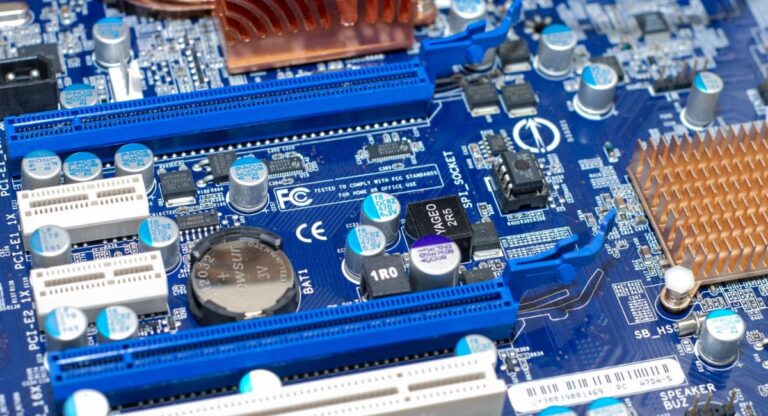
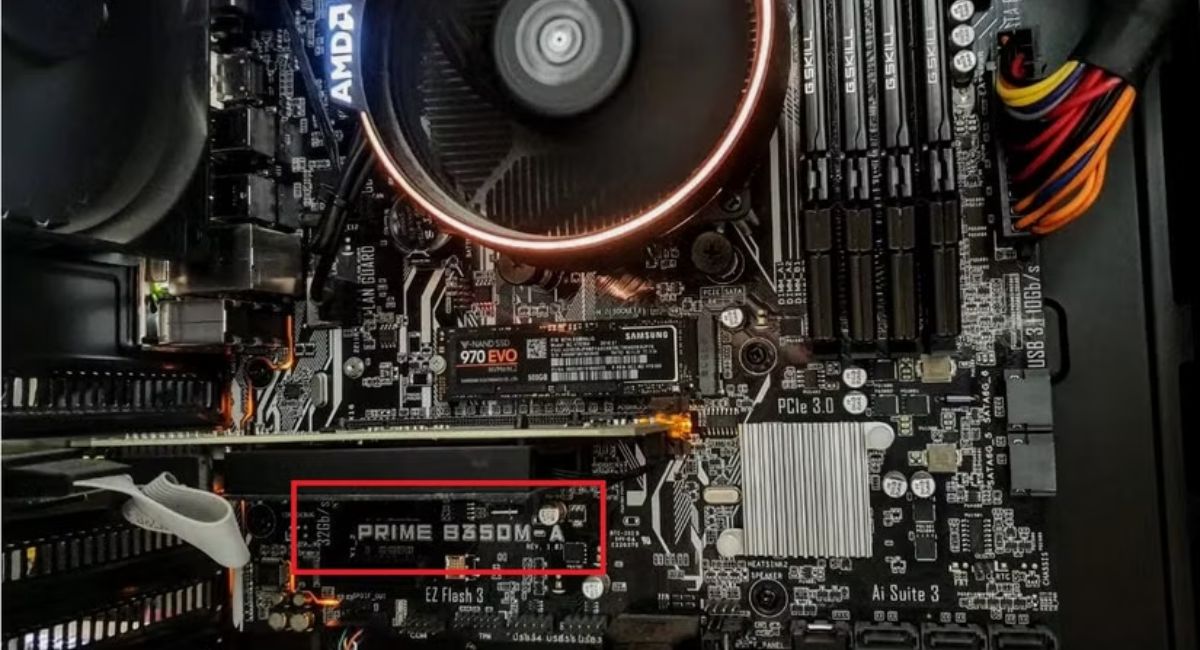
How to Check Your Motherboard Physically
If software methods do not provide complete information, you can check the motherboard directly.
Steps for Physical Inspection
- Turn off your PC
- Disconnect the power cable
- Open the side panel carefully
- Locate the motherboard model printed on the board
Most manufacturers place the model number near:
- RAM slots
- CPU socket
- PCIe slots
Safety Tips
- Avoid touching electrical components
- Use proper lighting
- Prevent static electricity
- Handle hardware carefully
Use Third-Party Software to Identify Motherboard
Several trusted tools provide complete motherboard information.
Best Software Tools
- CPU-Z
- Speccy
- HWiNFO
- Belarc Advisor
Features of Hardware Monitoring Tools
- Real-time hardware monitoring
- BIOS information
- Temperature tracking
- RAM compatibility checking
- Detailed hardware reports
Why CPU-Z Is Popular
CPU-Z is one of the most trusted free hardware information tools available.
Information CPU-Z Provides
- Motherboard manufacturer
- Motherboard model
- Chipset details
- BIOS version
- Processor information
- RAM frequency
Advantages of CPU-Z
- Lightweight software
- Free to use
- Easy interface
- Fast hardware scanning
How to Identify a Laptop Motherboard
Laptop motherboards are more difficult to inspect physically because of compact internal designs.
Best Methods for Laptops
- Command Prompt
- System Information
- CPU-Z
- Manufacturer support software
Laptop Motherboard Challenges
- Limited upgrade options
- Compact hardware layout
- Difficult physical access
Understanding Motherboard Form Factors
Motherboards are available in different sizes called form factors.
ATX Motherboards
- Full-size design
- More expansion slots
- Better cooling support
- Ideal for gaming PCs
Micro-ATX Motherboards
- Smaller size
- Budget-friendly
- Moderate upgrade support
Mini-ITX Motherboards
- Compact design
- Suitable for small PCs
- Limited expansion slots
Understanding Motherboard Chipsets
The chipset controls communication between hardware components and determines compatibility.
Functions of a Chipset
- CPU communication
- RAM support
- Storage management
- USB connectivity
- PCIe lane management
Popular Chipset Manufacturers
- Intel
- AMD
How to Check Motherboard Compatibility
Before upgrading hardware, compatibility checking is extremely important.
Things to Verify
- CPU socket type
- RAM generation
- BIOS support
- PCIe compatibility
- Power requirements
How to Find BIOS Version
Knowing the BIOS version helps during firmware updates and compatibility checks.
Command to Check BIOS Version
wmic bios get smbios biosversion
Why BIOS Is Important
- Improves system stability
- Adds CPU support
- Fixes software bugs
- Enhances security
Difference Between Motherboard Brand and Model
Many users confuse the motherboard brand with the motherboard model number.
Example
- Brand: ASUS
- Model: ROG STRIX B550-F
Popular Motherboard Brands
- ASUS
- MSI
- Gigabyte
- ASRock
- Biostar
How Motherboards Affect Performance
A motherboard influences hardware stability, connectivity, and future upgrade options.
Performance Factors
- VRM quality
- RAM speed support
- PCIe generation
- Cooling efficiency
- Storage connectivity
Gaming Motherboards vs Standard Motherboards
Gaming motherboards include advanced features for high-performance systems.
Gaming Motherboard Features
- RGB lighting
- Better VRM cooling
- Faster RAM support
- Enhanced audio quality
- Overclocking support
Standard Motherboard Benefits
- Lower cost
- Stable performance
- Energy efficiency
- Basic functionality
Common Motherboard Problems
Motherboards can develop issues due to aging, overheating, or electrical damage.
Common Warning Signs
- Random shutdowns
- Boot failures
- USB ports not working
- No display output
- Overheating problems
Main Causes of Damage
- Dust buildup
- Power surges
- Poor airflow
- Liquid spills
- Faulty power supplies
Tips to Maintain Your Motherboard
Proper maintenance improves motherboard lifespan and performance.
Maintenance Tips
- Clean dust regularly
- Ensure proper airflow
- Use surge protectors
- Monitor temperatures
- Update BIOS carefully
How to Upgrade a Motherboard
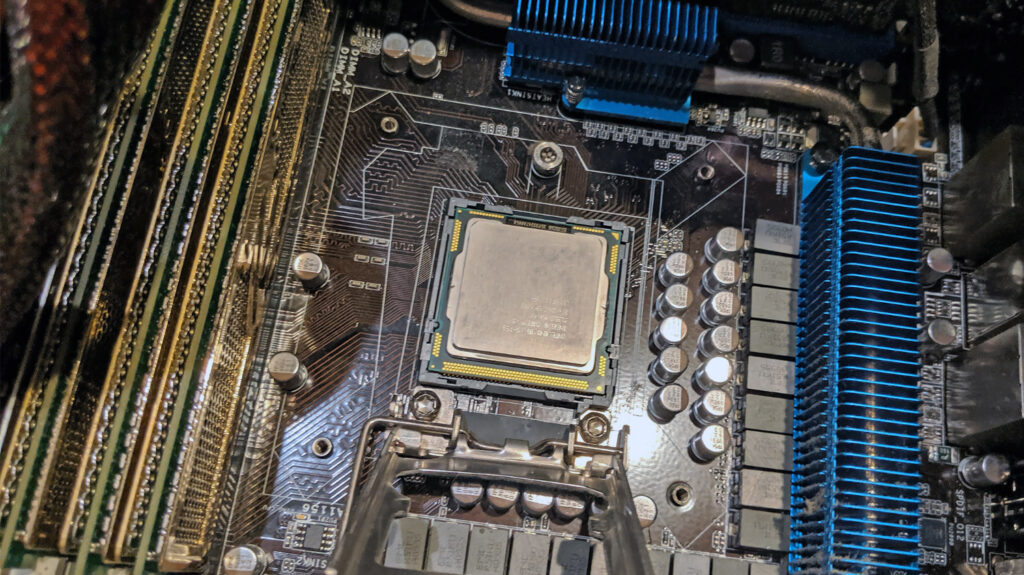
Replacing a motherboard requires careful planning and compatibility checking.
Things to Check Before Upgrading
- CPU compatibility
- RAM support
- Power supply capacity
- PC case size
- Cooling system support
Benefits of Upgrading
- Better system performance
- Faster connectivity
- Support for newer hardware
- Improved stability
Future of Modern Motherboards
Motherboards continue evolving with advanced technologies and faster hardware standards.
Future Trends
- PCIe 5.0 support
- DDR5 RAM compatibility
- Faster USB connectivity
- Better thermal management
- AI-powered optimization
Frequently Asked Questions
1.How can I check my motherboard without opening the computer?
You can use Command Prompt, PowerShell, System Information, or CPU-Z to identify your motherboard model without physically opening your computer case.
2.Is CPU-Z safe for checking motherboard details?
Yes, CPU-Z is a trusted and lightweight application that safely displays motherboard, processor, BIOS, and RAM information without affecting system performance.
3.Can I upgrade my motherboard without changing the processor?
Yes, you can reuse your processor if the new motherboard supports the same CPU socket type and compatible chipset generation properly.
4.Why is my motherboard model not showing correctly?
Some prebuilt computers use customized BIOS settings that may hide motherboard information, causing software tools to display incomplete hardware details sometimes.
5.Does the motherboard improve gaming performance directly?
A motherboard mainly improves stability, upgrade support, cooling, and connectivity, while the CPU and GPU have the biggest impact on gaming performance.
Conclusion
Identifying your motherboard is essential for hardware upgrades, troubleshooting, BIOS updates, and compatibility checks. Windows offers simple methods like Command Prompt, PowerShell, and System Information to find motherboard details quickly. Knowing your motherboard model helps improve system maintenance, supports smarter upgrade decisions, and ensures better compatibility with future hardware for stable performance and long-term computer reliability.