White Light ASUS Motherboard Error Fix Guide
The white light on an ASUS motherboard is a warning indicator that appears when the system detects a hardware problem during startup. This issue is commonly connected to the graphics card, display connection, RAM, or BIOS settings. Many users become confused when their PC powers on but no display appears on the monitor. Understanding the causes, troubleshooting methods, motherboard features, and preventive solutions can help users fix the issue quickly while improving system stability and gaming performance.
Fix the white light ASUS motherboard issue with simple troubleshooting steps, GPU fixes, BIOS solutions, RAM checks, and expert repair tips.
What Is the ASUS Motherboard White Light Error?
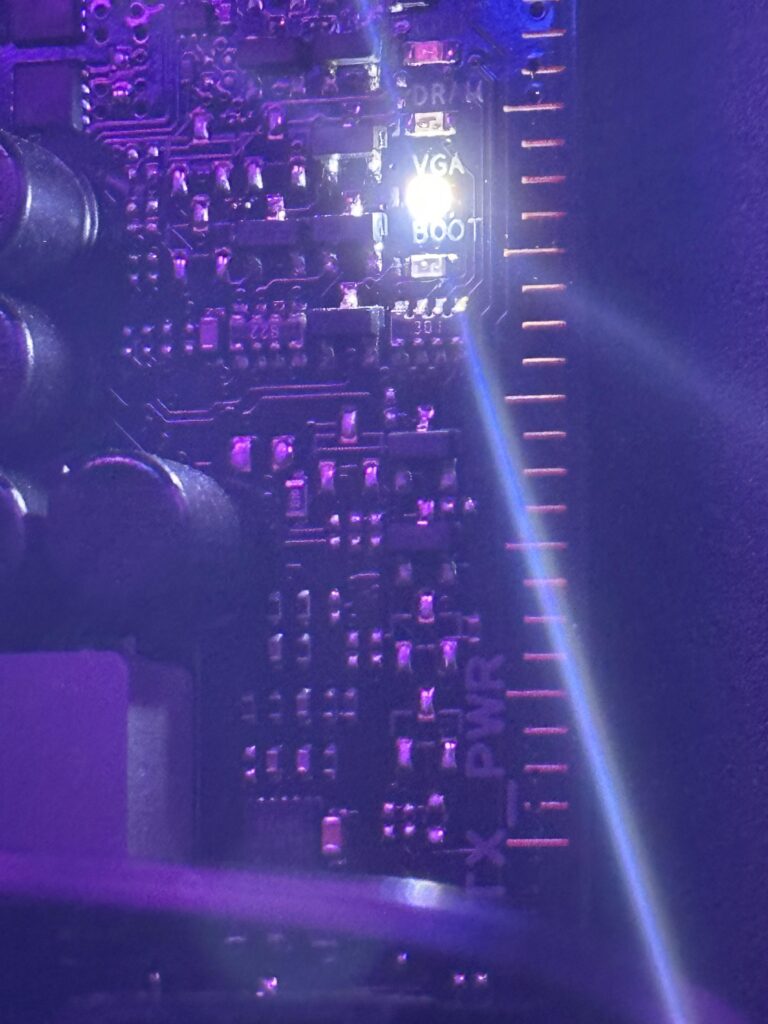
The white LED light on an ASUS motherboard is part of the Q-LED diagnostic system. ASUS designed this feature to help users identify hardware problems during the boot process. When the motherboard detects an issue, a specific LED turns on to indicate the faulty component.
In most cases, the white light is connected to the graphics card (GPU) or display-related issues. However, BIOS errors, RAM problems, or unstable power delivery can also trigger the warning indicator.
Common Causes of White Light
- Graphics card problems
- Display connection failures
- Boot device errors
- BIOS configuration issues
- Hardware compatibility problems
Main Reasons Behind ASUS Motherboard White Light
Different hardware and software problems can trigger the white VGA light on ASUS motherboards.
Graphics Card Issues
A faulty or improperly installed graphics card is one of the most common reasons behind the white motherboard LED. The motherboard may fail to detect the GPU during startup, preventing the system from displaying video output.
Common GPU Problems
- Loose graphics card installation
- Faulty PCIe slot
- Damaged GPU power cables
- GPU overheating
- Unsupported GPU model
In gaming PCs, high-performance graphics cards require stable power delivery. If the GPU does not receive enough power, the motherboard may activate the white warning light.
Display Connection Problems
Sometimes the motherboard works properly, but the monitor connection fails. A damaged display cable or incorrect monitor settings can create confusion because the PC powers on normally while the screen remains black.
Possible Display Issues
- Broken HDMI cable
- Faulty DisplayPort cable
- Incorrect monitor input source
- Loose monitor connection
- Defective monitor hardware
Testing the system with another monitor or cable can help determine whether the problem is related to external display devices.
BIOS Configuration Errors
The BIOS controls communication between all hardware components connected to the motherboard. If the BIOS settings become corrupted or outdated, the motherboard may fail to recognize important hardware components.
An outdated BIOS can also create compatibility issues with modern processors, RAM modules, or graphics cards. Resetting the BIOS or installing the latest firmware update often solves these problems.
Common BIOS Symptoms
- Black screen during startup
- Hardware detection failure
- Random system freezes
- Boot loop problems
- White motherboard LED
RAM Installation Problems
Faulty or incompatible RAM modules can interrupt the startup sequence and activate motherboard diagnostic lights.
Common RAM Problems
- Loose RAM sticks
- Unsupported RAM frequency
- Dirty memory contacts
- Defective RAM slots
- Incompatible memory modules
Testing RAM one module at a time helps users identify damaged or unstable memory quickly.
Power Supply Problems
The Power Supply Unit (PSU) is responsible for delivering stable power to all computer components. If the PSU fails to provide sufficient voltage, the motherboard may not complete the boot process successfully.
Common PSU Problems
- Insufficient wattage
- Loose motherboard cables
- Damaged power connectors
- Voltage instability
- Failing power supply unit
Cheap or low-quality power supplies often create instability in gaming systems.
How to Fix White Light on ASUS Motherboard
Proper troubleshooting methods can solve most motherboard white light issues without replacing expensive hardware.
Reconnect the Graphics Card
The first troubleshooting step is checking the graphics card installation carefully.
Follow These Steps
- Turn off the computer
- Disconnect the power cable
- Remove the graphics card carefully
- Reinstall the GPU properly
- Reconnect all GPU power cables
- Restart the computer
This method fixes many VGA-related motherboard issues successfully.
Inspect Monitor and Display Cables
External display devices should always be checked before replacing internal hardware.
Important Display Checks
- Replace damaged HDMI cables
- Test another monitor
- Use a different display port
- Verify monitor input settings
- Test integrated graphics if available
A simple cable replacement can often solve the white light problem immediately.
Reset BIOS Settings
Resetting the BIOS restores the motherboard to default factory settings.
Methods to Reset BIOS
- Remove the CMOS battery temporarily
- Use motherboard reset jumper
- Access ASUS BIOS Flashback feature
After resetting the BIOS, restart the system and check whether the white light disappears.
Test RAM Modules Individually
Faulty RAM can prevent successful system startup. Testing memory modules one by one helps locate damaged RAM quickly.
RAM Testing Process
- Remove all RAM sticks
- Install one RAM module only
- Test different memory slots
- Clean RAM contacts gently
If the system boots successfully with one RAM module, another memory stick may be faulty.
Check Power Supply Connections
Loose or damaged power cables can interrupt motherboard functionality and activate warning LEDs.
Important Power Connections
- 24-pin motherboard cable
- CPU power connector
- GPU PCIe power cables
- SATA power connectors
Stable power delivery is extremely important for gaming systems and high-performance computers.
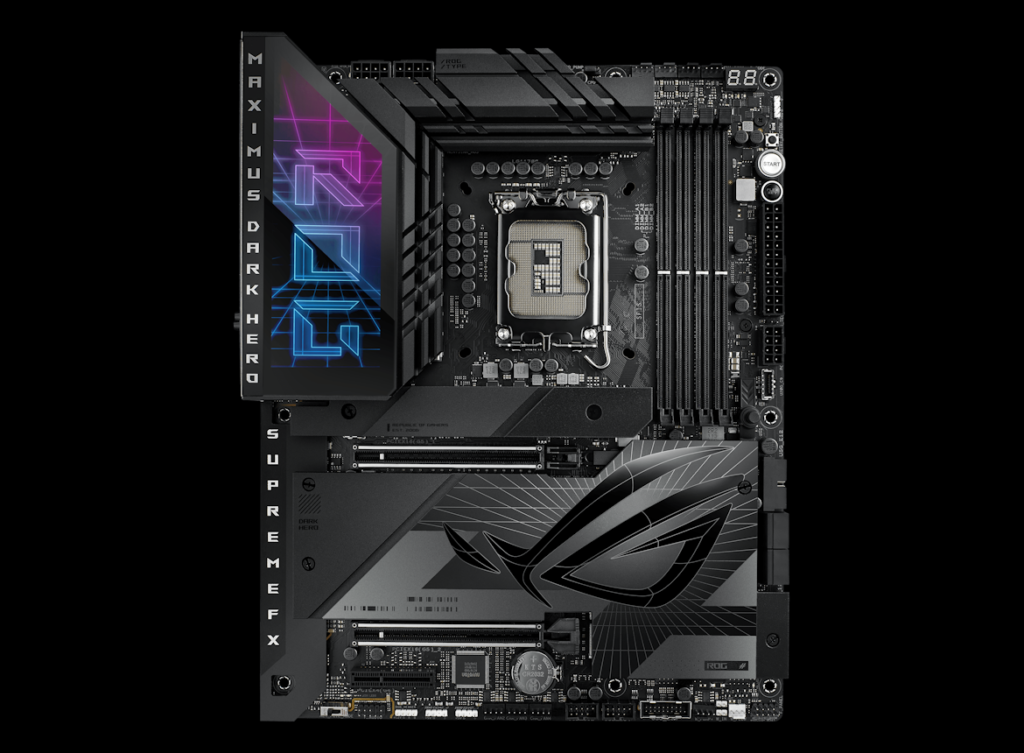
Top Features of ASUS Motherboards
ASUS motherboards are popular because they provide excellent performance, durability, and advanced technologies for gamers and professional users.
Advanced Cooling Technology
Modern ASUS motherboards include advanced cooling systems designed to maintain stable temperatures during heavy workloads and gaming sessions.
Cooling Features
- Large VRM heatsinks
- Multiple fan headers
- AI cooling optimization
- Smart fan controls
Efficient cooling improves hardware lifespan and system stability significantly.
RGB Lighting Support
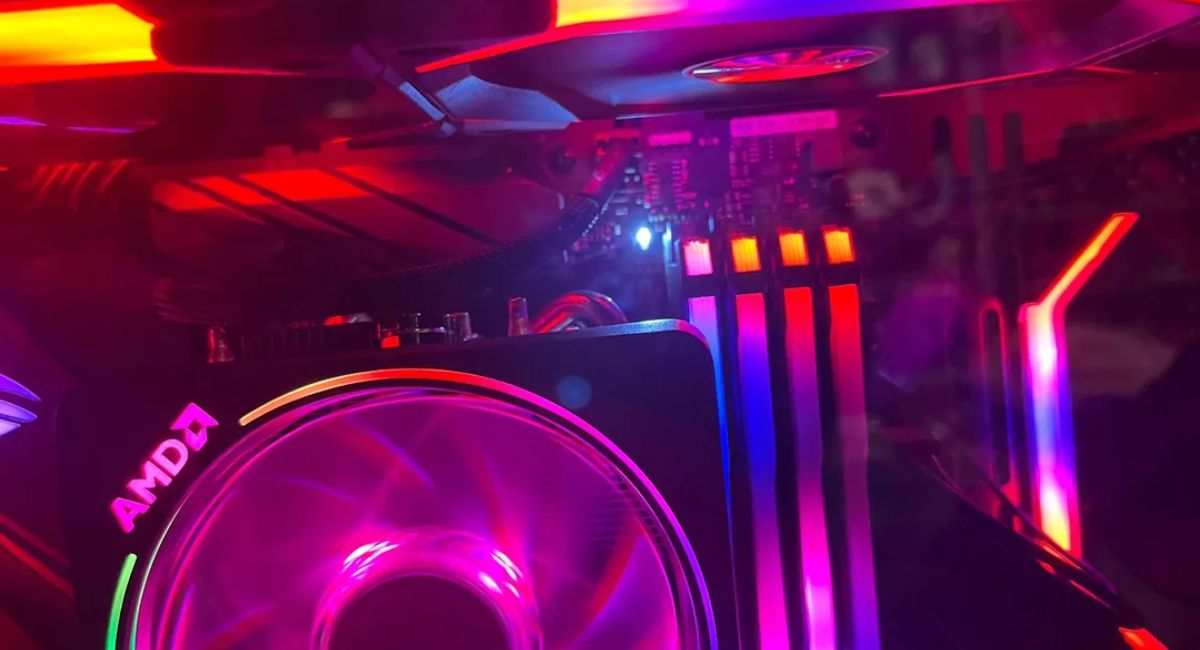
ASUS Aura Sync technology allows users to customize RGB lighting effects across compatible components.
Benefits of RGB Lighting
- Stylish gaming setup
- Synchronized lighting effects
- Multiple color customization options
- Dynamic lighting profiles
RGB lighting improves the overall appearance of gaming PCs.
High-Speed Connectivity
Modern ASUS motherboards support advanced connectivity standards for faster data transfer and improved network performance.
Supported Technologies
- PCIe 5.0
- USB Type-C
- Wi-Fi 6E
- Bluetooth connectivity
- High-speed Ethernet ports
These technologies improve gaming responsiveness and file transfer speeds.
Premium Build Quality
ASUS uses durable components and high-quality materials to increase motherboard lifespan and reliability.
Premium Components
- Reinforced PCIe slots
- High-quality capacitors
- Alloy chokes
- Premium VRM design
These components improve long-term hardware stability and performance.
Benefits of ASUS Motherboards
ASUS motherboards offer several advantages that make them popular among gamers, creators, and PC enthusiasts.
Reliable System Stability
ASUS motherboards provide stable performance during gaming, multitasking, and professional workloads.
Stability Benefits
- Better multitasking
- Fewer system crashes
- Smooth gaming experience
- Long-term reliability
Easy-to-Use BIOS Interface
The ASUS UEFI BIOS interface is beginner-friendly while still offering advanced controls for experienced users.
BIOS Features
- Easy navigation
- Fan speed controls
- Hardware monitoring tools
- Advanced overclocking options
This allows users to customize performance settings easily.
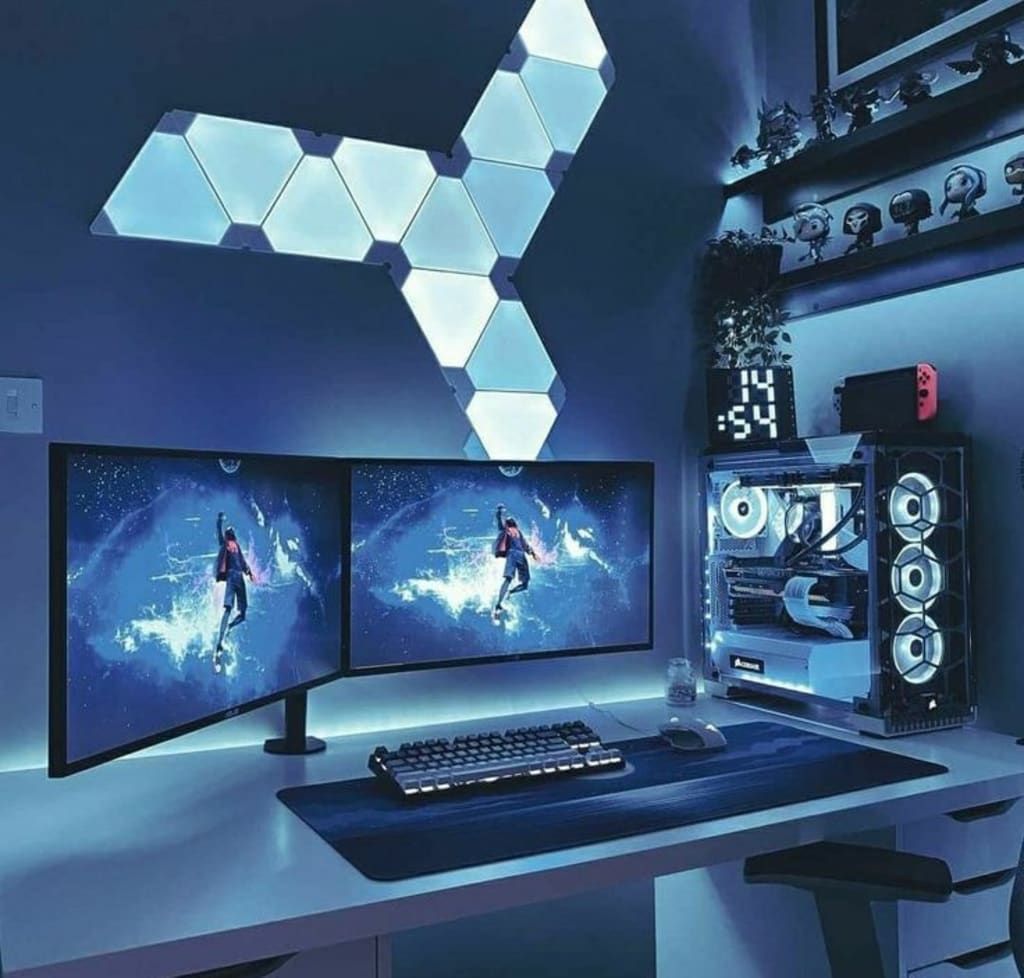
Excellent Gaming Performance
Gaming-focused ASUS motherboards improve system responsiveness and thermal efficiency.
Gaming Benefits
- Lower latency
- Faster loading speeds
- Stable FPS performance
- Better cooling efficiency
FAQ’s
1.What does the white light on an ASUS motherboard indicate?
The white motherboard light usually indicates graphics card detection issues, display connection problems, hardware compatibility errors, or startup-related motherboard failures during system boot.
2.Can faulty RAM trigger the white motherboard light?
Yes, damaged or incompatible RAM modules can interrupt the boot sequence and activate motherboard diagnostic LEDs, including the white warning light on ASUS boards.
3.How do I safely reset my ASUS motherboard BIOS?
You can reset the BIOS by removing the CMOS battery temporarily, using the reset jumper, or accessing the ASUS BIOS Flashback recovery feature safely.
4.Is the white light always related to the graphics card?
No, the white LED may also appear because of BIOS problems, monitor connection failures, RAM issues, or unstable power supply connections inside the computer.
5.Which ASUS motherboard series is best for gaming performance?
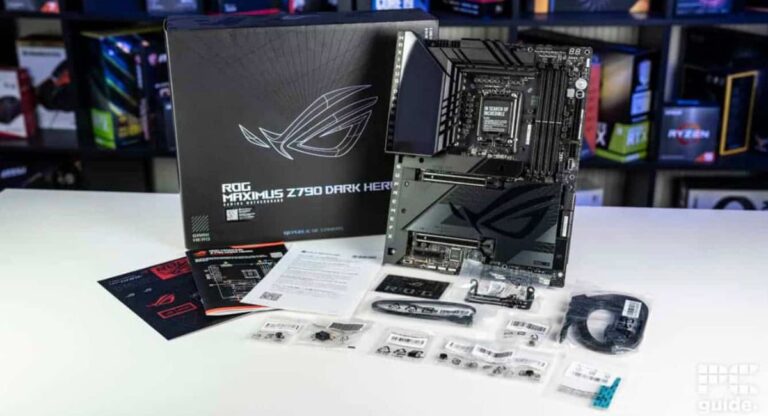
The ASUS ROG series is considered best for gaming because it offers premium cooling, RGB customization, advanced overclocking support, and powerful gaming performance features.
Conclusion
The white light on an ASUS motherboard usually indicates issues related to the graphics card, RAM, BIOS, or display connection. Problems can often be fixed by reconnecting the GPU, resetting BIOS settings, testing RAM modules, or checking power cables. ASUS motherboards are popular for their durability, gaming performance, advanced features, and long-term hardware reliability.