HDMI Port Not Working From Motherboard – Easy Fix Guide
A motherboard HDMI port not working can be frustrating, especially when your monitor displays no signal despite all cables being connected correctly. This issue can occur due to hardware limitations, BIOS settings, graphics configuration problems, or outdated drivers. In many cases, the motherboard HDMI port is functional, but a system setting prevents it from working properly. This guide explains the causes, troubleshooting steps, and solutions to help restore video output through your motherboard HDMI connection.
Learn how to fix an HDMI port not working from motherboard with simple troubleshooting steps, BIOS settings, driver updates, and hardware checks.
- What Causes a Motherboard HDMI Port to Stop Working?
- How Does the Motherboard HDMI Port Work?
- Signs That the Motherboard HDMI Port Is Not Working
- Check Whether Your CPU Supports Integrated Graphics
- Inspect the HDMI Cable and Monitor
- Verify Monitor Input Settings
- Enable Integrated Graphics in BIOS
- Update Graphics Drivers
- BIOS Settings That Can Affect HDMI Output
- Disconnect the Dedicated Graphics Card
- Test Another Display Port
- Common Mistakes to Avoid
- When to Update BIOS
- When the HDMI Port May Be Physically Damaged
- Tips to Prevent HDMI Problems
- Frequently Asked Questions
- Conclusion
- Related post
What Causes a Motherboard HDMI Port to Stop Working?
When the HDMI port not working from the motherboard issue occurs, the problem is often related to graphics settings rather than a faulty port.
In many cases, disabled integrated graphics, outdated drivers, incorrect BIOS settings, or an unsupported CPU can prevent the HDMI port from displaying a signal.
Before assuming the port is damaged, it is important to check these common causes, as they are usually responsible for the issue.
Common Causes
- CPU does not support integrated graphics
- HDMI cable is damaged
- Incorrect display settings
- Outdated graphics drivers
- BIOS settings disabling onboard graphics
- Monitor input source is incorrect
- Hardware connection issues
Understanding the cause helps identify the correct solution more quickly.
How Does the Motherboard HDMI Port Work?
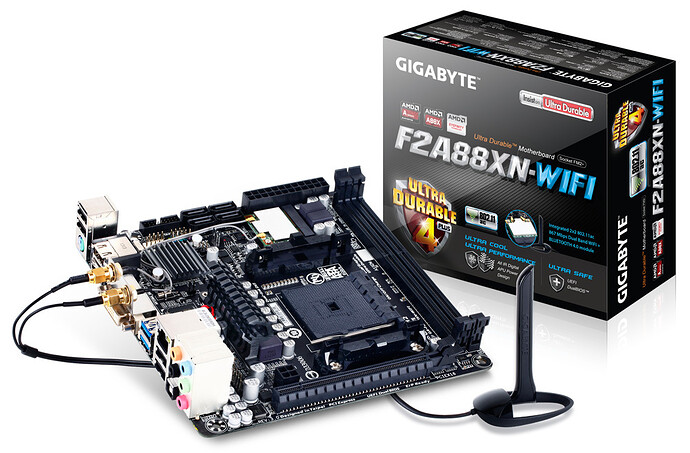
The HDMI port on a motherboard depends on the processor’s integrated graphics. If your CPU lacks an integrated GPU, the motherboard video ports will not produce a display signal.
Components Required
- Compatible motherboard
- CPU with integrated graphics
- Working HDMI cable
- Supported monitor
Without integrated graphics support, the motherboard HDMI port cannot function regardless of software settings.
Signs That the Motherboard HDMI Port Is Not Working
Several symptoms indicate an HDMI-related problem.
Common Signs
- No signal on monitor
- Black screen during startup
- Display works only through graphics card
- Monitor repeatedly loses connection
- HDMI detected but no image appears
Recognizing these symptoms helps narrow down the troubleshooting process.
Check Whether Your CPU Supports Integrated Graphics
Before attempting advanced fixes, verify that your processor includes integrated graphics.
Examples of CPUs With Integrated Graphics
- AMD Ryzen G-Series processors
- Intel processors without the “F” suffix
- Many modern laptop CPUs
Examples Without Integrated Graphics
- Intel processors ending with “F”
- Some AMD Ryzen non-G models
If your processor lacks integrated graphics, the motherboard HDMI port will not output video.
Inspect the HDMI Cable and Monitor
A faulty cable is one of the most common causes of display problems.
What to Check
- Loose cable connections
- Bent HDMI connector pins
- Damaged cable insulation
- Incorrect monitor input source
Try using another HDMI cable or a different monitor to rule out hardware failure.
Verify Monitor Input Settings
Many monitors have multiple input options.
Steps
- Open monitor menu.
- Locate Input Source settings.
- Select HDMI manually.
- Restart monitor.
Sometimes the monitor is simply set to DisplayPort or another unused connection.
Enable Integrated Graphics in BIOS
Some motherboards disable onboard graphics automatically when a dedicated graphics card is installed.
Steps to Enable Integrated Graphics
- Enter BIOS during startup.
- Navigate to Advanced Settings.
- Locate Integrated Graphics Configuration.
- Enable onboard graphics.
- Save changes and restart.
This setting allows the motherboard HDMI port to function correctly.
Update Graphics Drivers
Outdated drivers can cause display detection issues.
Driver Update Benefits
- Better hardware compatibility
- Improved display stability
- Resolution issue fixes
- Enhanced graphics performance
Visit your motherboard or processor manufacturer’s website and install the latest drivers.
BIOS Settings That Can Affect HDMI Output
Certain BIOS settings may prevent display output through the motherboard.
| Setting | Recommended Value |
| Integrated Graphics | Enabled |
| Primary Display | Auto or IGD |
| CSM Support | Default |
| PCIe Graphics Priority | Balanced |
Reviewing these settings can often resolve HDMI problems.
Disconnect the Dedicated Graphics Card
If you use a dedicated GPU, your system may prioritize it automatically.
Steps
- Shut down computer
- Remove graphics card temporarily
- Connect monitor to motherboard HDMI
- Restart system
If the display appears, the issue is likely related to graphics priority settings.
Test Another Display Port
Many motherboards include multiple video outputs.
Alternative Connections
- DisplayPort
- DVI
- VGA (older systems)
Testing another port helps determine whether the HDMI port itself is faulty.
Common Mistakes to Avoid
Avoid These Errors
- Assuming all CPUs support onboard graphics
- Updating BIOS unnecessarily
- Using damaged cables
- Ignoring monitor input settings
- Connecting HDMI to the wrong port
These mistakes often lead to wasted troubleshooting time.
When to Update BIOS
A BIOS update may help if your motherboard has known display compatibility issues.
Update BIOS If
- Manufacturer recommends it
- Display problems began after hardware upgrade
- New CPU support is required
Only update BIOS when necessary and follow official instructions carefully.
When the HDMI Port May Be Physically Damaged
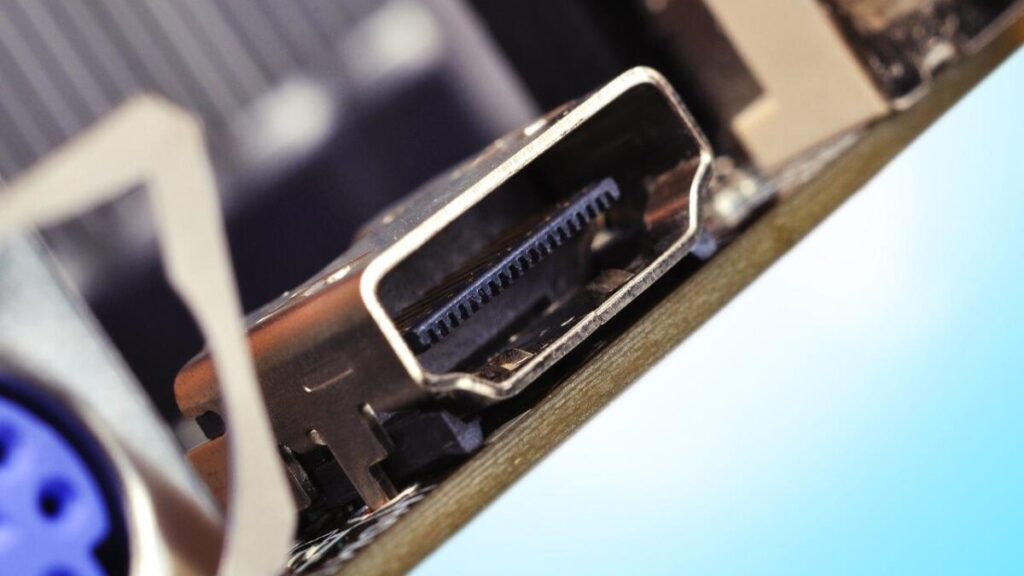
Sometimes the HDMI port itself is defective.
Signs of Physical Damage
- Loose connector
- Broken pins
- Visible burn marks
- Intermittent display signal
If physical damage is present, professional repair or motherboard replacement may be necessary.
Tips to Prevent HDMI Problems
Best Practices
- Use quality HDMI cables
- Keep drivers updated
- Avoid excessive cable bending
- Clean motherboard ports regularly
- Verify compatibility before upgrades
Following these steps can help prevent future display issues.
Frequently Asked Questions
1. Why is my motherboard HDMI port showing no signal?
The most common reasons are disabled integrated graphics, unsupported CPU, faulty cable, or incorrect monitor input settings.
2. Does every CPU support motherboard HDMI output?
No. The CPU must include integrated graphics for motherboard HDMI ports to function.
3. Can a BIOS update fix HDMI problems?
Yes, in some cases a BIOS update improves display compatibility and resolves video output issues.
4. Why does HDMI work on my graphics card but not on the motherboard?
The system may be prioritizing the dedicated GPU, or your processor may not support integrated graphics output.
5. Can a damaged HDMI cable cause a black screen?
Yes. A faulty HDMI cable can prevent signal transmission and result in a black or no-signal display.
Conclusion
The HDMI port not working from the motherboard issue is usually caused by graphics configuration problems, unsupported processors, faulty cables, or BIOS settings. By checking CPU compatibility, enabling integrated graphics, updating drivers, and verifying hardware connections, most users can solve the problem without replacing components. Following the troubleshooting steps in this guide will help restore display output and ensure your system operates correctly.