How to Get Motherboard Serial Number from PowerShell
Finding your motherboard serial number is important for warranty claims, troubleshooting, BIOS updates, and hardware compatibility checks. Many Windows users can easily access this information using PowerShell without opening the computer case. PowerShell is a built-in Windows tool that quickly retrieves hardware details safely and accurately. Whether you are a gamer, technician, or beginner, learning how to get motherboard serial number from PowerShell helps manage and identify computer hardware efficiently and securely.
Learn how to get motherboard serial number from PowerShell using simple commands to quickly check motherboard details, warranty info, and hardware data.
- What Is a Motherboard Serial Number
- What Is PowerShell
- How to Open PowerShell in Windows
- How to Get Motherboard Serial Number from PowerShell
- Alternative PowerShell Command
- Understanding the Output Information
- Common Reasons the Serial Number Does Not Appear
- How to Fix Missing Serial Number Problems
- Other Ways to Find Motherboard Serial Number
- Using Command Prompt
- Using BIOS Settings
- Physical Inspection Method
- Why Gamers and PC Builders Need the Serial Number
- Importance for IT Professionals
- Security and Privacy Considerations
- Troubleshooting PowerShell Errors
- Best Practices for Using PowerShell
- Advantages of Learning PowerShell
- Common Motherboard Manufacturers
- Tips for Beginners
- FAQ’s
- Conclusion
- Related post
What Is a Motherboard Serial Number
A motherboard serial number is a unique identification code assigned by the motherboard manufacturer.
Every motherboard contains its own serial number that helps companies identify the product model, manufacturing details, and warranty information.
This serial number is especially useful when contacting technical support or registering hardware products online.
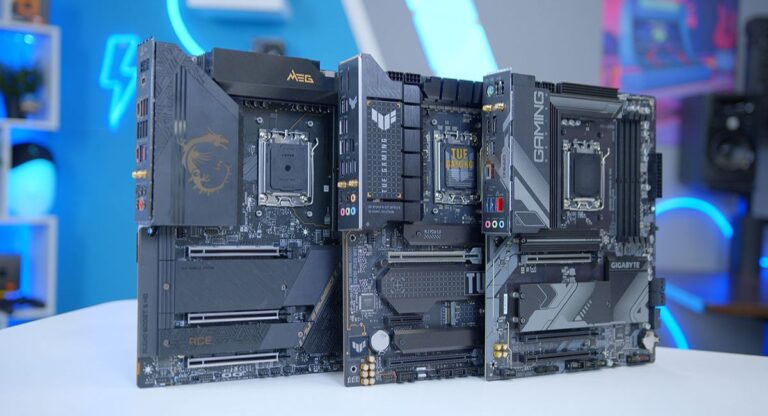
Manufacturers such as ASUS, MSI, Gigabyte, and ASRock commonly use serial numbers for customer service and warranty validation.
Why the Motherboard Serial Number Matters
- Warranty verification
- Technical support requests
- BIOS and driver downloads
- Hardware replacement
- System inventory management
- PC troubleshooting
- Upgrade compatibility checks
What Is PowerShell
PowerShell is a powerful command-line tool developed by Microsoft. It is included with Windows operating systems and is designed for system management, automation, and advanced administrative tasks.
Unlike the traditional Command Prompt, PowerShell provides more advanced commands and better access to system information.
It can display details related to hardware, software, storage, networking, and operating system configurations.
Benefits of Using PowerShell
- Built directly into Windows
- Easy to access
- Fast hardware information retrieval
- No third-party software required
- Safe and reliable
- Useful for beginners and professionals
Many users prefer PowerShell because it provides quick access to motherboard information without requiring physical inspection of the PC hardware.
Opening the computer case can be difficult for beginners and may even void warranties in some situations. PowerShell solves this problem by displaying hardware details instantly through simple commands.
Main Advantages
- Quick process
- No hardware disassembly
- Accurate motherboard information
- Supports Windows 10 and Windows 11
- Useful for remote troubleshooting
- Ideal for IT administrators
How to Open PowerShell in Windows
Before checking the motherboard serial number, users need to open PowerShell properly.
Method 1: Using Windows Search
- Press Windows + S
- Type PowerShell
- Click Windows PowerShell
- Select Run as Administrator for full permissions
Method 2: Using the Start Menu
- Open the Start Menu
- Search for PowerShell
- Launch the application
Method 3: Using the Run Dialog
- Press Windows + R
- Type powershell
- Press Enter
How to Get Motherboard Serial Number from PowerShell
The easiest method involves entering a simple PowerShell command.
Main PowerShell Command
Get-WmiObject win32_baseboard | Format-List Product,Manufacturer,SerialNumber
After running the command, PowerShell displays important motherboard details.
Information Included
- Manufacturer
- Product name
- Motherboard model
- Serial number
Example Output
Manufacturer : ASUS
Product : PRIME B550M-A
SerialNumber : MB123456789
This output confirms the motherboard brand, product model, and serial number.
Alternative PowerShell Command
Some users prefer alternative commands depending on their Windows version.
Alternative Command
wmic baseboard get product,Manufacturer,version,serialnumber
This command provides similar information and works on many Windows systems.
Output Example
Manufacturer Product Version SerialNumber
MSI B450 TOMAHAWK 1.0 ABCD123456
Understanding the Output Information
When PowerShell displays motherboard details, each field has a specific purpose.
Manufacturer
Shows the motherboard brand such as:
- ASUS
- MSI
- Gigabyte
- ASRock
- Biostar
Product
Displays the motherboard model number.
Version
Indicates the motherboard revision or hardware version.
Serial Number
Provides the unique identification code used for support and warranty services.
Common Reasons the Serial Number Does Not Appear
Sometimes PowerShell may show blank information or default text like “To Be Filled By O.E.M.”
This issue usually happens because the motherboard manufacturer did not correctly store the serial number inside the BIOS firmware.
Common Causes
- Incorrect BIOS configuration
- Outdated motherboard firmware
- Generic motherboard information
- Custom-built PC limitations
- Manufacturer setup errors
How to Fix Missing Serial Number Problems
Several solutions may help if the motherboard serial number does not appear correctly.
Update the BIOS
Updating the BIOS can sometimes restore missing motherboard information.
Run PowerShell as Administrator
Administrator mode allows PowerShell to access deeper system information.
Restart the Computer
A simple restart may refresh system hardware data.
Use Manufacturer Software
Many motherboard companies provide software tools that display hardware information.
Check Physical Labels
If software methods fail, the serial number may be printed directly on the motherboard.
Other Ways to Find Motherboard Serial Number
Although PowerShell is one of the easiest methods, there are other options available.
Using Command Prompt
Command Prompt can also retrieve motherboard details.
Command Prompt Command
wmic baseboard get serialnumber
This command displays only the motherboard serial number.
Using BIOS Settings
Users can also find motherboard information directly inside BIOS or UEFI settings.
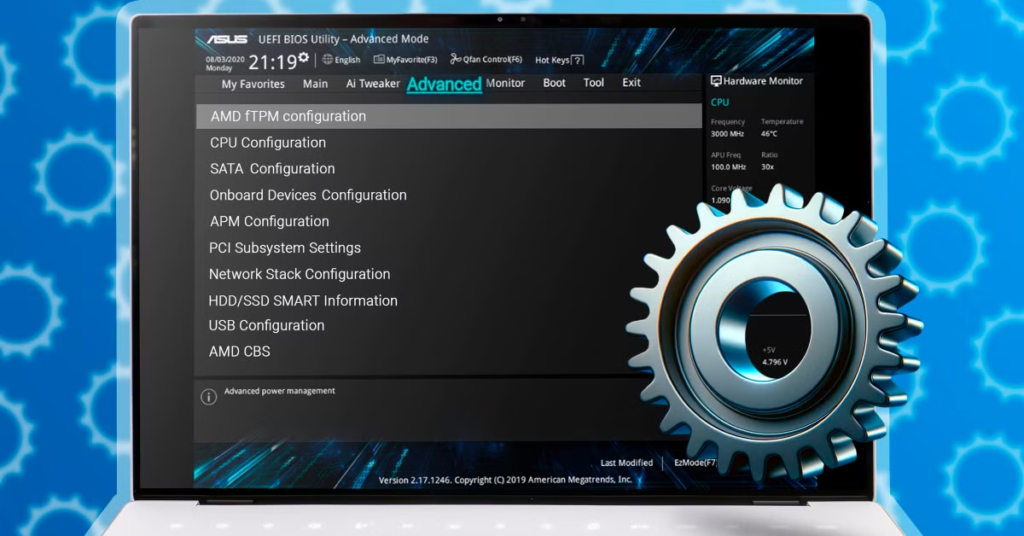
Steps
- Restart the computer
- Enter BIOS using keys like F2, Delete, or F10
- Open the System Information section
- View motherboard details
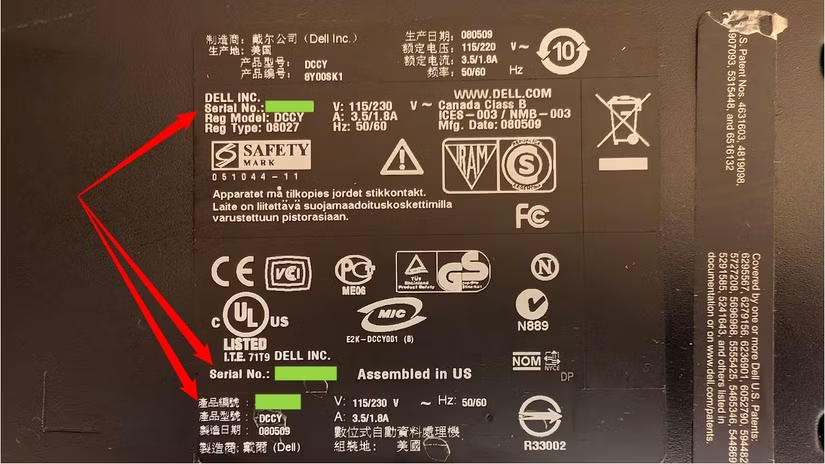
Physical Inspection Method
Many motherboards include printed labels containing:
- Serial number
- Product model
- Manufacturing details
However, this method requires opening the PC case.
Why Gamers and PC Builders Need the Serial Number
Gamers and PC enthusiasts often need motherboard serial numbers when upgrading systems or troubleshooting hardware problems.
Important Uses
- Installing BIOS updates
- Checking hardware compatibility
- Ordering replacement parts
- Registering gaming hardware
- Verifying authentic products
Importance for IT Professionals
IT administrators frequently use PowerShell because it simplifies hardware management across multiple systems.
IT Advantages
- Remote hardware monitoring
- Inventory management
- Faster troubleshooting
- Automated system reports
- Enterprise device management
PowerShell commands can even be automated for large networks.
Security and Privacy Considerations
A motherboard serial number is unique to your computer hardware. Although it is not highly sensitive like passwords, users should still avoid sharing it publicly online.
Security Tips
- Share serial numbers only with trusted support teams
- Avoid posting hardware details publicly
- Store warranty records securely
- Keep system information private
Troubleshooting PowerShell Errors
Some users may encounter errors while running PowerShell commands.
Common Errors
- Access denied
- Invalid command
- WMI service issues
- Restricted permissions
- No output displayed
Solutions
- Run PowerShell as administrator
- Restart Windows Management Instrumentation services
- Verify command spelling
- Update Windows system files
- Restart the computer
Best Practices for Using PowerShell
PowerShell is powerful, so users should follow safe practices while using commands.
Recommended Practices
- Use trusted commands only
- Avoid unknown scripts
- Keep Windows updated
- Backup important files regularly
- Learn basic PowerShell syntax
Advantages of Learning PowerShell
Learning PowerShell offers benefits beyond checking motherboard serial numbers.
Additional Tasks PowerShell Can Perform
- Check CPU details
- View RAM information
- Monitor storage devices
- Manage system services
- Automate administrative tasks
- Retrieve network information
PowerShell is widely used in professional IT environments because of its flexibility and efficiency.
Common Motherboard Manufacturers
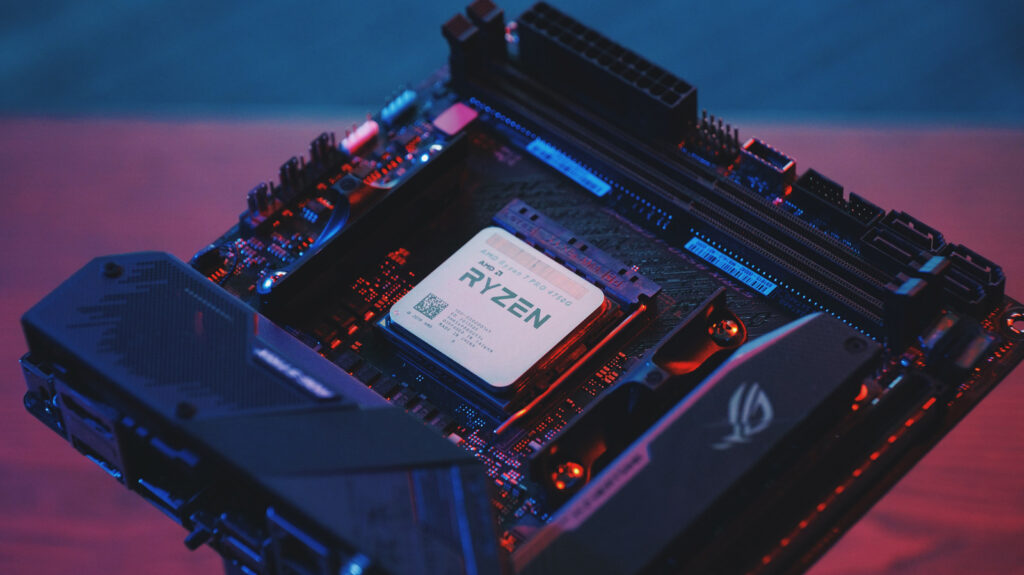
Different motherboard brands may display information differently in PowerShell.
Popular Manufacturers
- ASUS
- MSI
- Gigabyte
- ASRock
- EVGA
- Biostar
Each company uses unique motherboard serial formats.
Tips for Beginners
Beginners should follow simple guidelines while using PowerShell for hardware information.
Beginner Tips
- Copy commands carefully
- Use administrator mode
- Avoid editing system files
- Learn basic PowerShell commands
- Verify hardware information
FAQ’s
1.How do I get the motherboard serial number from PowerShell?
You can use the command in PowerShell to display the motherboard manufacturer, model, and serial number information instantly.
2.Why is my motherboard serial number missing?
Some manufacturers fail to store motherboard details correctly inside BIOS firmware, which can cause PowerShell to display blank or incomplete information.
3.Is PowerShell safe for checking motherboard details?
Yes, PowerShell is a secure built-in Windows utility that safely retrieves motherboard and hardware information using official Microsoft system commands.
4.Can I find motherboard serial numbers without opening my PC?
Yes, PowerShell allows users to retrieve motherboard serial numbers and hardware details without physically opening or disassembling the computer system.
5.Does this PowerShell method work on Windows 11?
Yes, PowerShell commands for checking motherboard serial numbers work properly on Windows 11, Windows 10, and several older Windows versions.
Conclusion
Learning how to get a motherboard serial number from PowerShell helps users quickly access important hardware details without opening the computer. PowerShell provides a secure and reliable method for checking motherboard information for troubleshooting, warranty claims, BIOS updates, and hardware upgrades. It is an efficient tool for gamers, technicians, and Windows users who need accurate motherboard serial number information quickly.